Menu map and team roles
After opening an event from Work → Manage event, its bottom menu has these five sections.
| Menu | Contents |
|---|---|
| Overview | Publish status, event link, when & where, guest numbers, visibility, Team |
| Guests | Registrants, approvals, CSV import/export |
| Onsite | Check-in & gates · Booths · Stamps · Raffles |
| Insights | Registrations, attendance, booths, raffles; Excel download |
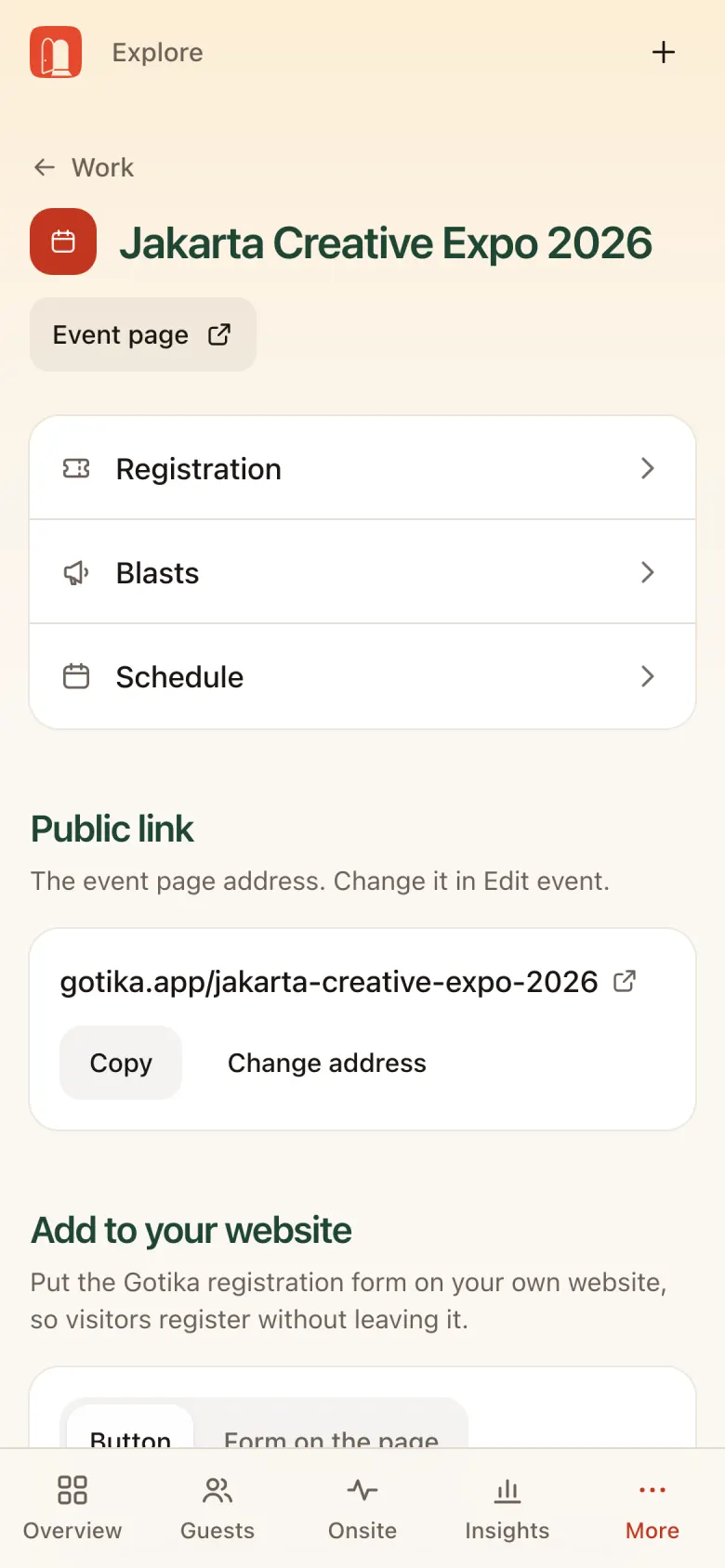
| More | Registration (tickets & form), Blasts, Schedule, public link, add to your website |
Event team roles
| Role | Access |
|---|---|
| Co-host | Manages every part of the event |
| Check-in staff | Staff mode only: gate scanner, manual search, walk-in, live dashboard. See the Check-in Staff Guide. |
| Booth admin | Invited per booth from Onsite → Booths. Manages the booth profile and staff. See the Exhibitor Guide. |
One app: One app for every role: event.gotika.app. The menus follow the account’s access. Sign-in is always email + a 6-digit code, no password.
Home and Work
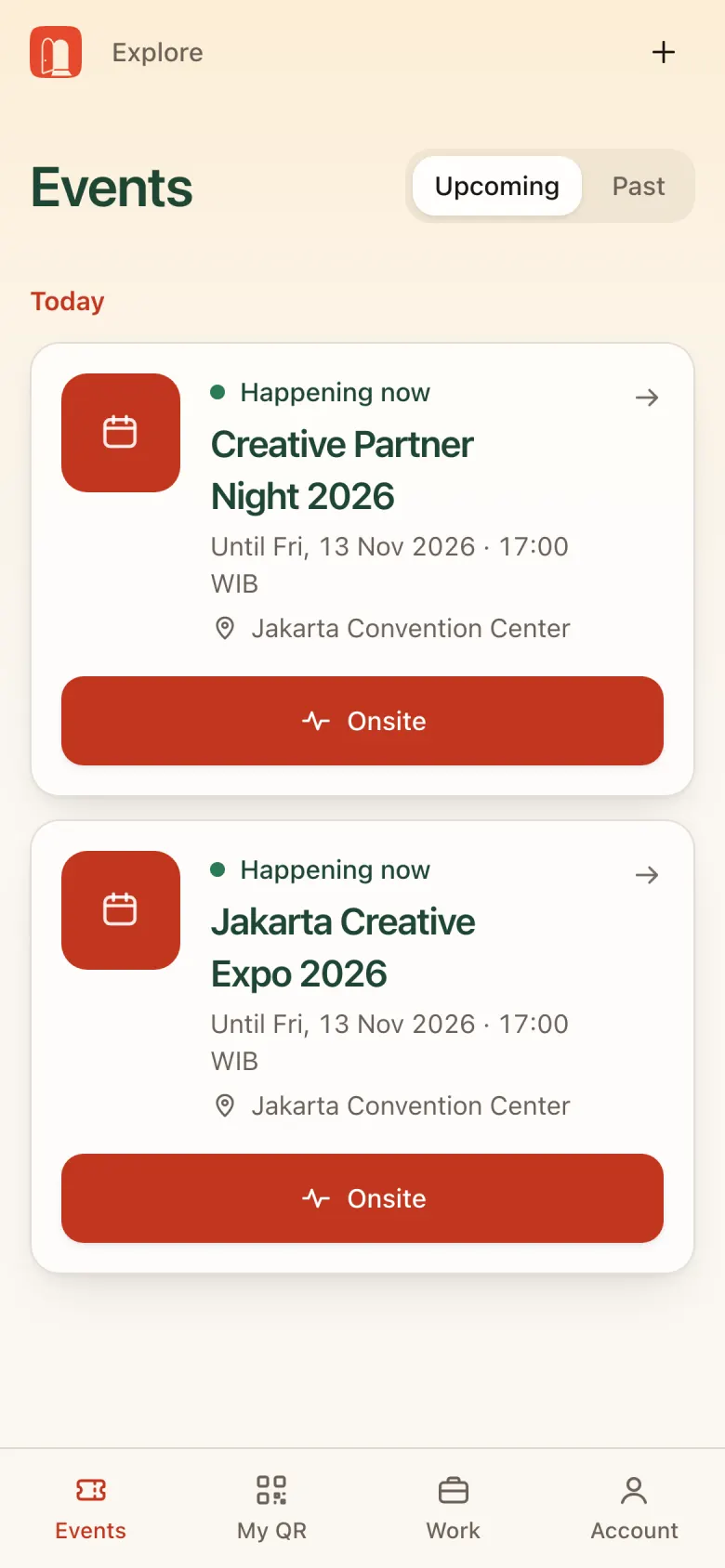
Home (Events) shows the events you attend or manage. While an event is running, the Today card has an Onsite button that jumps to the onsite panel.
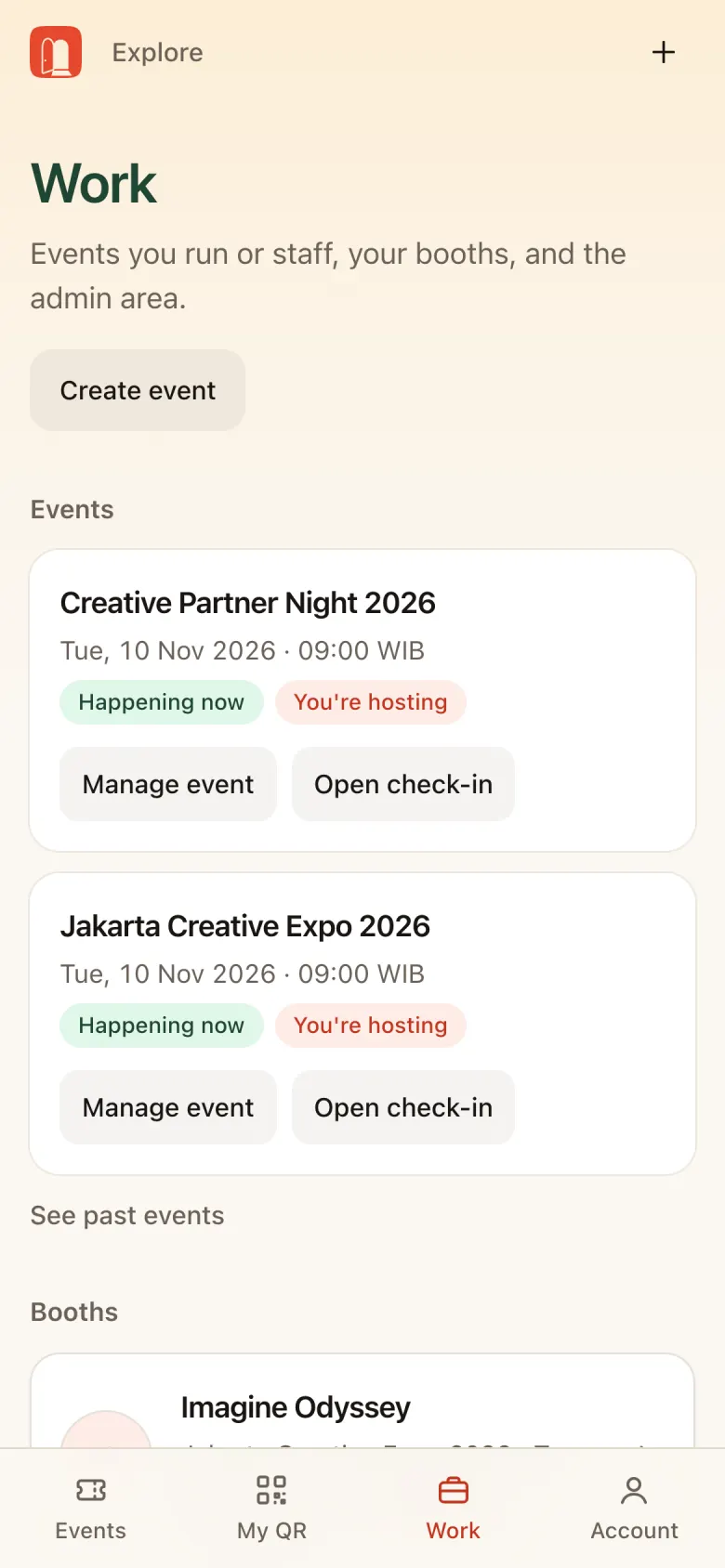
Work lists every event you manage (Manage event, Open check-in) and the booths you run. The Create event button is here too.
Create an event
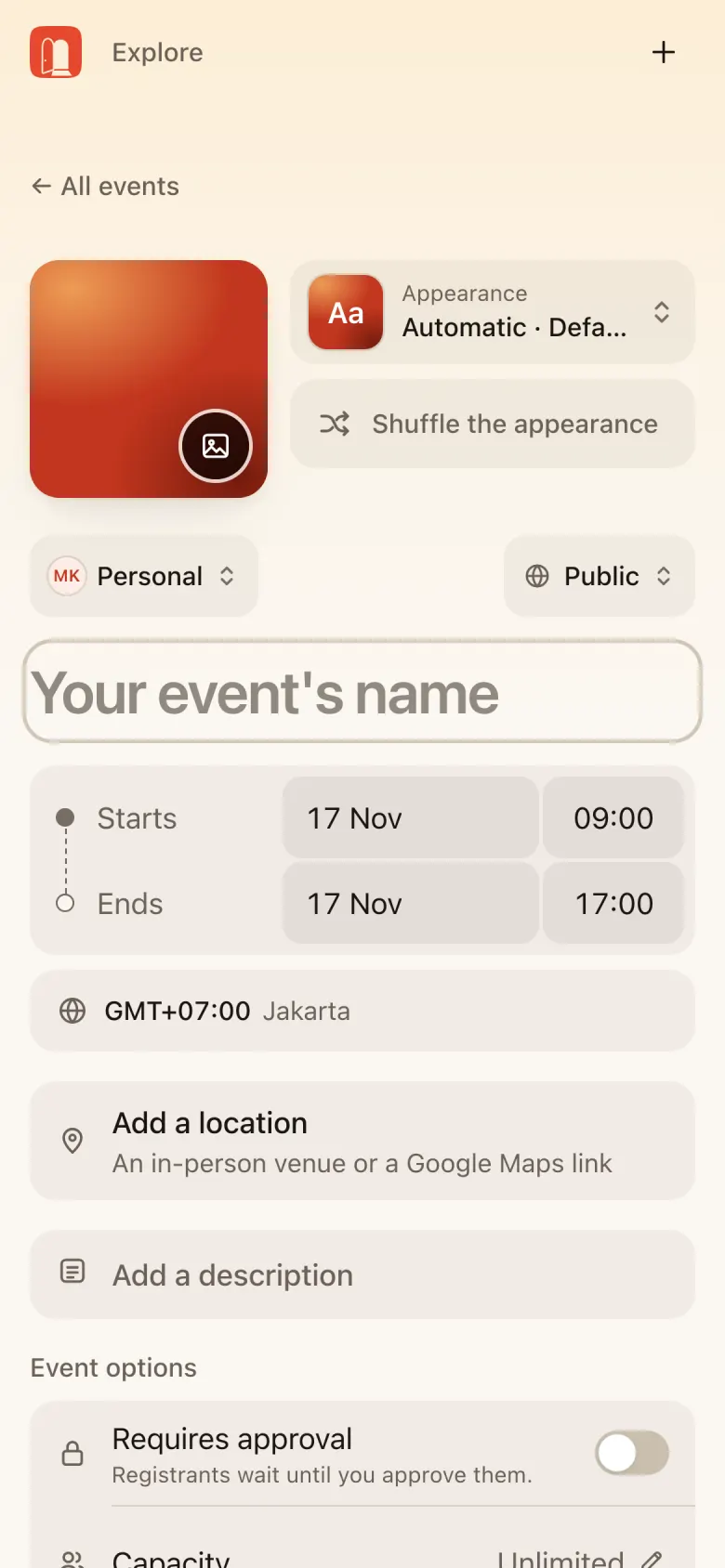
From Work → Create event:
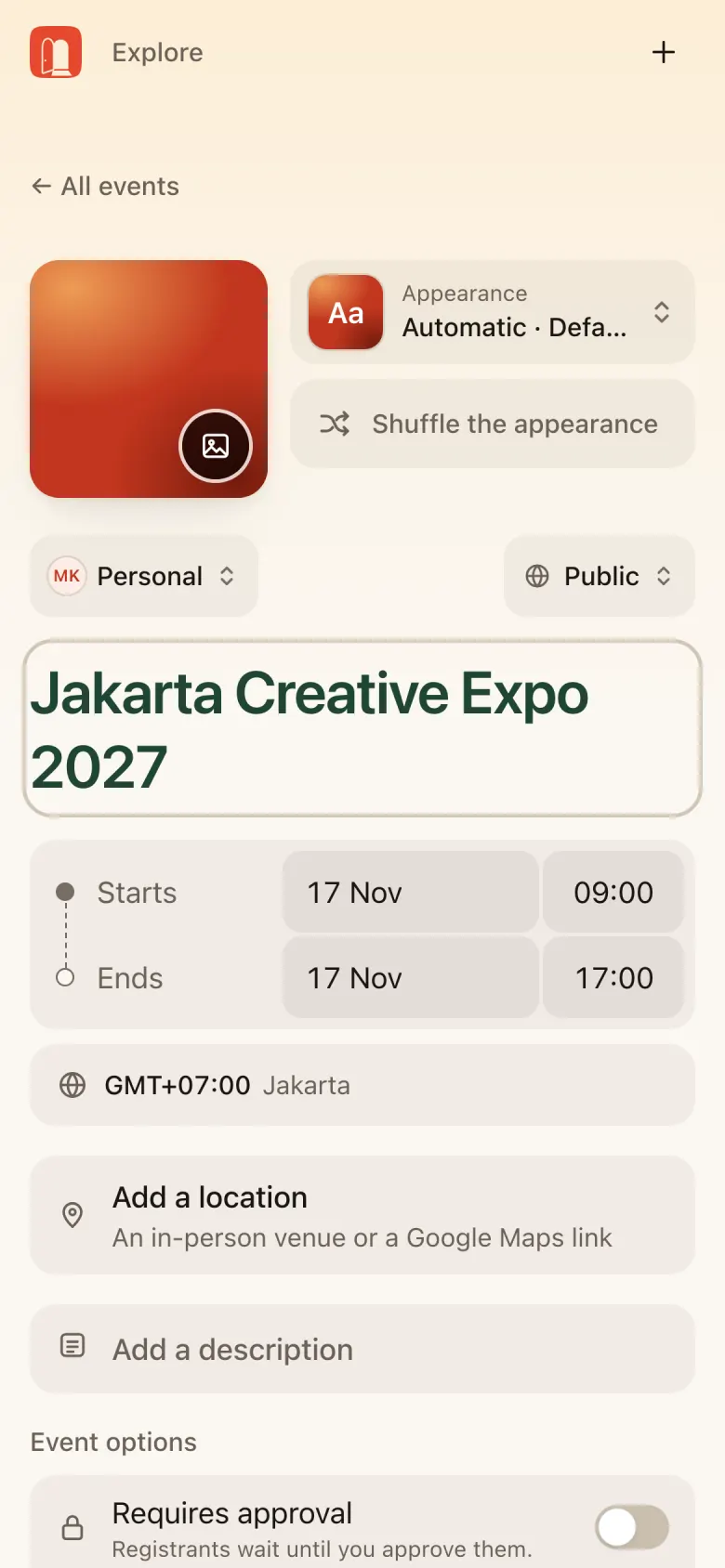
- Cover and name: pick a cover and title font, then type the event name.
- Time: set Starts and Ends (date, time, time zone).
- Location: Add a location (search Google Maps or type it in) or an online link.
- Description and options: Add a description, then set Event options: approval and capacity.
- Save: choose Public or Private, then Create event. The event is created as a draft.
Overview and publishing
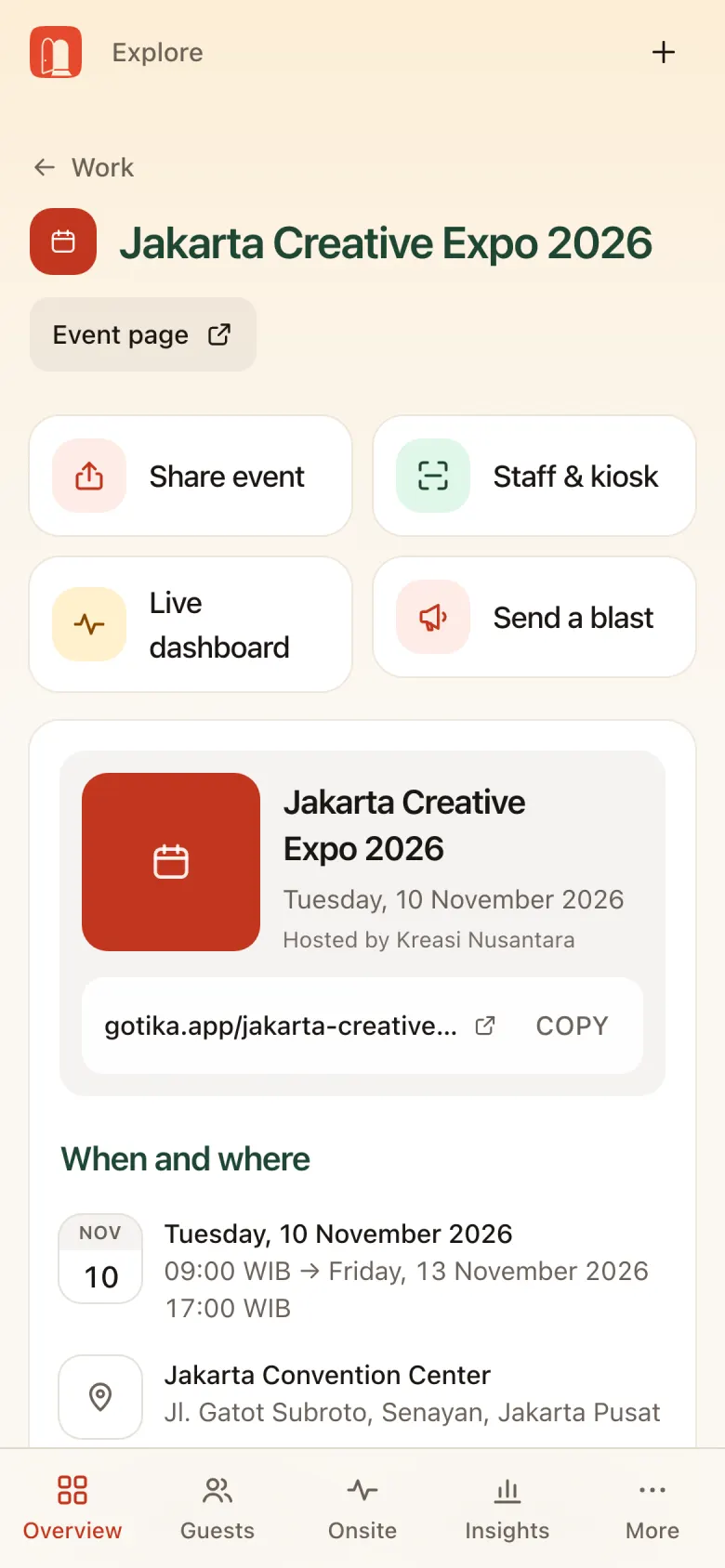
Overview is the event’s hub.
- Shortcuts: Share event, Staff & kiosk, Live dashboard, Send a blast
- Event card with the public link and a COPY button
- When and where
- Publish status: Publish for drafts; published events have Back to draft and Cancel event
- Guests numbers: total, approved, pending, waitlisted, invited
- Visibility: Public (listed in Explore and on the host’s page) or Private
- Team (see the Event team section)
Edit the event
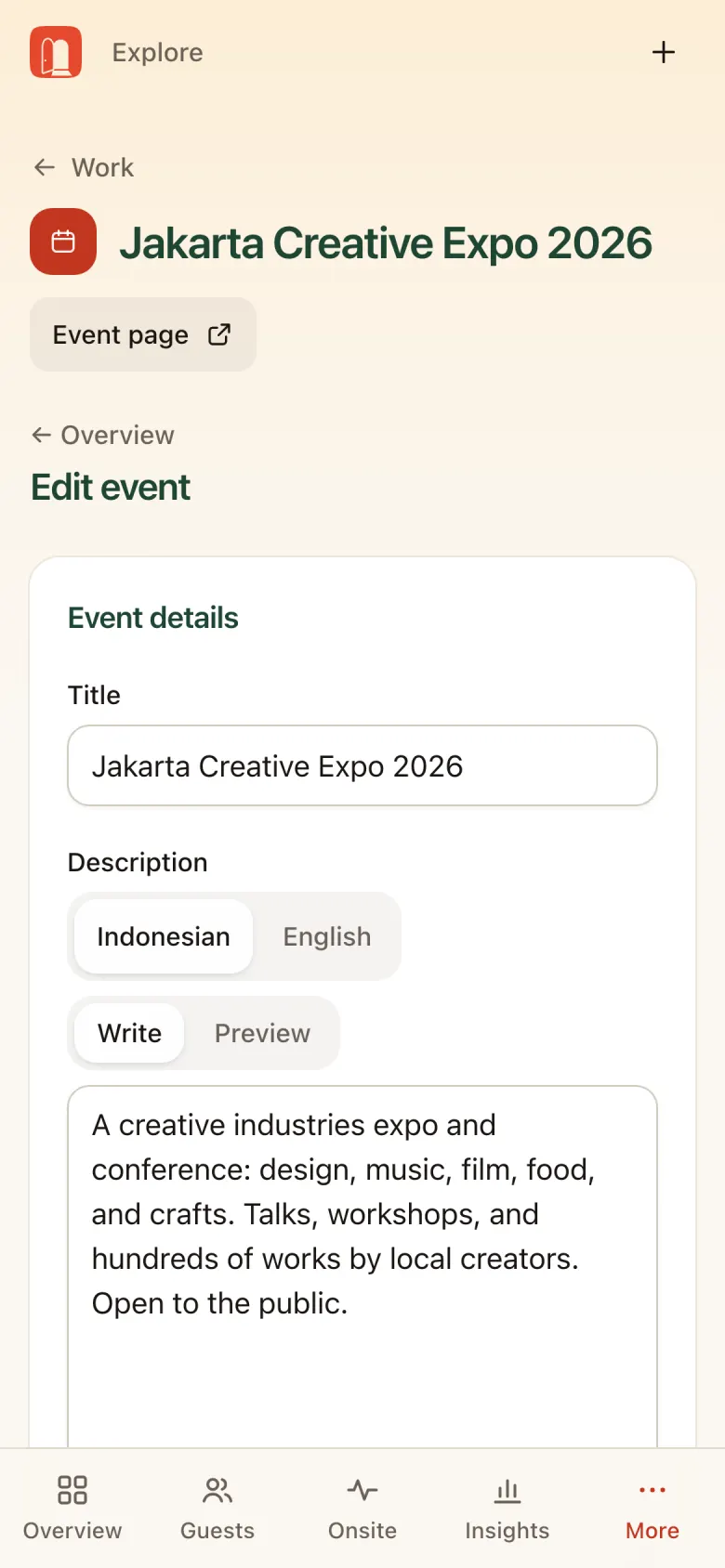
From More or the edit link on Overview:
- Title and Description in two languages (Indonesia / English), with Write / Preview modes (Markdown supported)
- Page address (the
gotika.app/...slug) - Time, Time zone, registration open/close schedule
- Location, directions, and who can see the address
- Appearance: cover image, accent color, title font
Guests and approvals
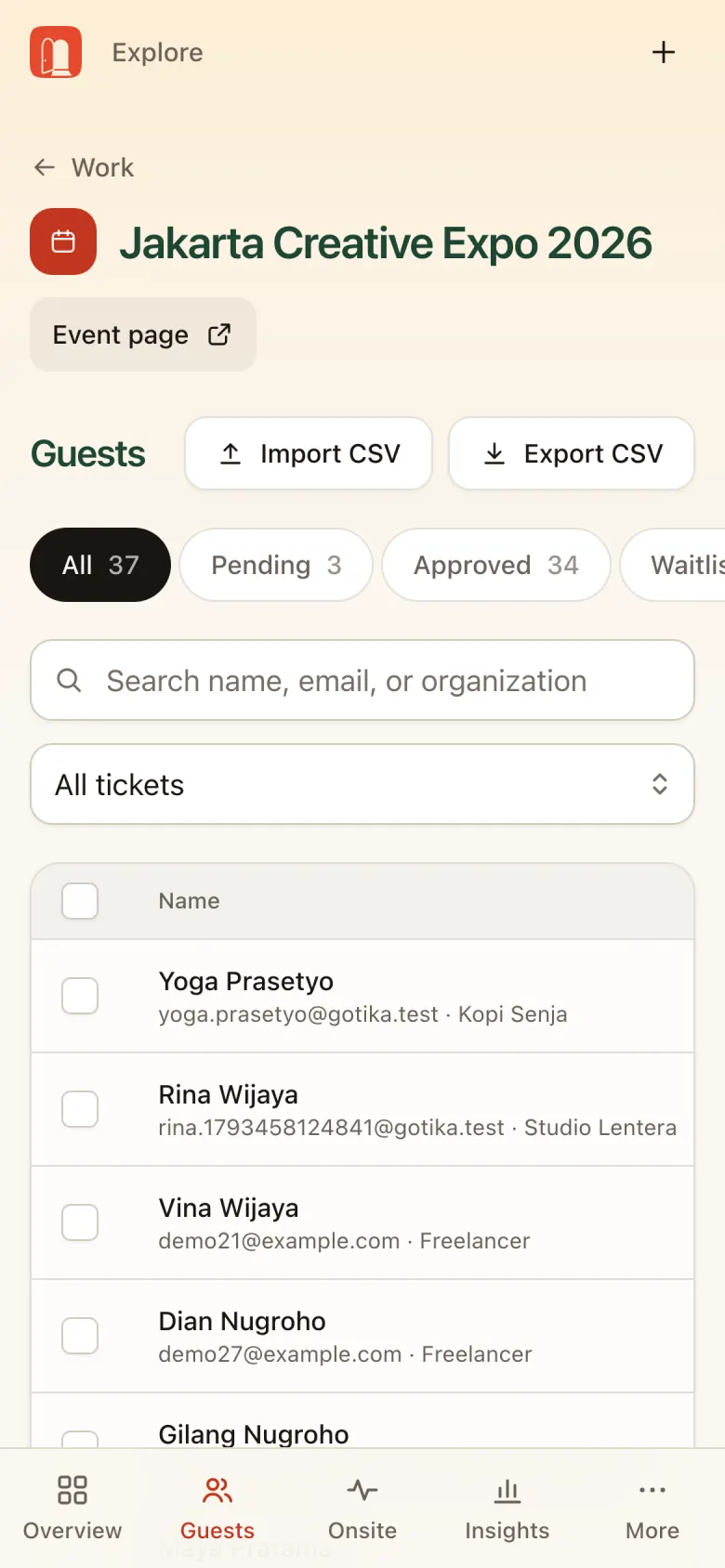
The Guests menu holds every registrant.
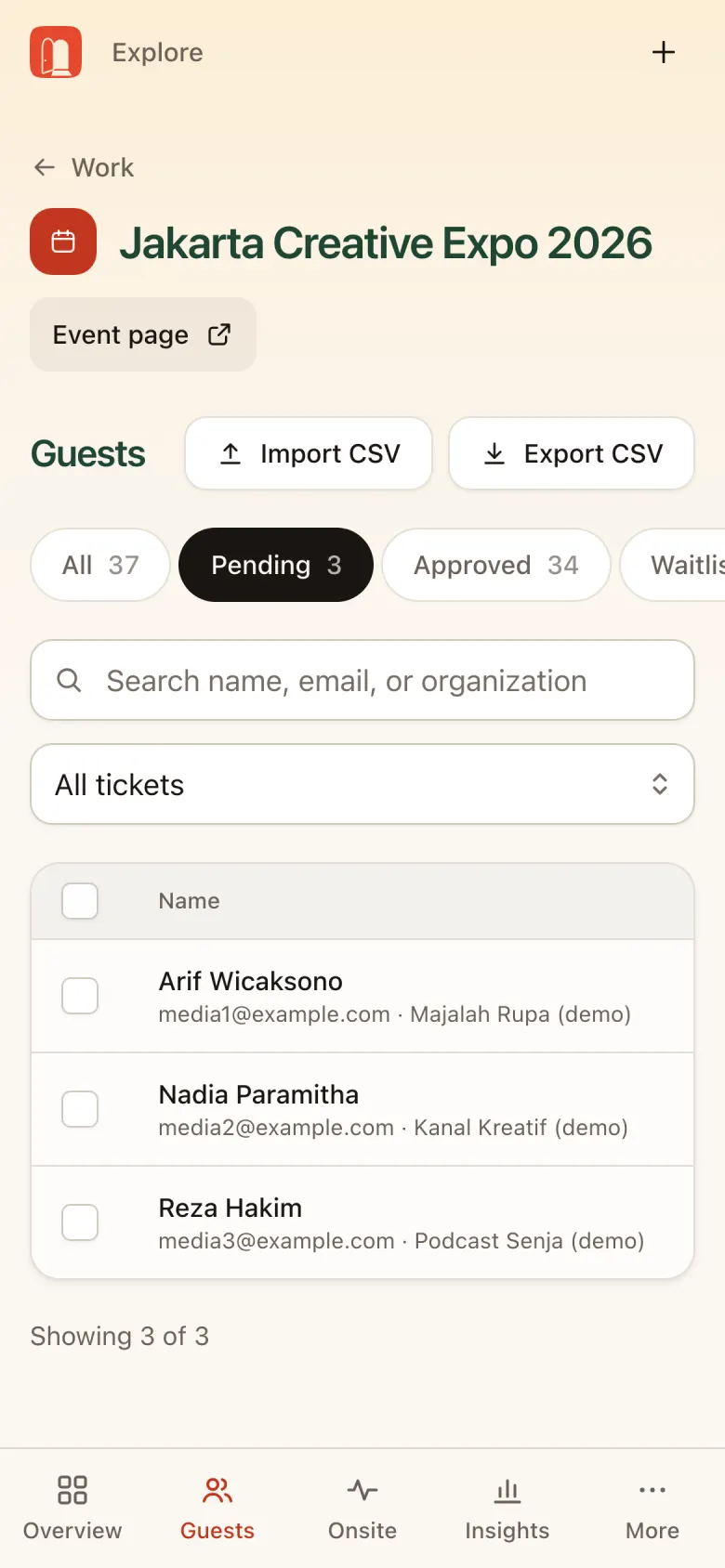
- Status filter: All · Pending · Approved · Waitlisted · Declined · Invited
- Search by name, email, or organization; filter by ticket type
- Tick several guests for bulk actions, for example Approve them all at once
- Import CSV (to invite a guest list) and Export CSV
Guest details
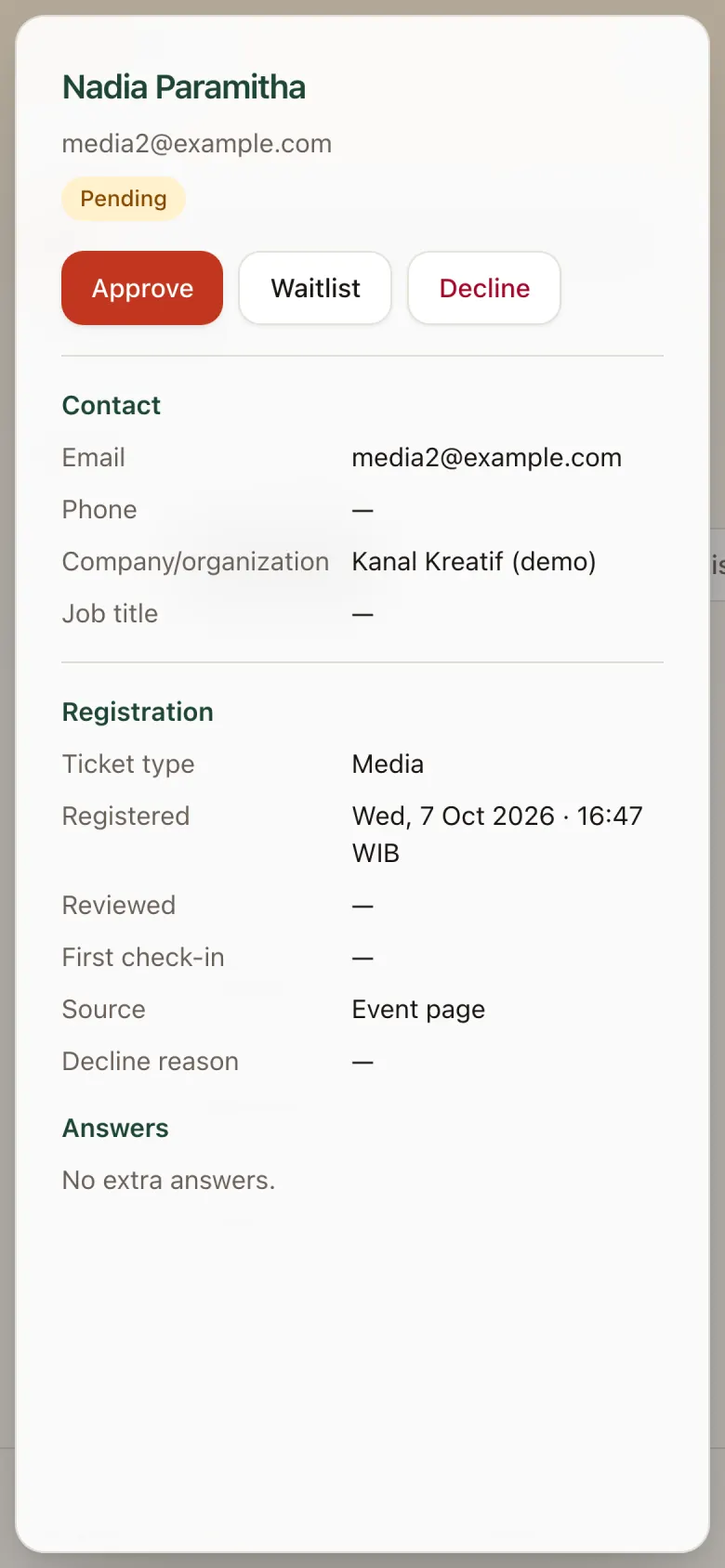
Tap a guest’s name to open their details: contact, ticket, registration source, check-in status, and form answers. Choose Approve, Waitlist, or Decline. The guest gets an email matching the decision.
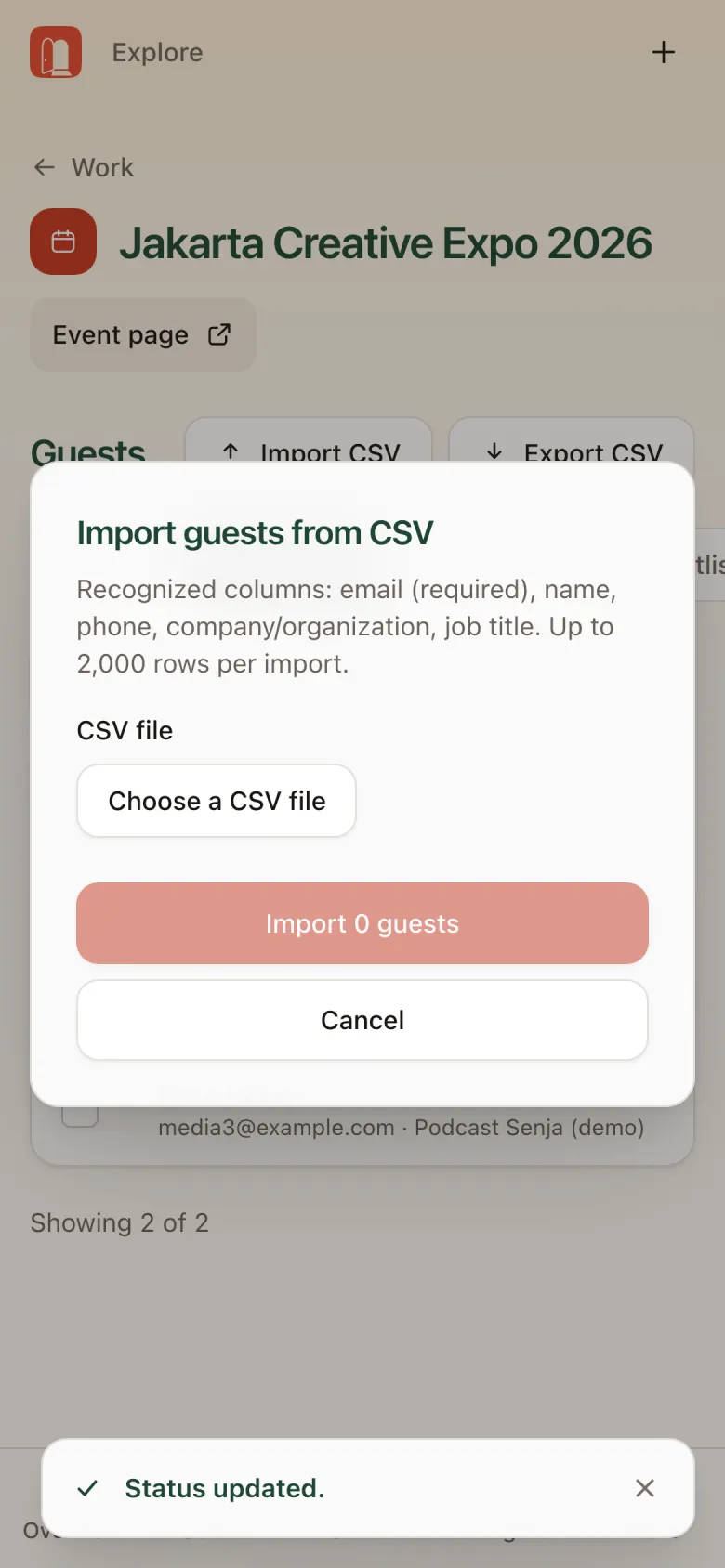
Import CSV
Upload a file with email, name, phone number, and organization columns. Imported guests come in as Invited.
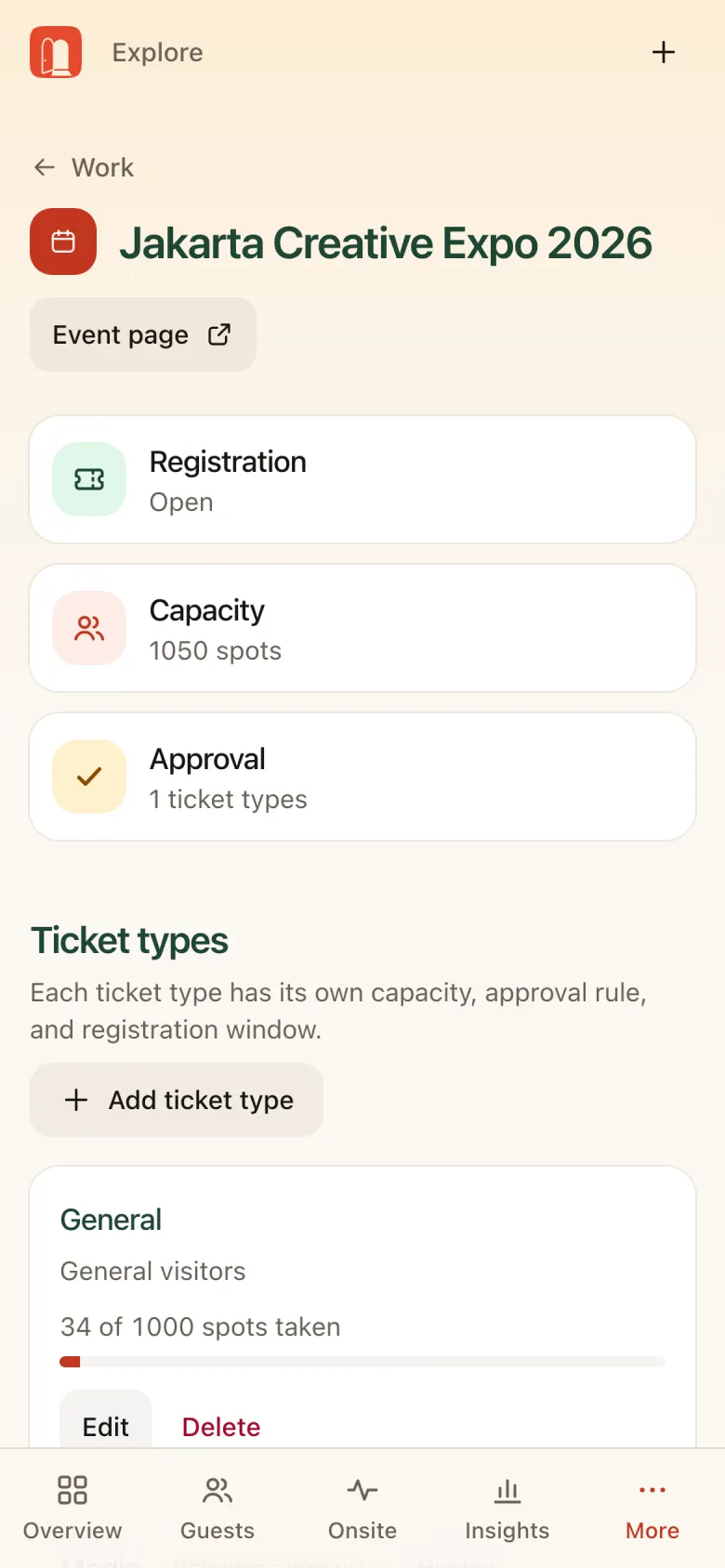
Registration: tickets and form
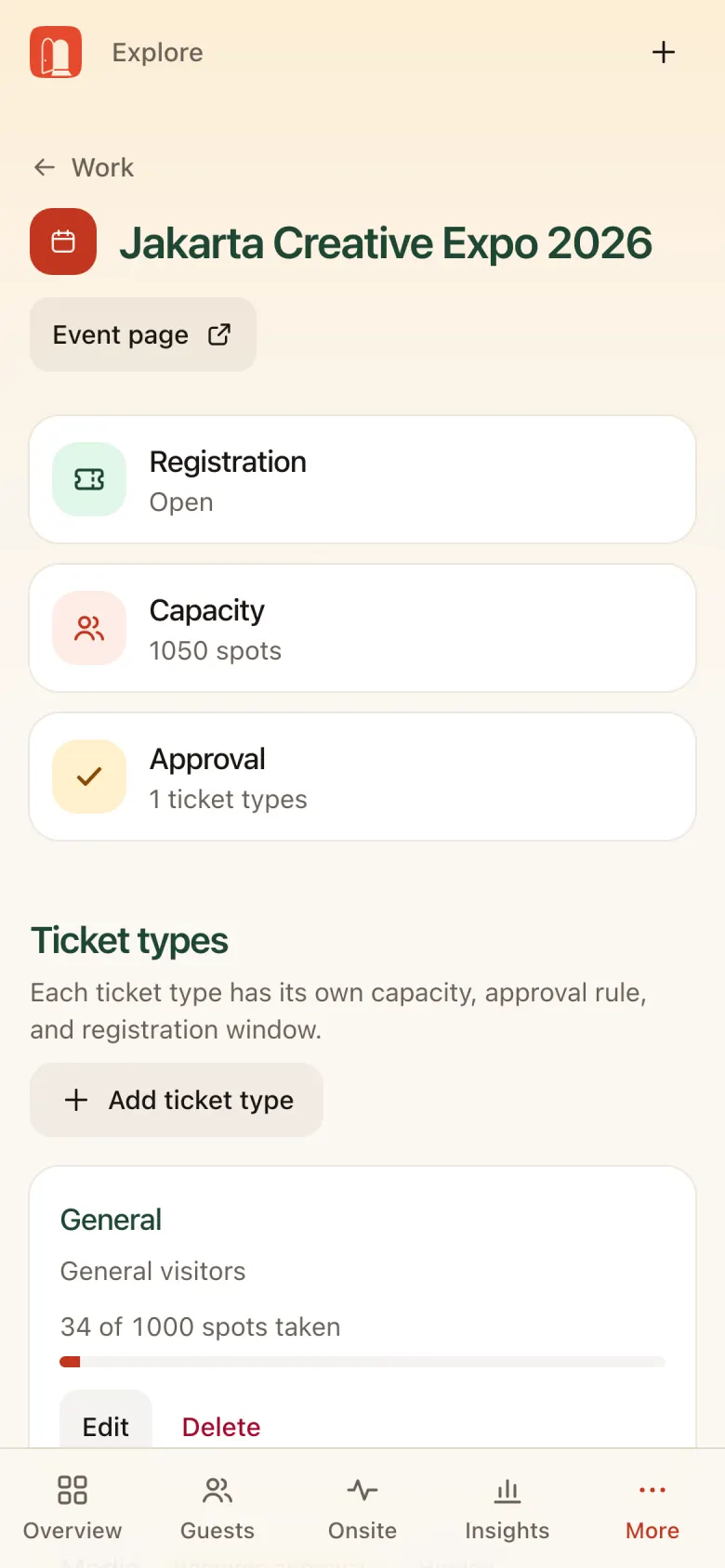
More → Registration shows Registration status (Open/Closed), Capacity, Approval, the list of Ticket types with spots taken, and the Email rule (for example, only certain domains may register).
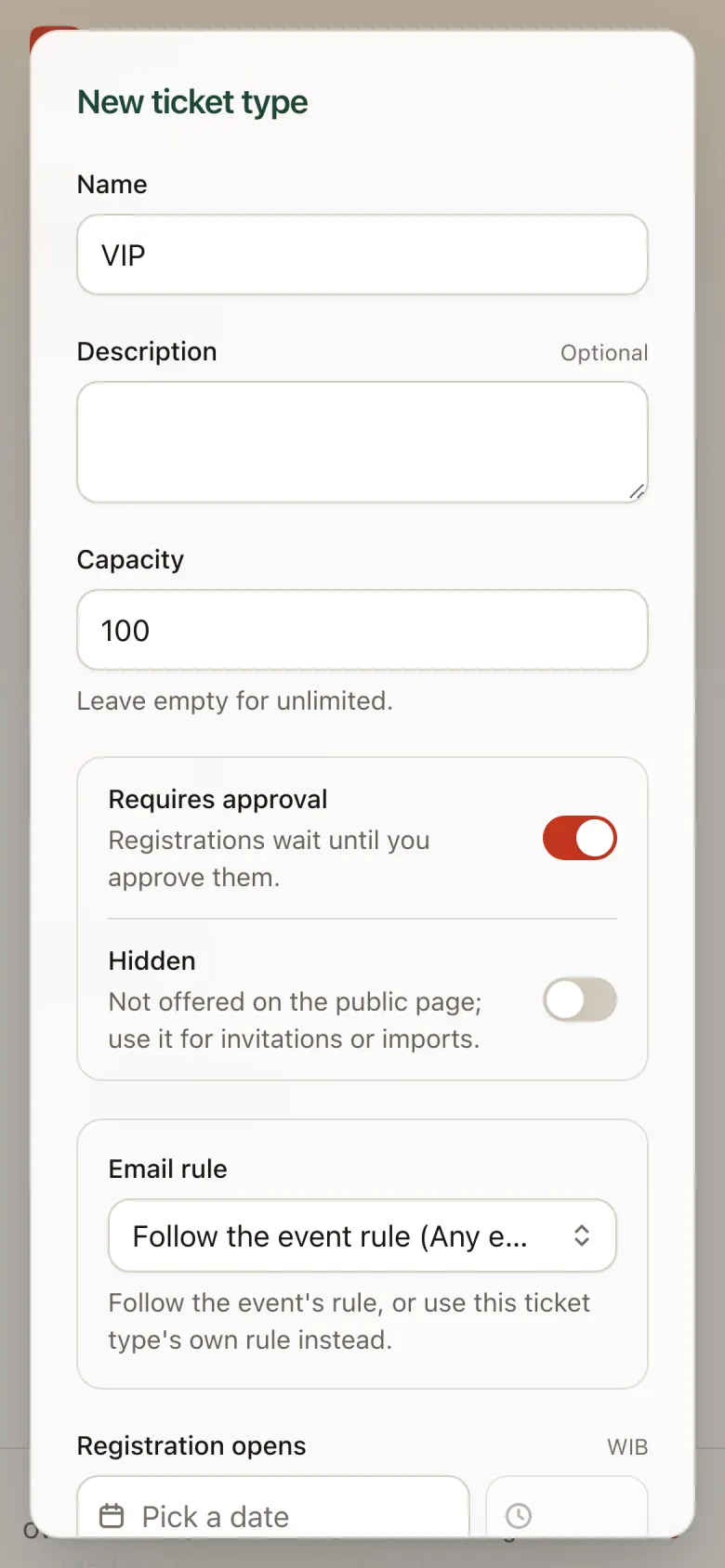
Add ticket type
- Name, Description, and Capacity
- Turn on Requires approval if registrants must be approved first
- Turn on Hidden for special invite-only tickets
Registration form
- Set personal details: Phone number, Company/organization, Job title. Each can be required, optional, or hidden.
- Custom questions: single choice, checkboxes, short answer, and more.
- A question can be shown only when an earlier answer matches.
Tip: Double-check the form and email rule before registration opens. Form answers show up in guest details and in the Excel report.
Schedule
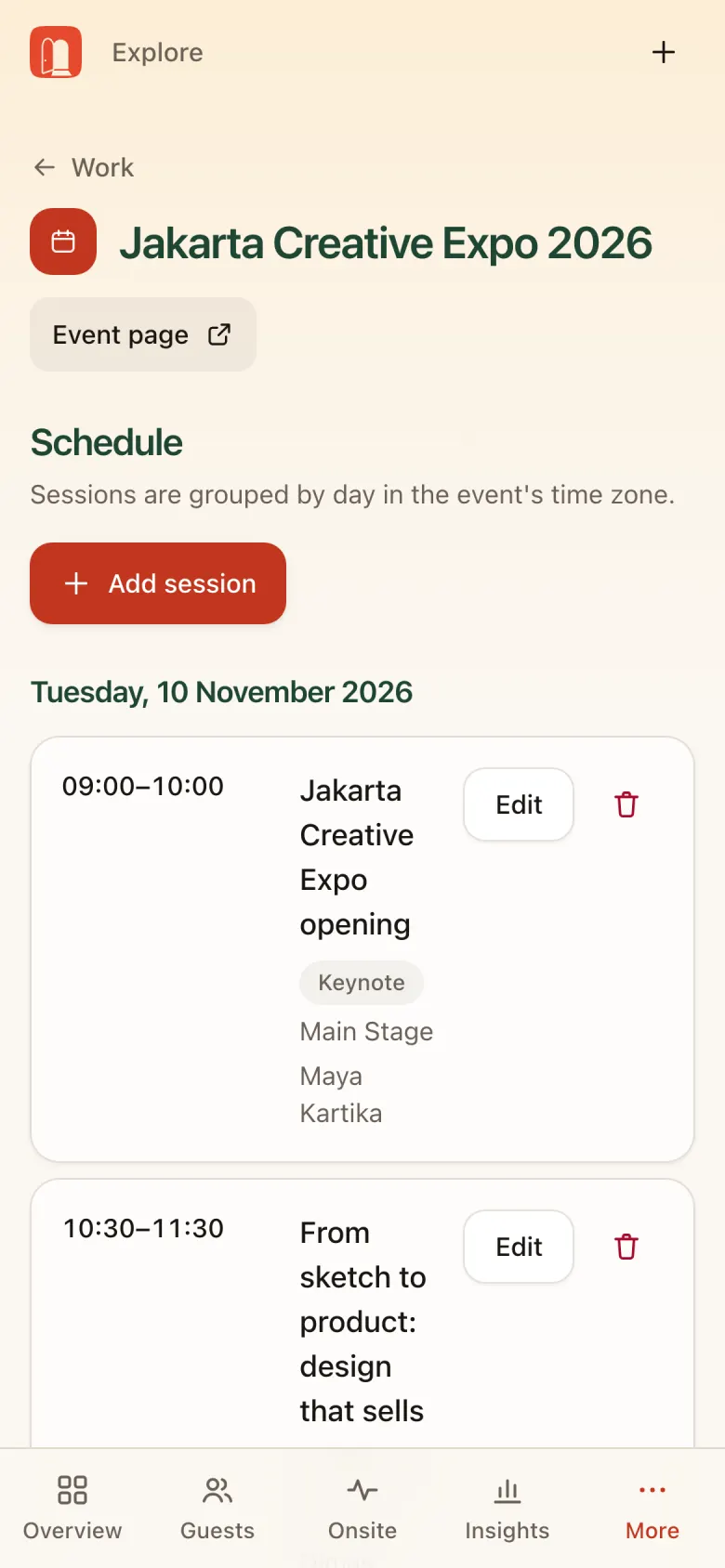
More → Schedule lists sessions by day. The schedule appears on the event page and in the attendee app.
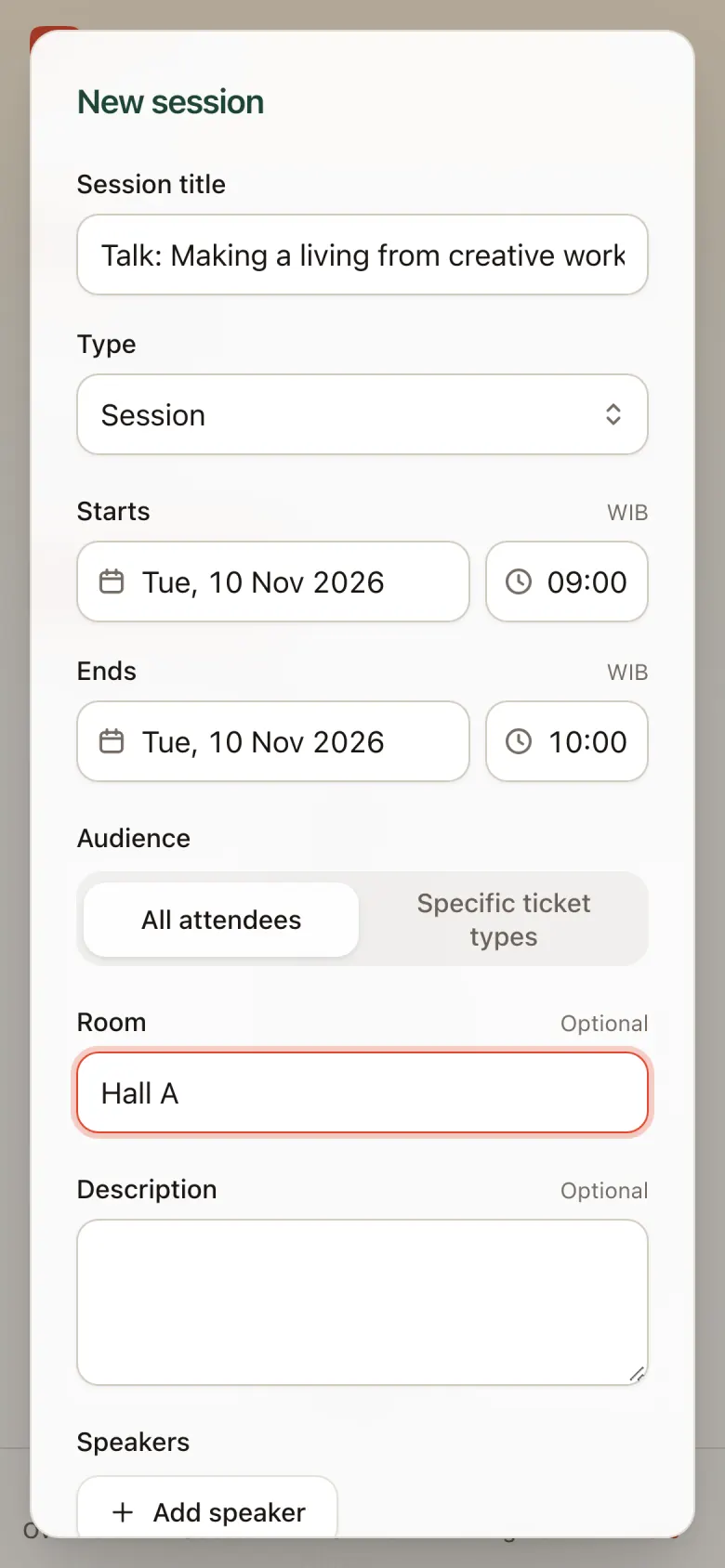
Add session
- Title and type: Keynote, Session, Workshop, Break, Other
- Start and end time
- Audience: everyone or certain ticket types
- Room, description, and speakers
Event team
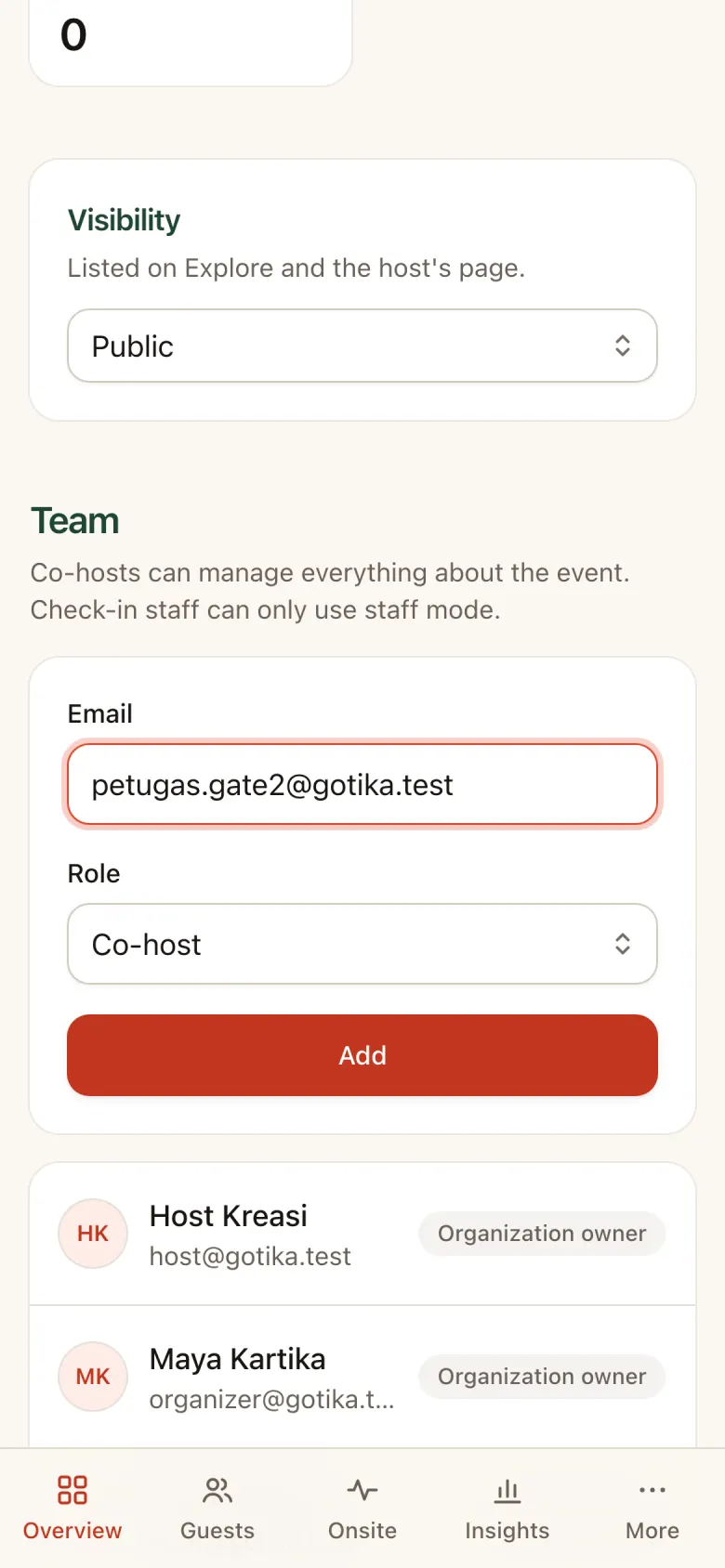
- Open Overview → Team: it’s at the bottom of Overview.
- Enter email and role: enter an Email and pick a Role: Co-host or Check-in staff.
- Tap Add: invitees sign in with that email.
Tip: Invite check-in staff by D-3 at the latest so they have time to sign in and run the Device check on the gate tablets.
Onsite: check-in & gates
Onsite → Check-in & gates:
- Open staff mode: gate scanner, manual search, walk-in, and the self-registration kiosk on this device.
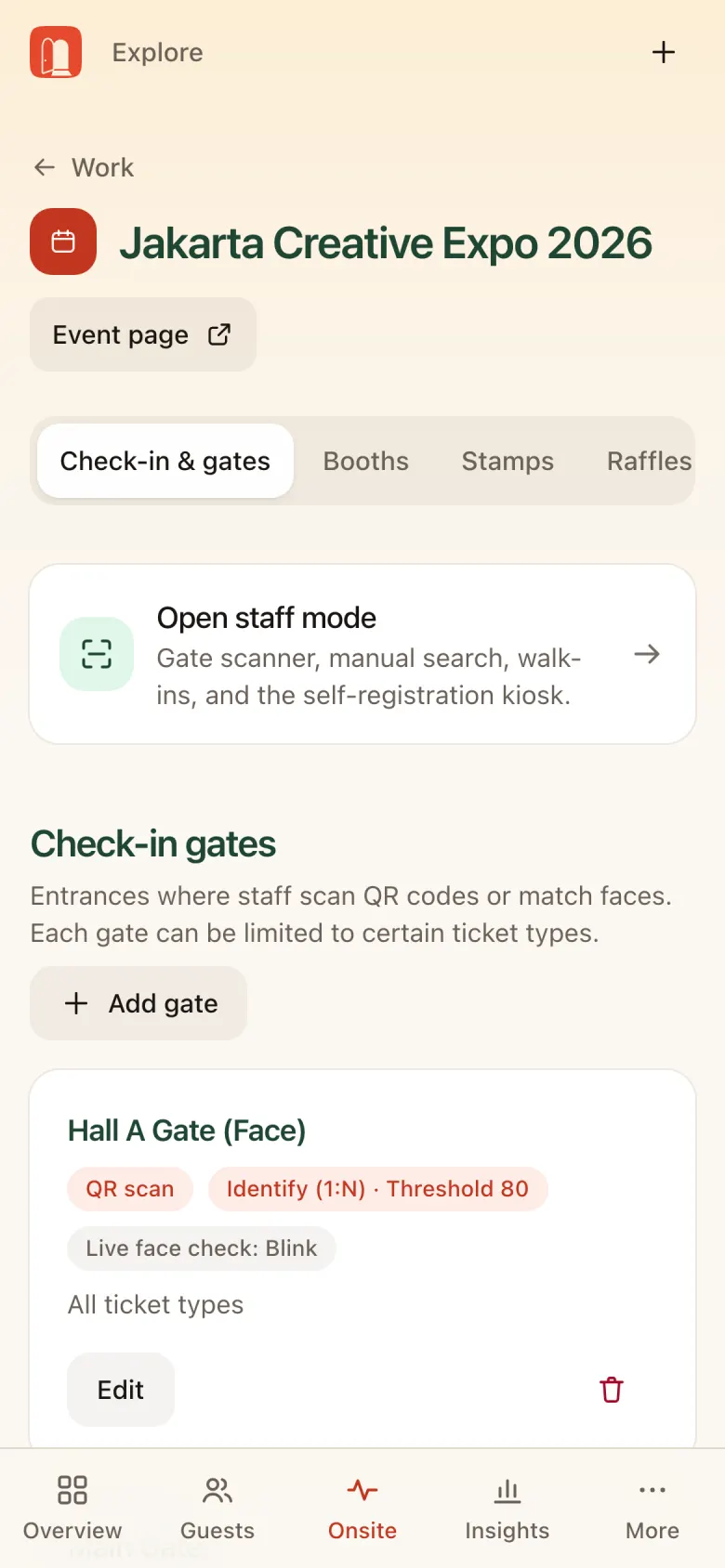
- Check-in gates: the list of gates with their method (QR scan, Identify (1:N), similarity threshold) and which tickets may pass. Add gate for a new entrance.
- Check-in staff: number of staff; invite them from the Team section.
- Kiosk PIN: tablets in kiosk mode ask for this PIN before exiting (4–8 digits).
- Face check-in: turn on face check-in, send a face enrollment invitation to approved attendees, or schedule it to go out automatically.
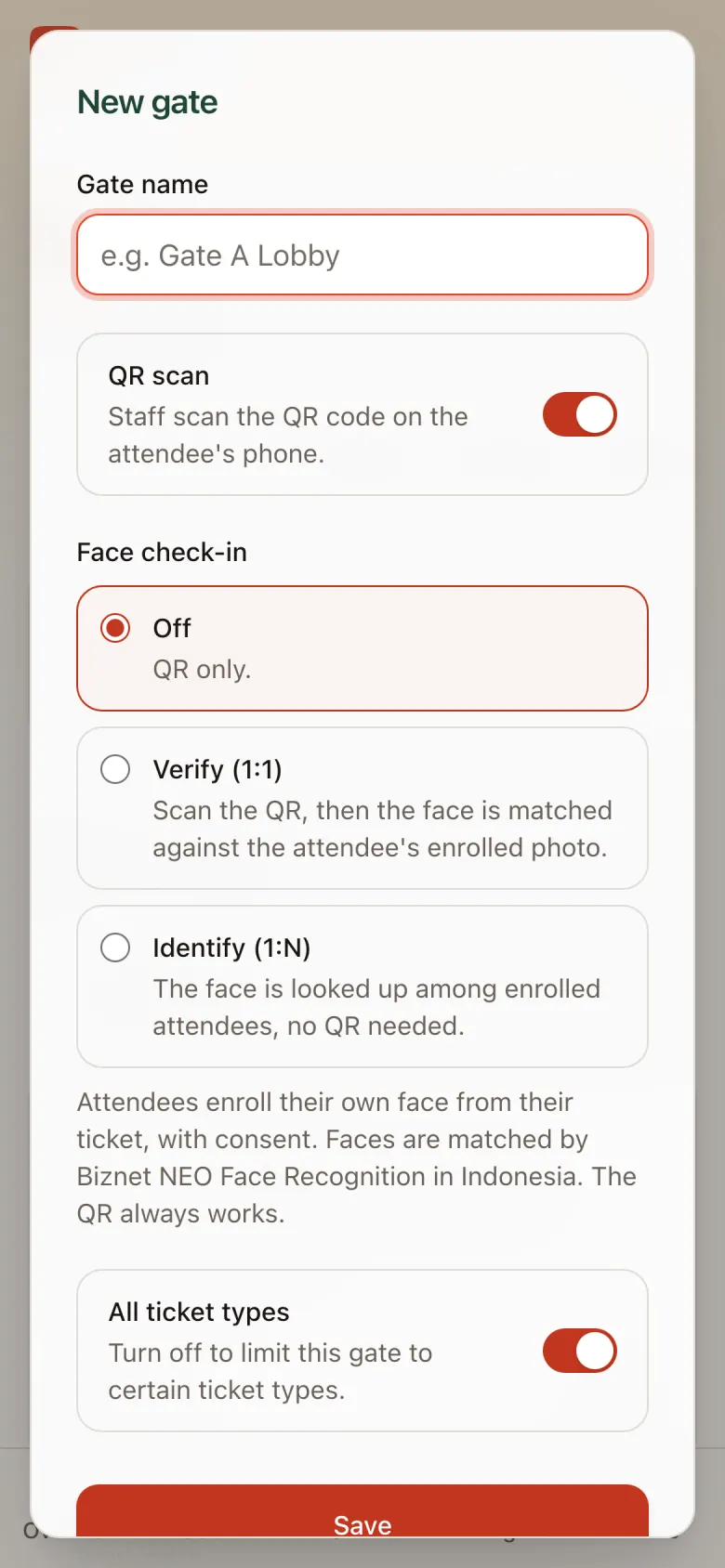
New gate
- Gate name
- QR scan on/off
- Face check-in: Off, Verify 1:1 after a QR scan, or Identify 1:N without a QR
- Ticket types allowed through
Onsite: booths
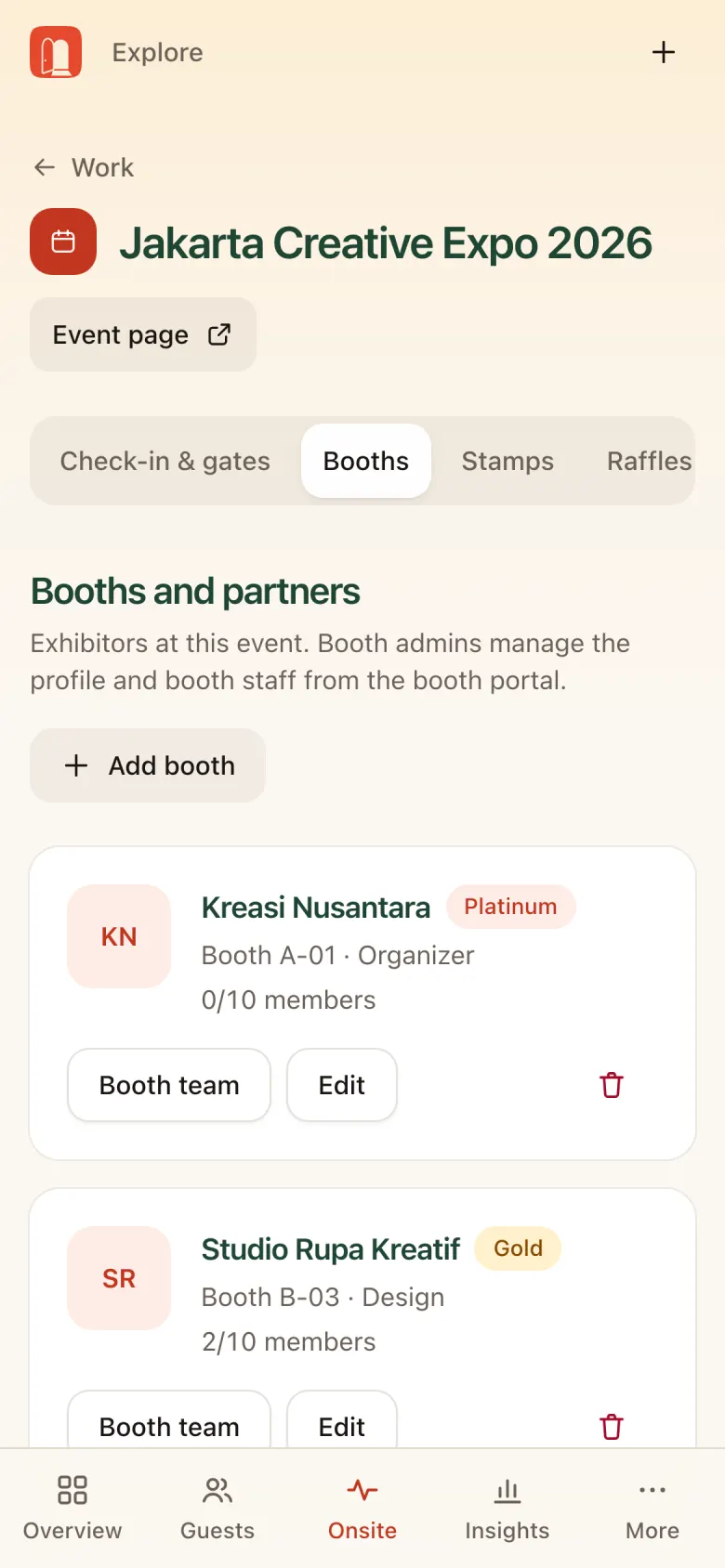
Onsite → Booths lists exhibitors and partners: tier (Platinum, Gold, Silver, …), booth number, category, and members used out of the quota. Booth team invites the booth admin; Edit changes the details.
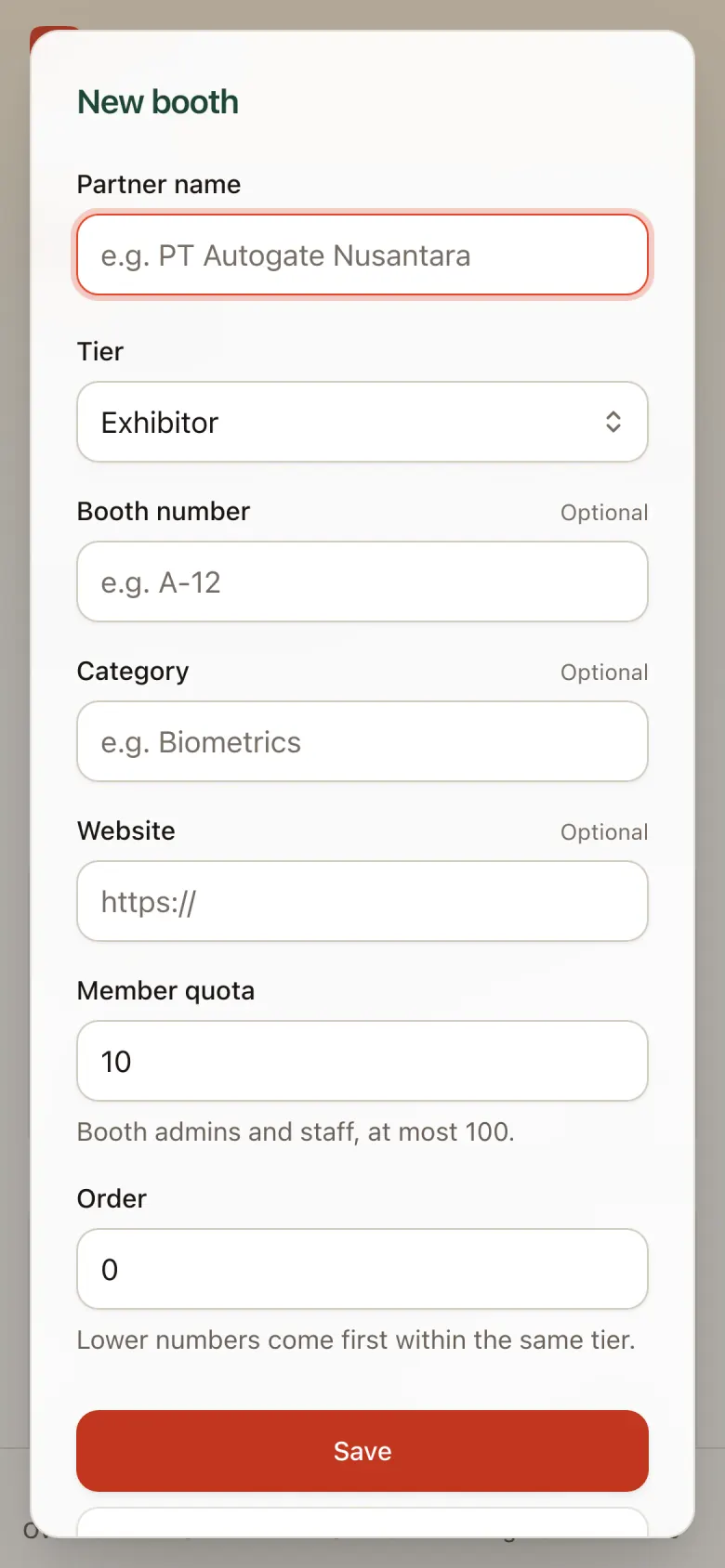
Add booth
- Partner name, Tier, Booth number, Category, Website
- Member quota: max booth staff
- Display order
Next step: Once the booth exists, invite the booth admin through Booth team. They get an email and manage their own profile and staff (Exhibitor Guide).
Onsite: stamps
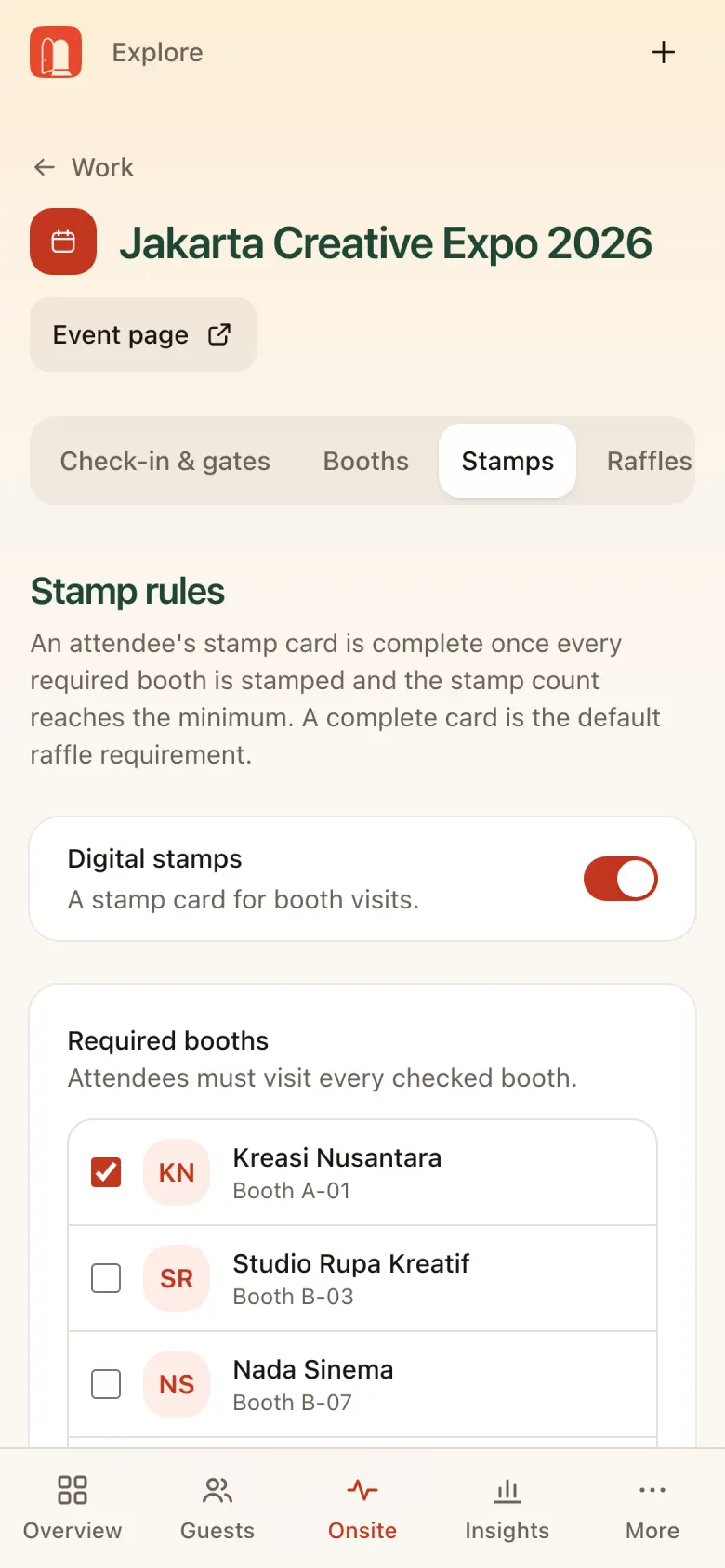
Onsite → Stamps:
- Digital stamps: turn on the stamp card for booth visits.
- Required booths: tick the booths every attendee must visit.
- Minimum stamps: total stamps (including required booths) for a card to count as complete.
Info: A complete stamp card is the default raffle requirement.
Onsite: raffles (door prizes)
Onsite → Raffles shows every raffle with its requirements and the number of eligible attendees.
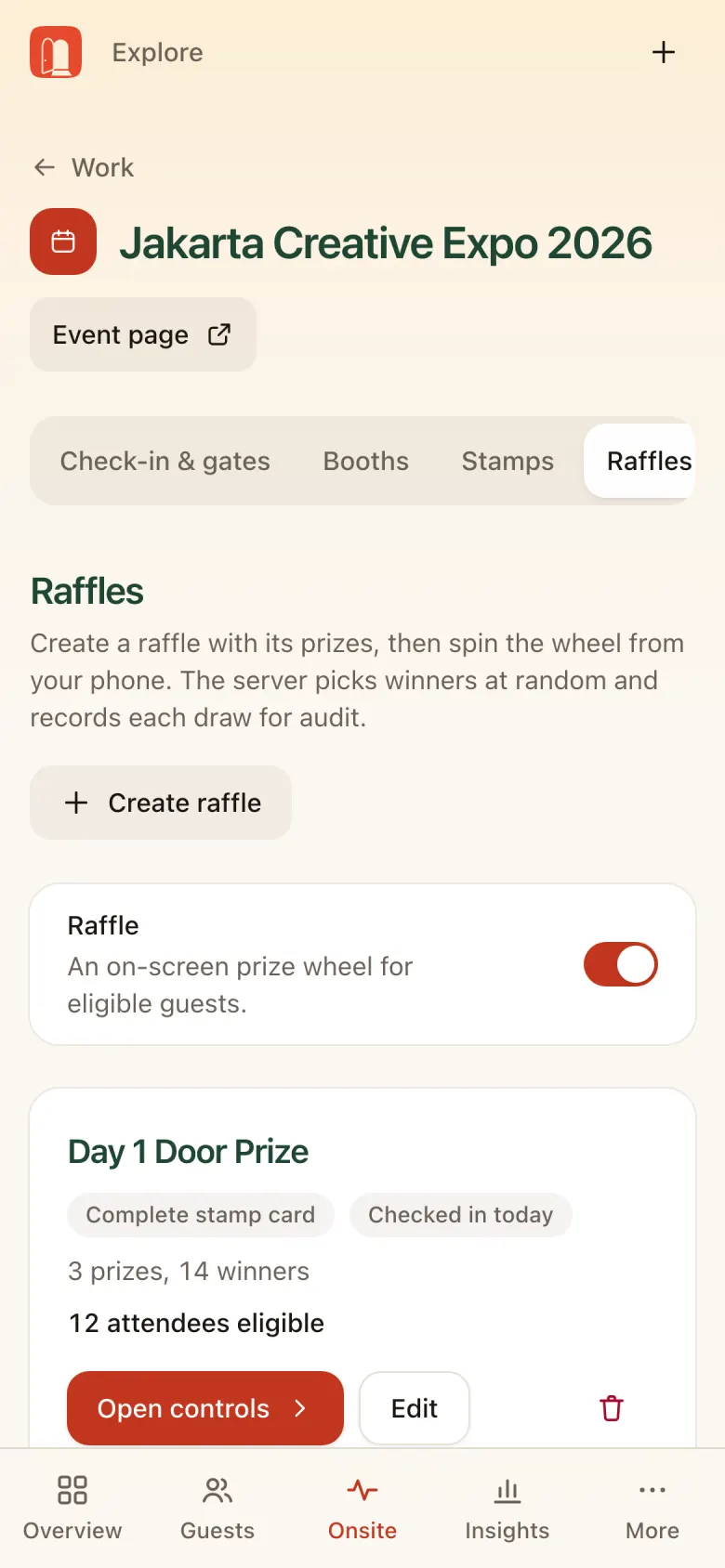
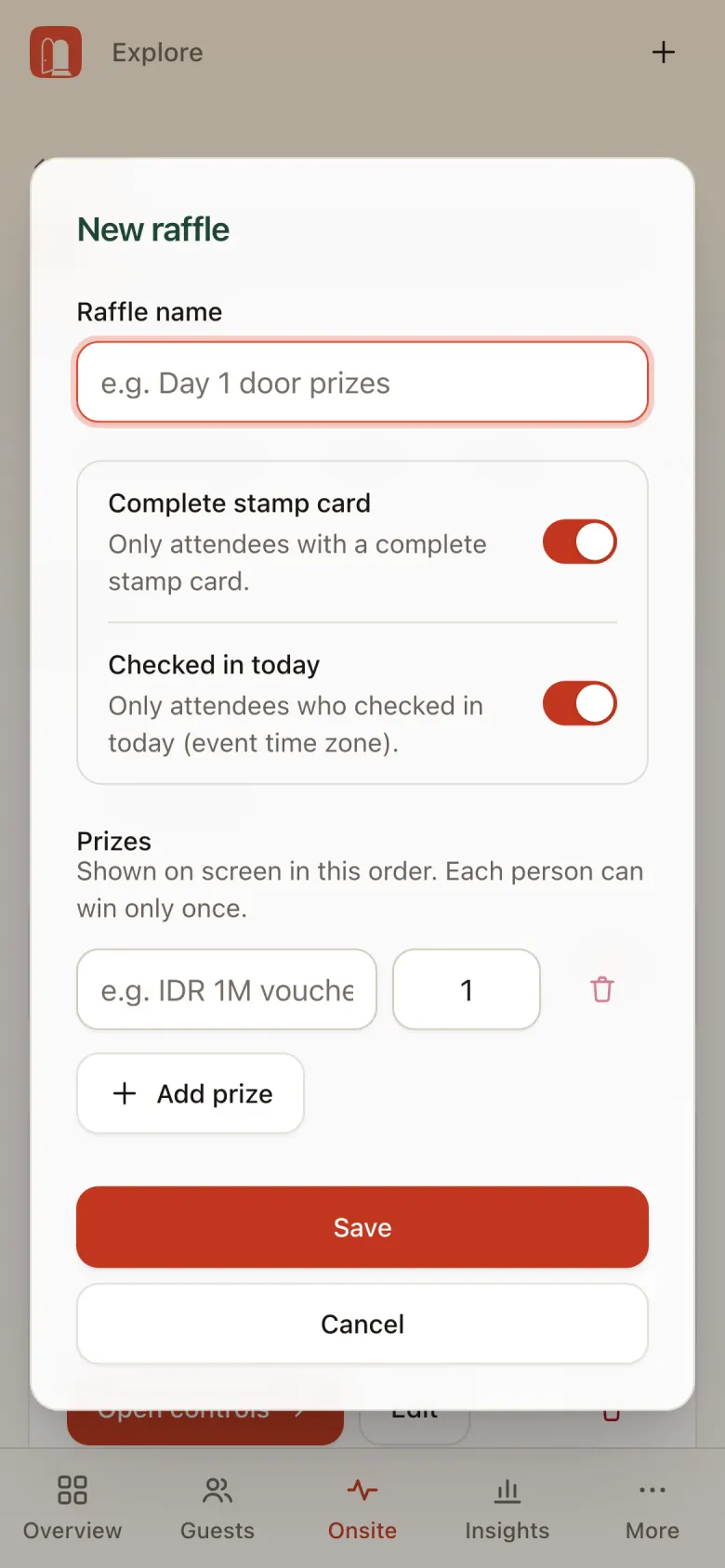
Create raffle
- Raffle name
- Requirements: Complete stamp card, Checked in today
- Prizes and their quantities
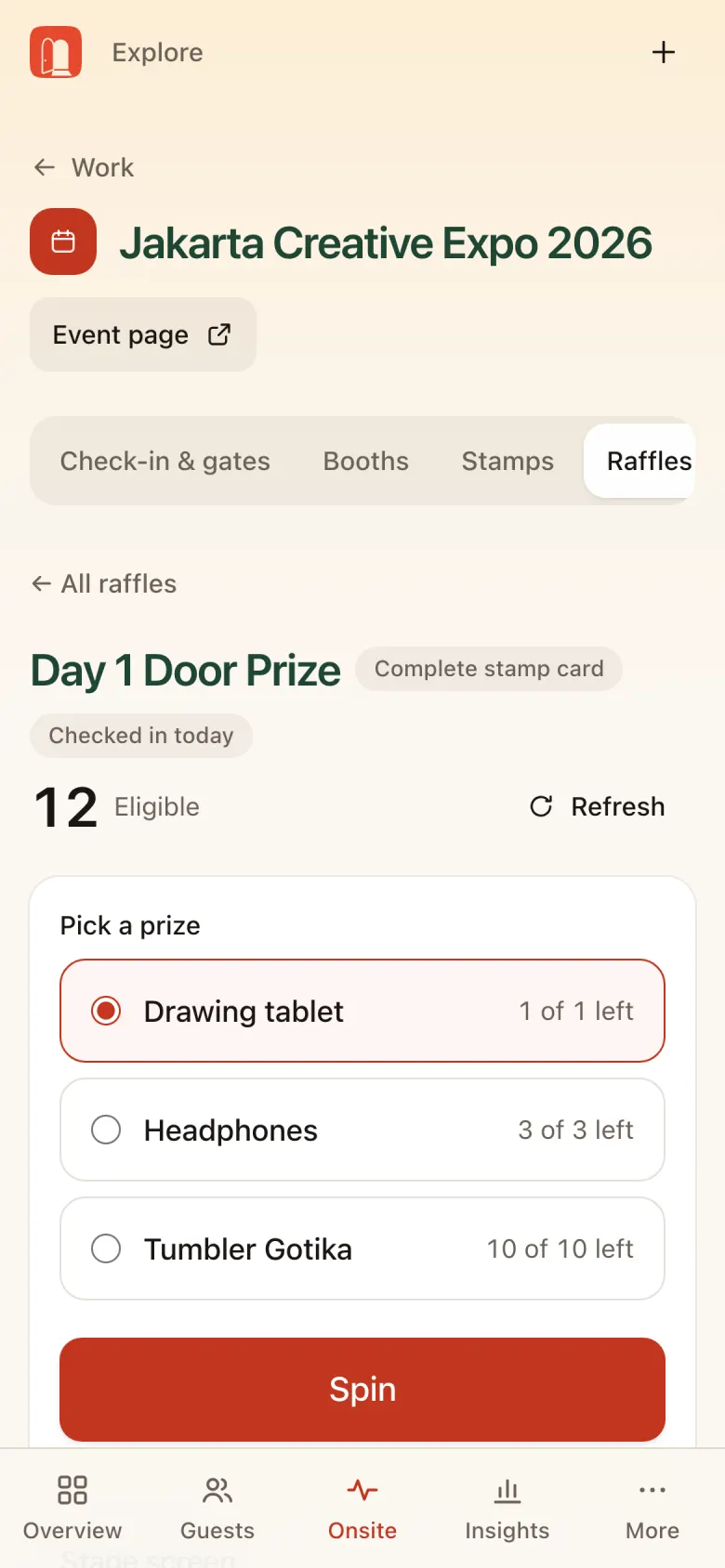
Running the raffle on stage
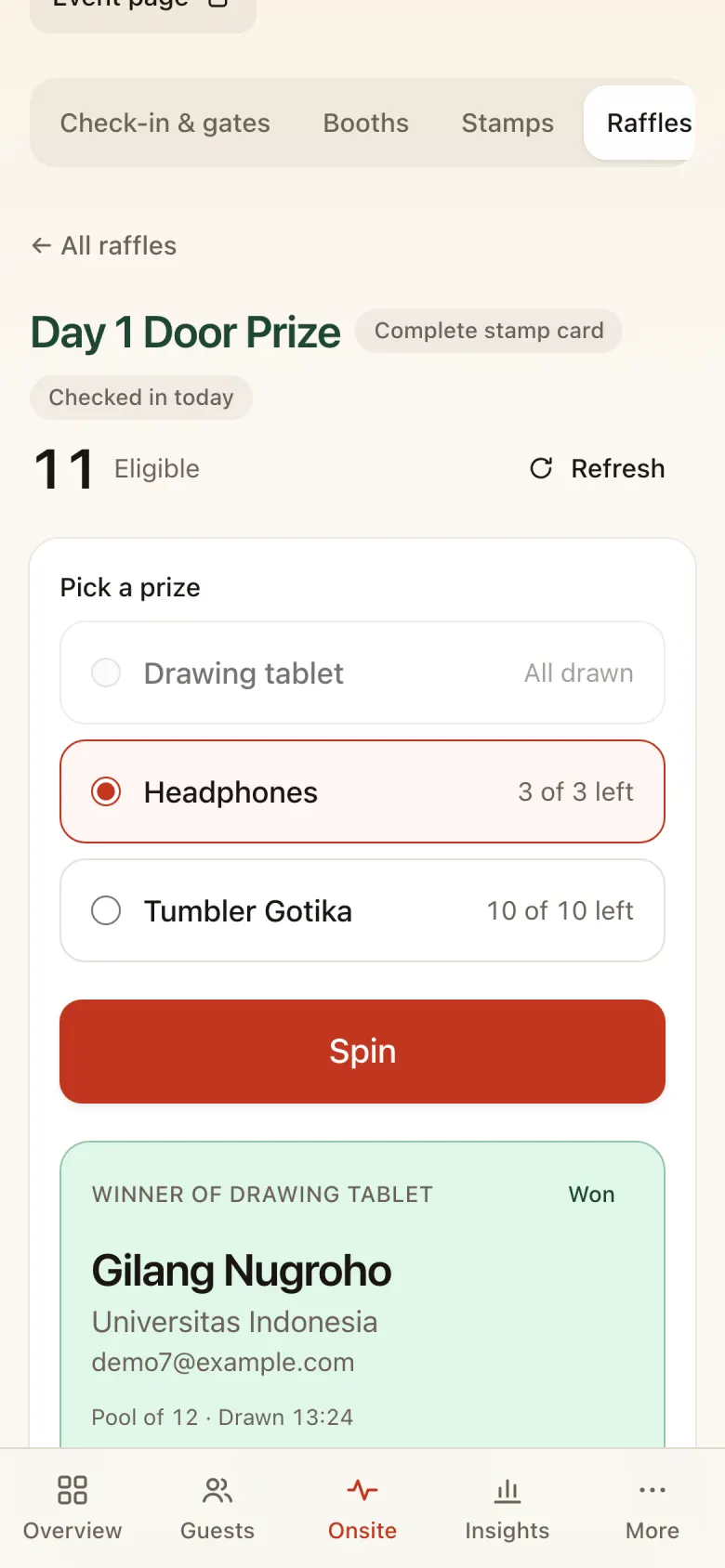
- Check eligibility: make sure the Eligible count looks right. Tap Refresh if needed.
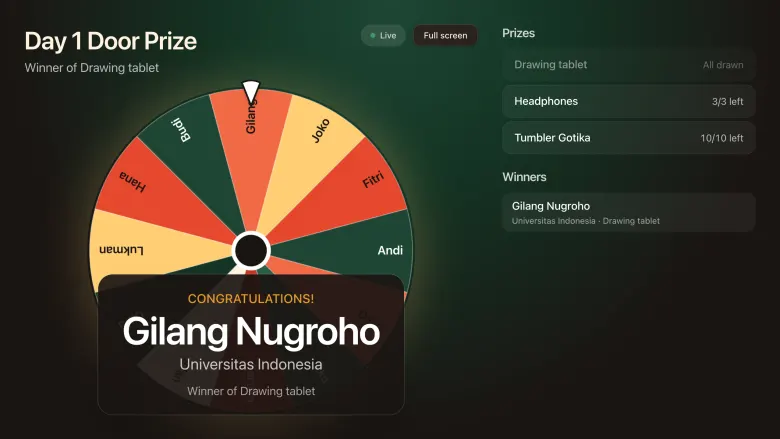
- Open the stage screen: open the Stage screen on a laptop connected to the projector. The link is in the panel.
- Spin: Pick a prize, then tap Spin. The server picks the winner at random and records it for audit.
- Winner not present? Mark them as a no-show, then spin again.
Raffle stage screen
Shown on the stage projector or TV (landscape). The wheel spins when you tap Spin in the control panel on your phone.
Stage prep:
- Test the stage screen on the projector before the event starts.
- Make sure the stage laptop has a stable internet connection.
- Have one person hold the raffle control panel on their phone.
Raffle flow:
- Check in: the attendee enters through a gate that day.
- Collect stamps: complete stamp card.
- Eligible: automatically in the raffle pool.
- Spin: the server picks a random winner.
- Winner: recorded for audit & insights.
Blasts (email to guests)
More → Blasts, or Send a blast on Overview. For example: arrival info, session reminders, a thank-you note.
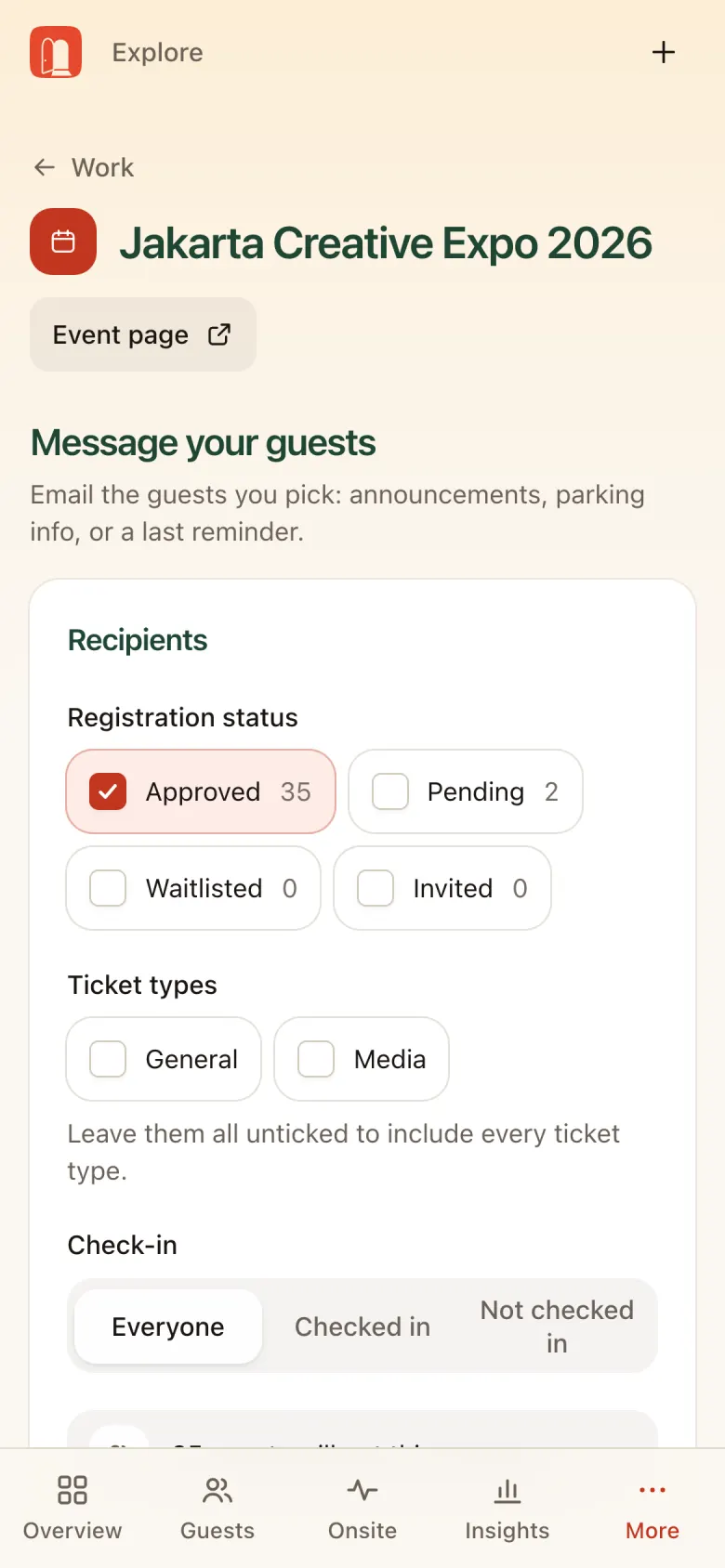
- Recipients: pick registration status, ticket type, and check-in status (Everyone / Checked in / Not checked in). The recipient count updates live.
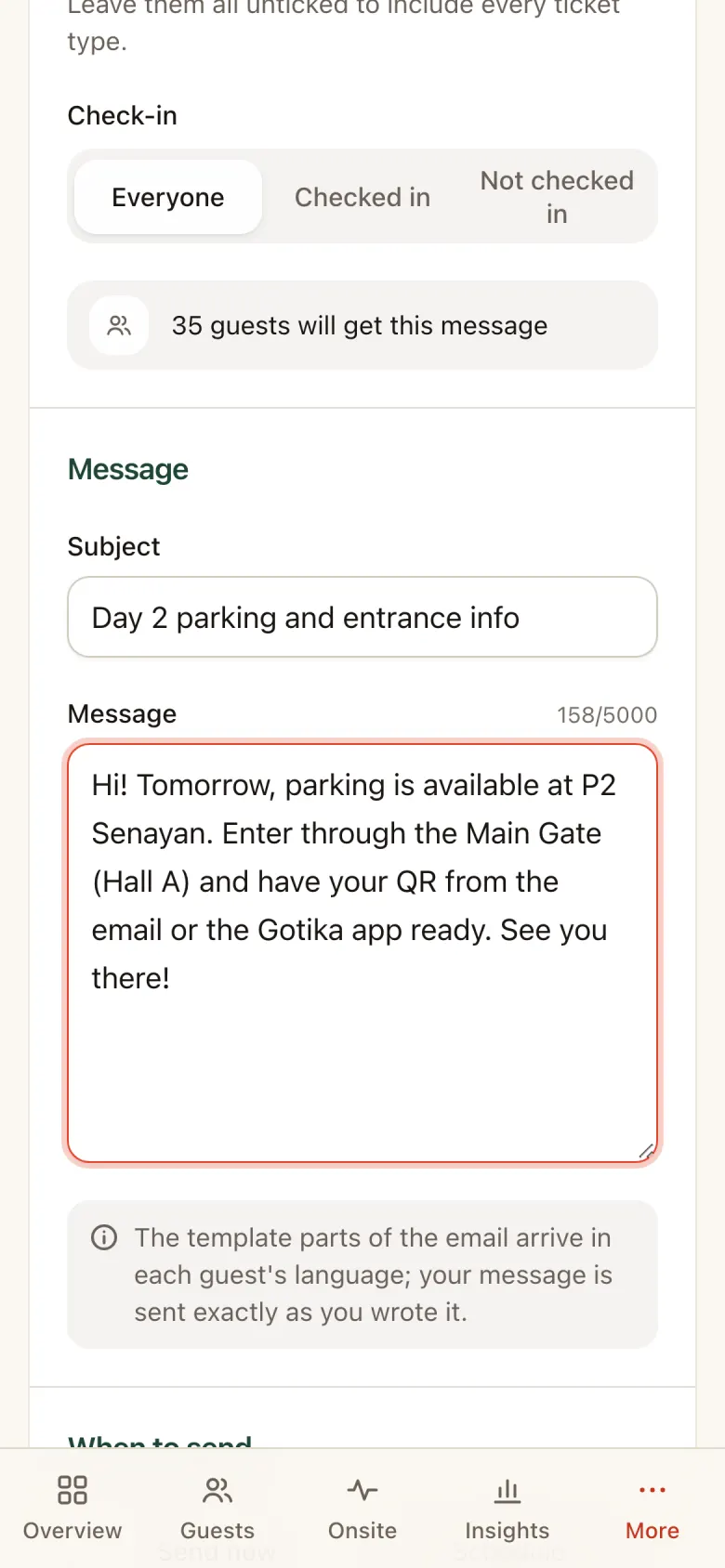
- Message: fill in the Subject and message body.
- When to send: now or scheduled.
- Test and send: tap Send me a test to check how it looks, then send the blast.
- History: every blast that was sent is kept in History.
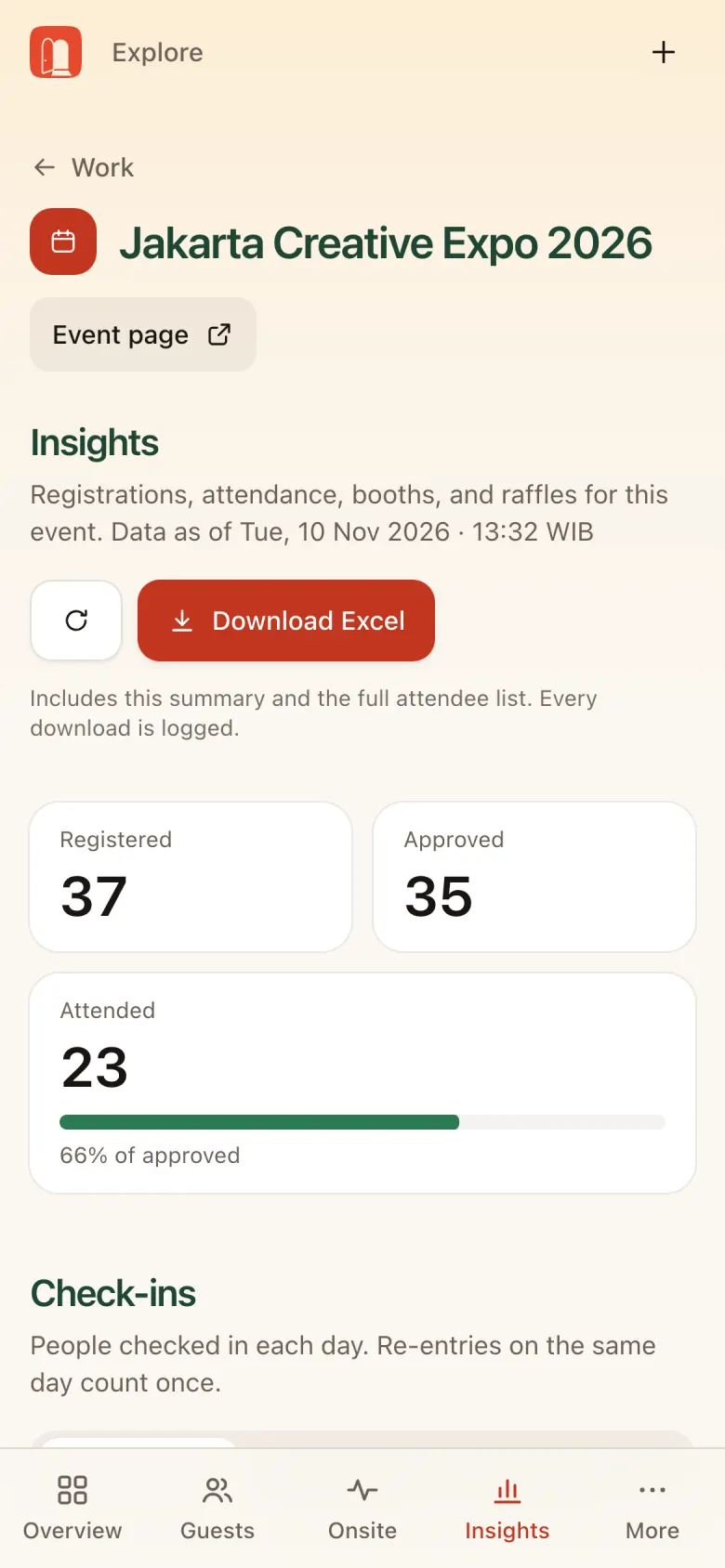
Insights
Insights includes:
- Registered, Approved, Attended (with percentage)
- Check-ins by hour, by gate, by method
- Registrations by status, by source (event page, embed, import, walk-in), by ticket type
- Booths: visits and leads per booth
- Raffle winners
Download Excel: Download Excel contains this summary plus the full attendee list. Every download is logged.
More and the live dashboard
More also has:
- Public link: copy or change the event page address.
- Add to your website: embed code that puts the Gotika registration form on the host’s own website.
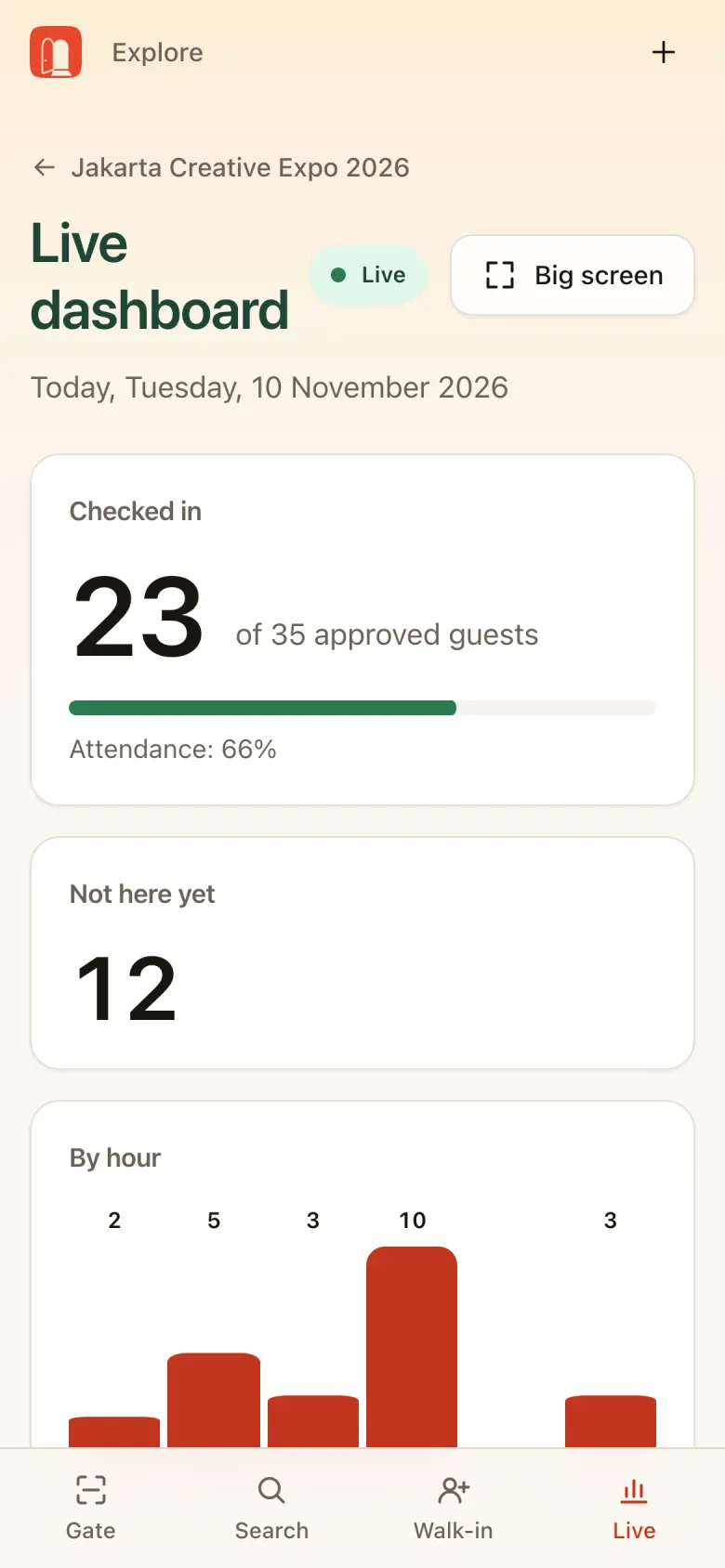
Live dashboard on the event day
Watch attendance on the Live dashboard (shortcut on Overview). It’s the same view check-in staff see.
- Checked in, not here yet, and attendance rate
- Check-ins by hour, by gate, by method
- Status of each gate tablet: watch for Not heard from or Old list
Tap Big screen for the TV in the control room.
Organizer checklist
Go through them one by one. The order follows the countdown to the event day.
D-14 to D-7
- Event published, ID/EN description complete, cover set
- Ticket types, capacity, and approval settings are right
- Form and email rule checked
- Session schedule and speakers complete
- Booths created and booth admins invited
- Stamp rules and raffles (prizes, requirements) ready
D-3 to D-1
- Gates created (QR / face), kiosk PIN set
- Check-in staff invited and have tried signing in
- Face enrollment invitation sent (if using face check-in)
- Arrival info blast (parking, gates, opening hours) scheduled
- Every gate tablet passes Device check and has the attendee list downloaded
Event day
- Live dashboard open in the control room
- Raffle stage screen tested on the projector
- Check devices labelled Not heard from / Old list on the live dashboard
After the event
- Download the Excel report
- Remind exhibitors to download their leads CSV
- Send a thank-you blast
See you on the day:
- Publish the event and check tickets, form, and schedule.
- Invite the team; set up gates, booths, stamps, and raffles.
- Watch the live dashboard on the day.
- Download the Excel report afterwards.