Open the event page
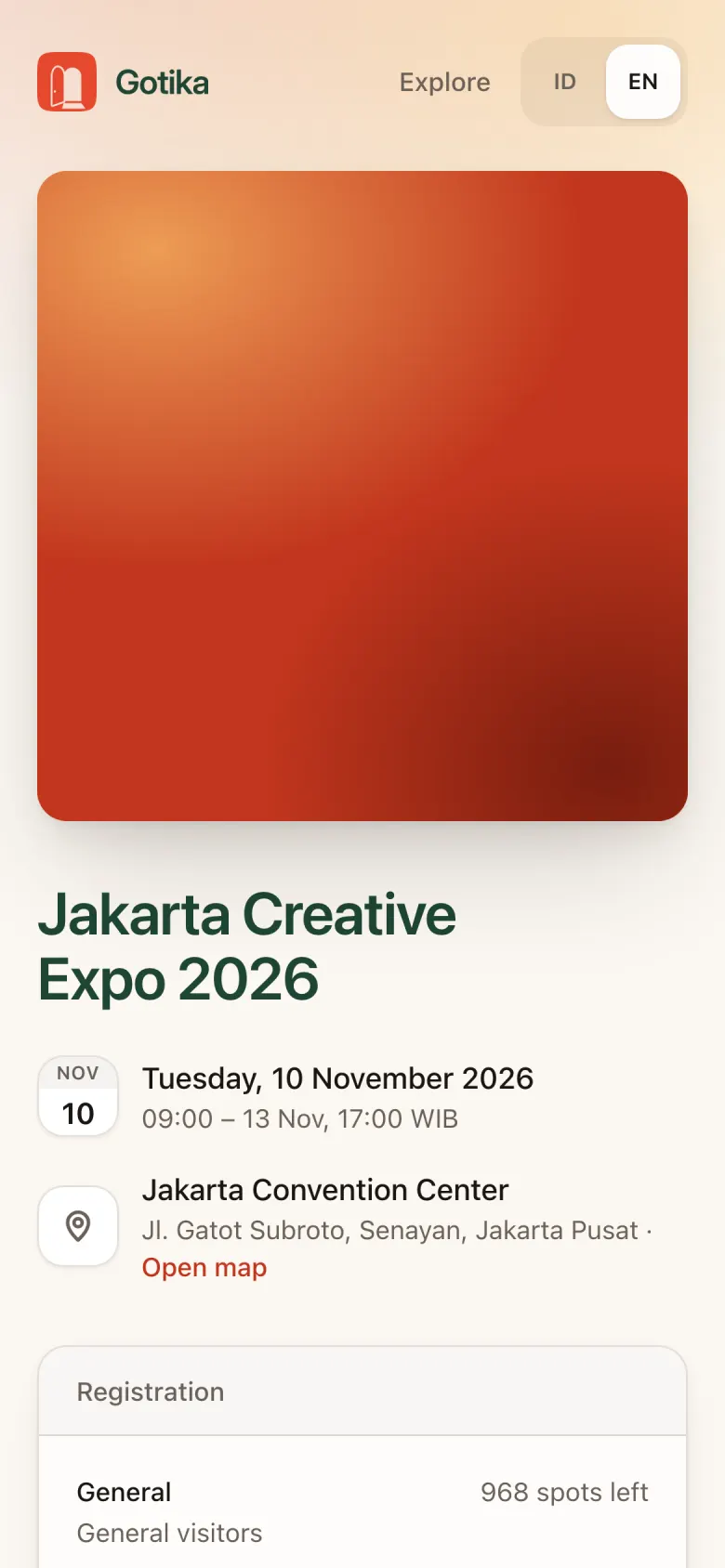
Open the event link from your invitation, social media, or the organizer’s website. The event page shows the title, date, location, description, session schedule, and the Registration box.
- Tap Open map to see the venue location.
- Use ID / EN at the top right to switch language.
- Every session has Add to calendar.
Device: a phone with any browser. The app can be added to your home screen.
Addresses: event page at
gotika.app/en/<event-slug>, attendee app atevent.gotika.app.Sign in: email + 6-digit code. No password.
Language: Indonesian / English, switch any time.
Tips: scroll down to read About the event, the schedule by day, and the organizer info.
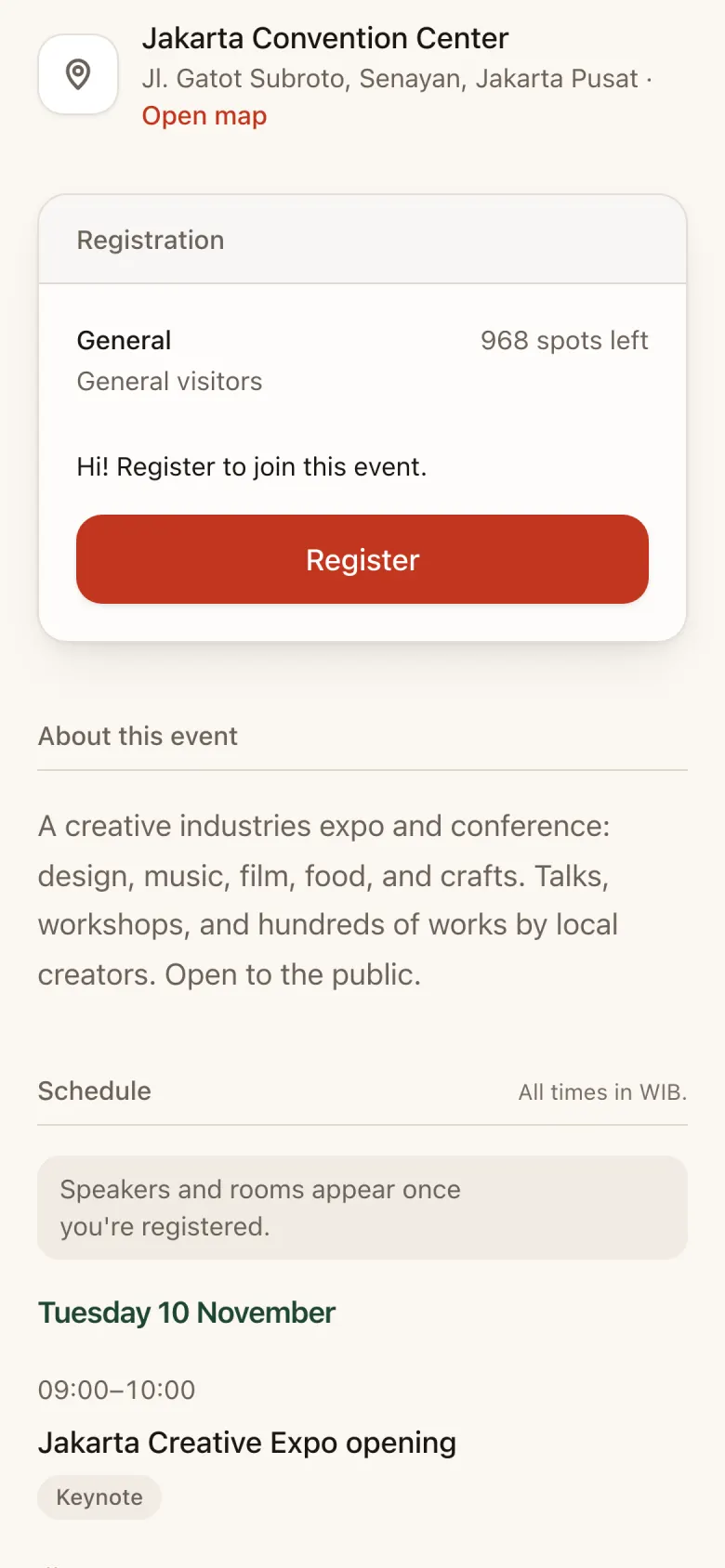
Register
Registration only needs your email. No account or password to create.
Pick a ticket
In the Registration box, check the ticket types and spots left, then tap Register.
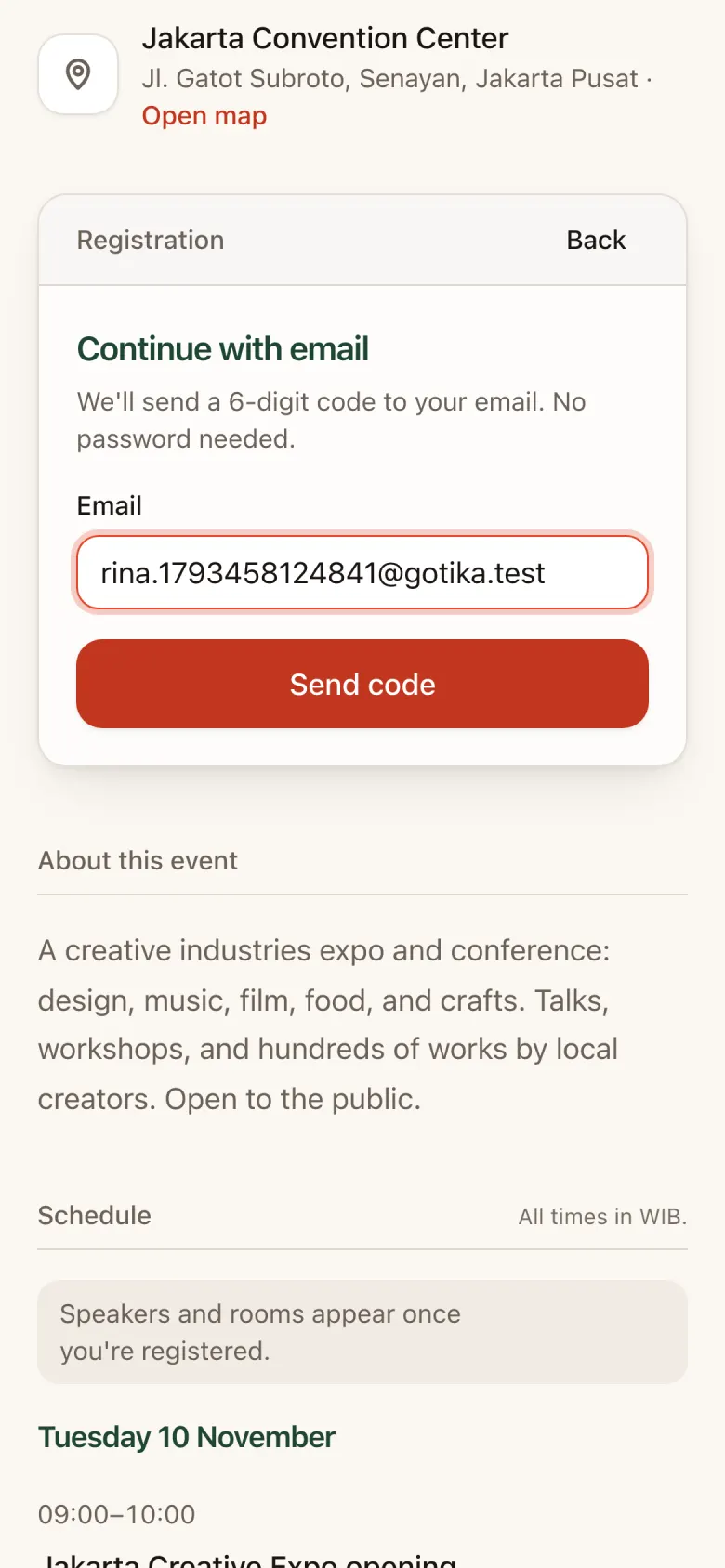
Enter your email
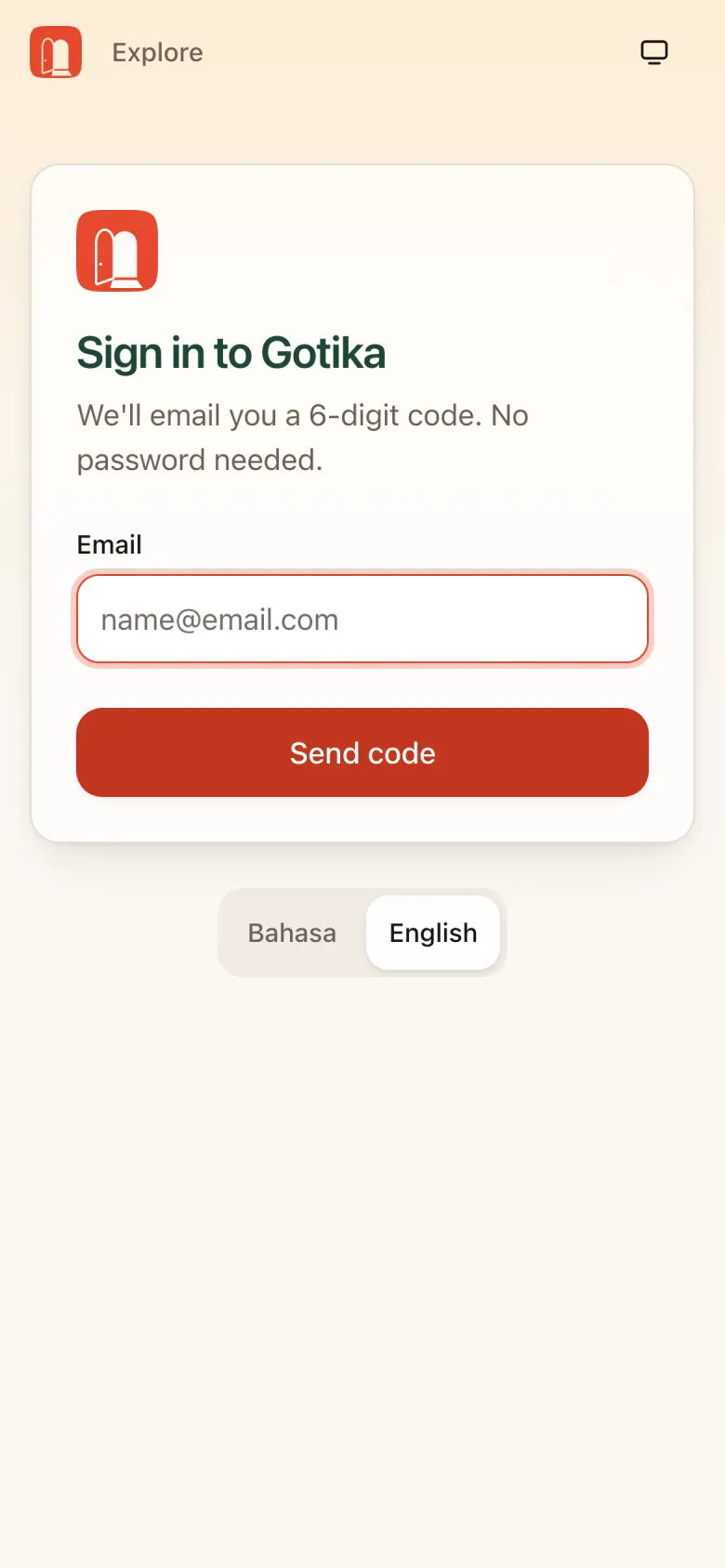
Type your email and tap Send code.
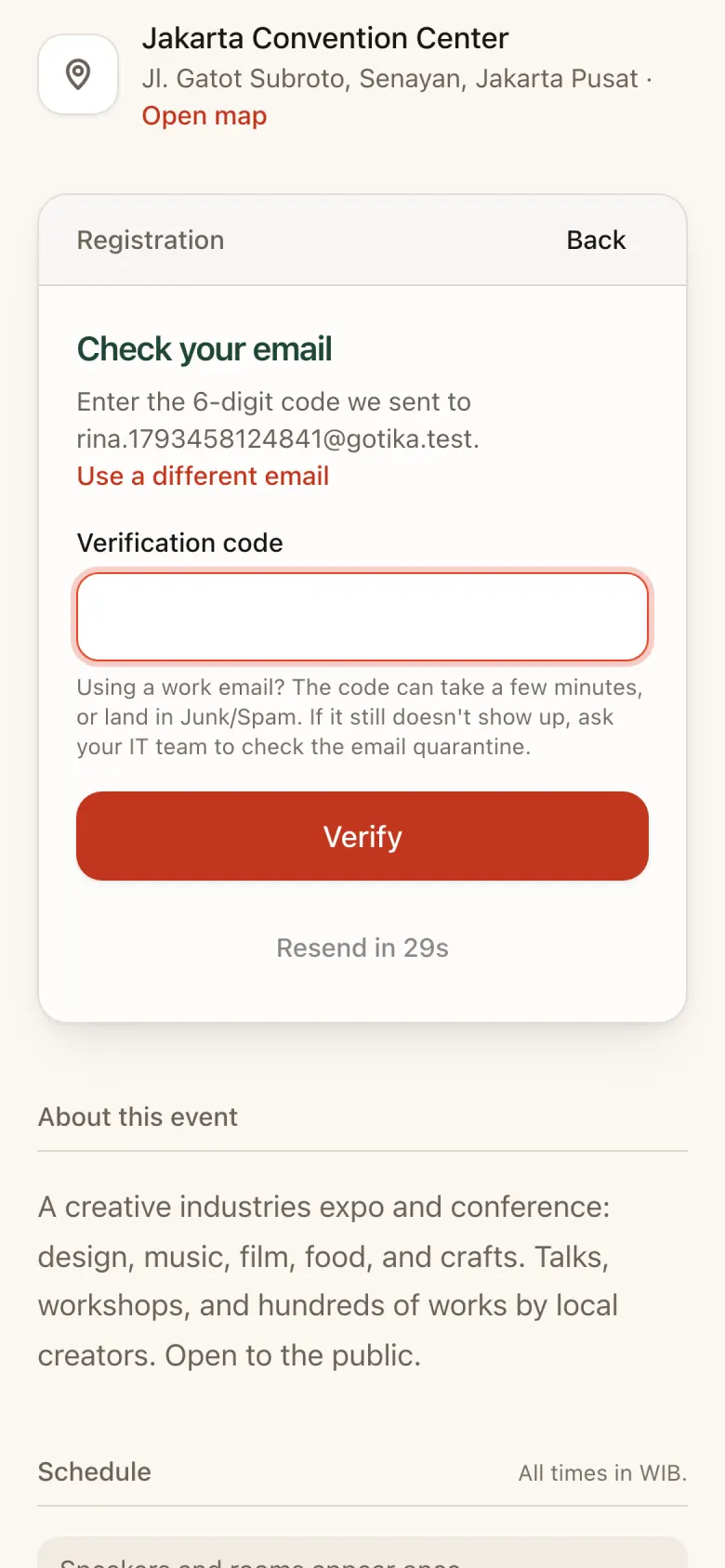
Enter the verification code
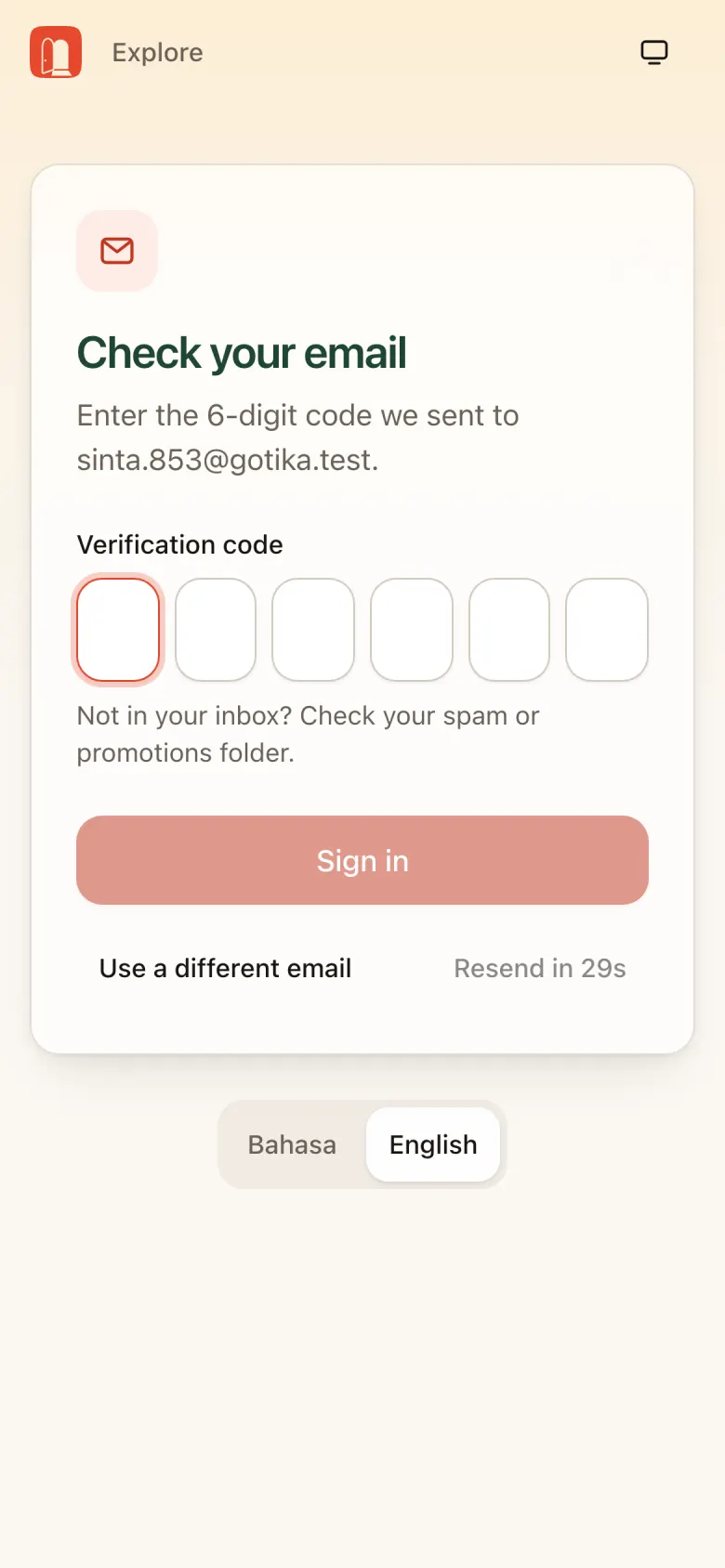
Open your email, copy the 6-digit code, and type it into Verification code. It’s checked as soon as all 6 digits are in.
- Didn’t get it? Check Spam/Promotions, or wait for the countdown and resend.
- Wrong address? Tap Use a different email.
Complete the form
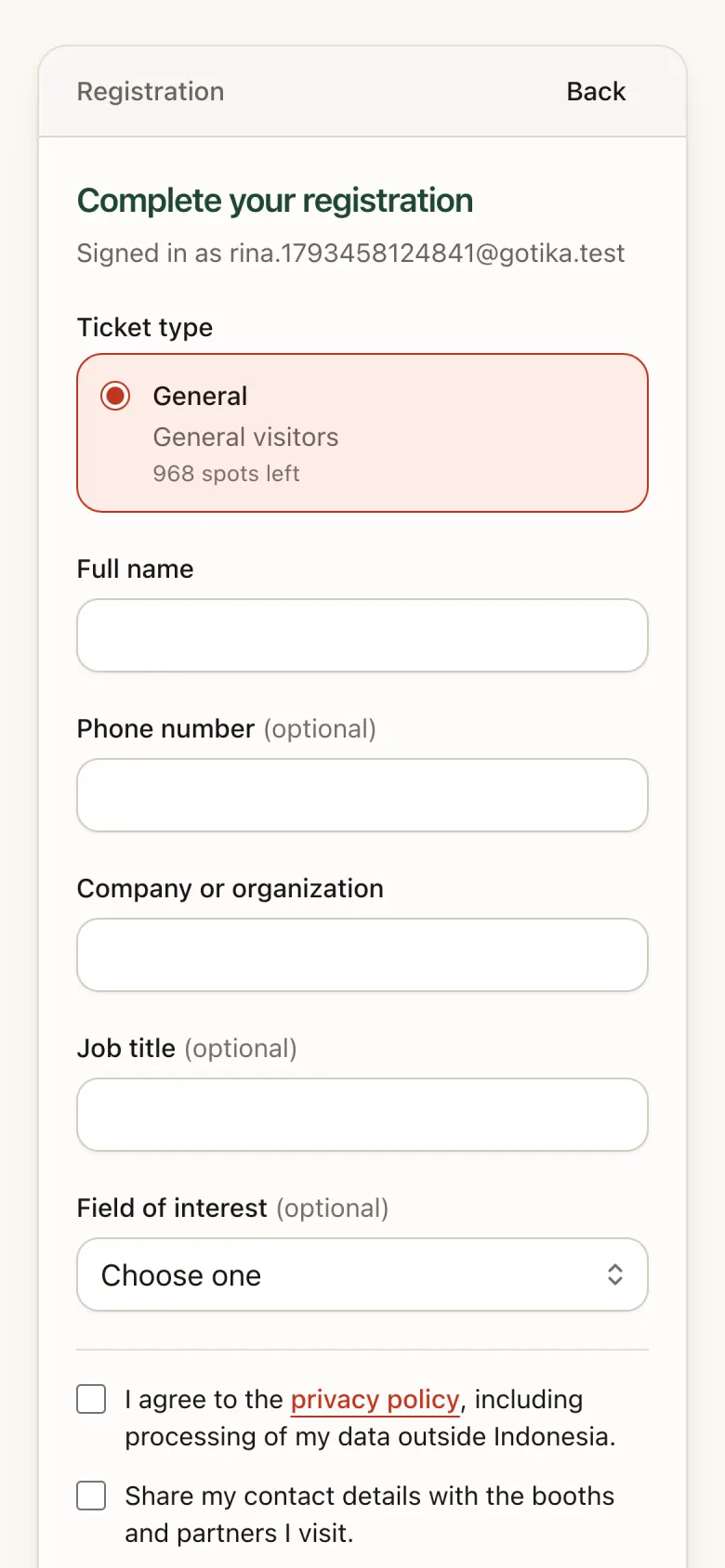
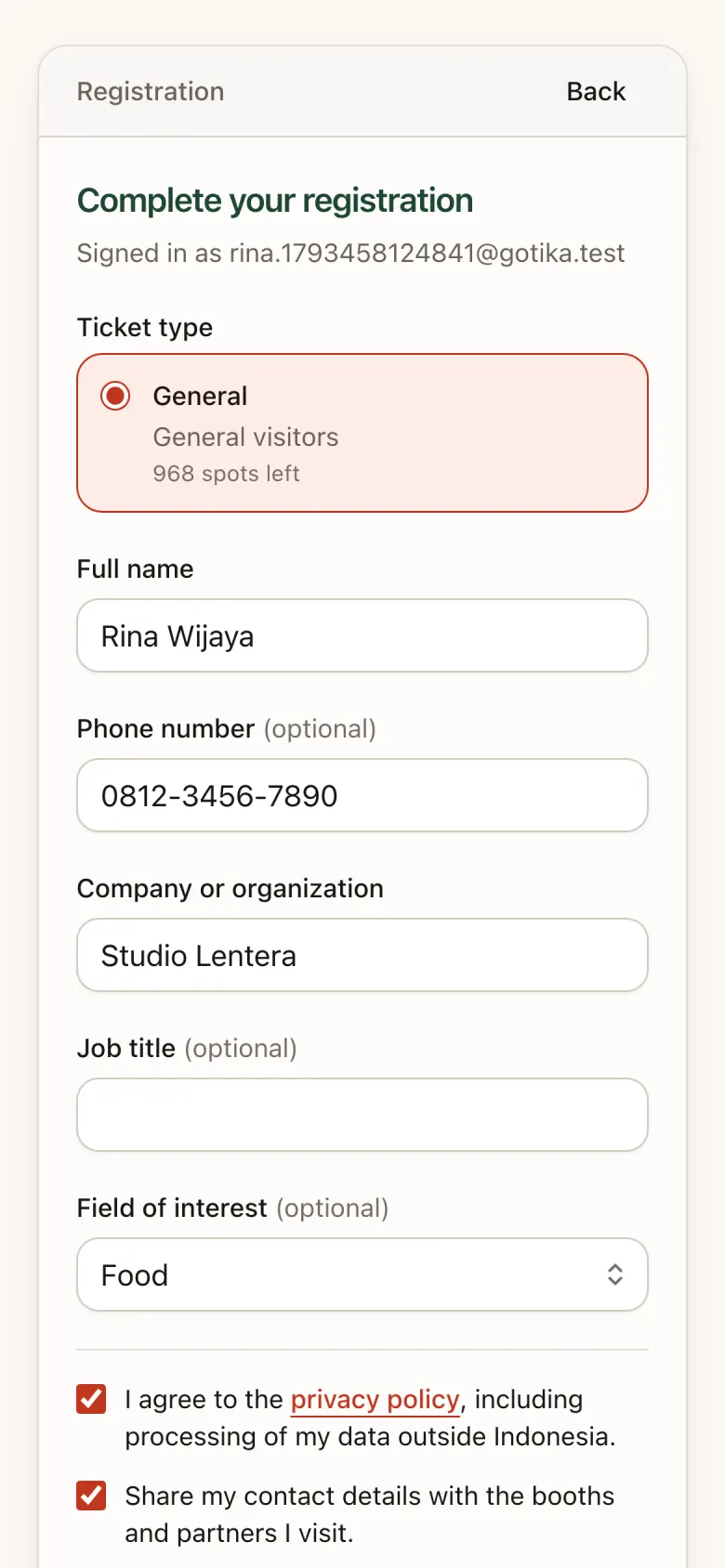
Fill in Complete your registration:
- Ticket type (usually General)
- Full name and Company or organization (required)
- Phone number and Job title (optional)
- Custom questions from the organizer, for example Field of interest
- Tick the privacy policy consent (required)
- Tick Share my contact details with the booths and partners I visit if you want exhibitors to be able to reach you (optional)
Submit
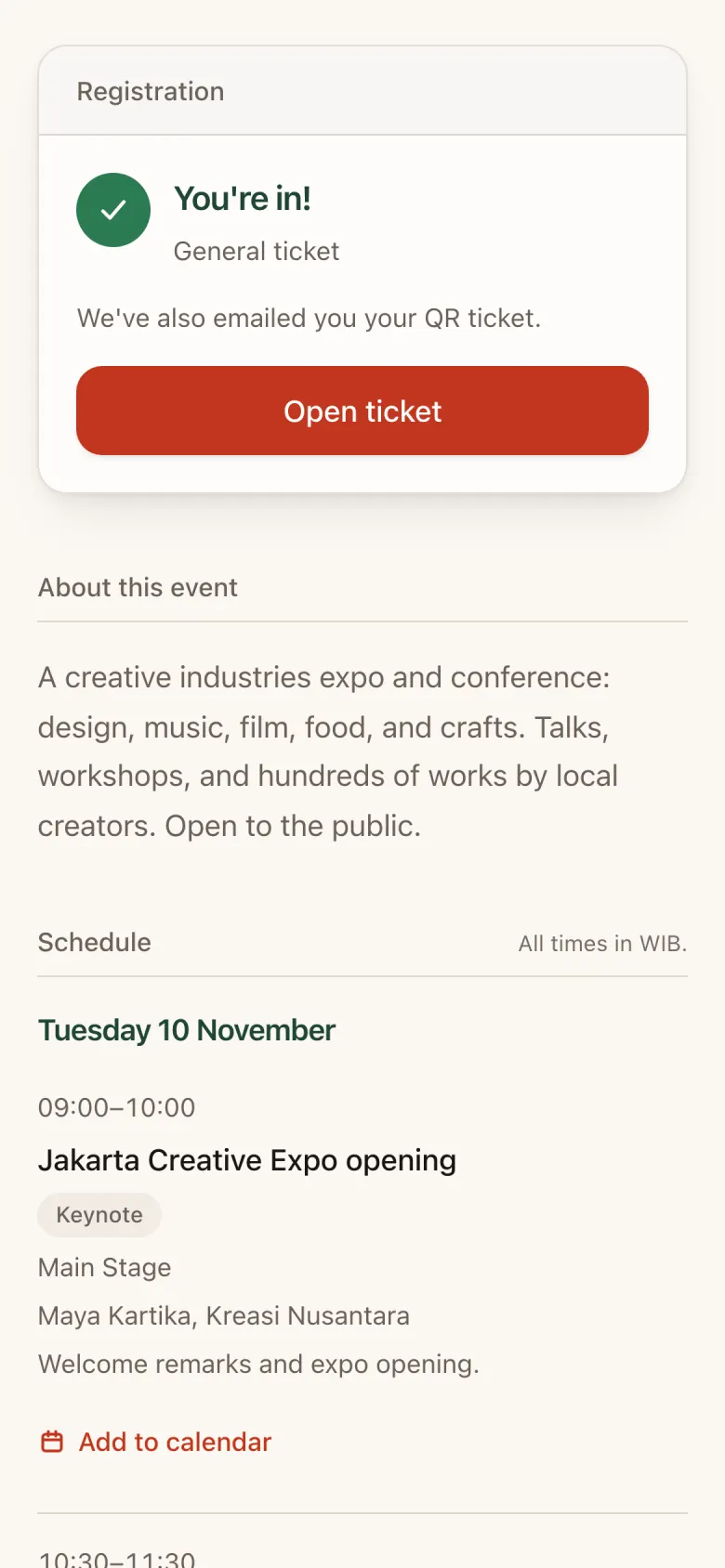
Tap Submit registration. You’ll see You’re in! and your QR ticket is also emailed to you. Tap Open ticket to see your QR in the app right away.
Good to know: some tickets (for example Media) need organizer approval. They stay Pending until approved, and you’ll get an email once they are.
Sign in to the attendee app
Open event.gotika.app or tap the link in your email. Sign in with the same email and the 6-digit code sent to it.
Tip: add the app to your home screen so your ticket and QR still open when the venue signal is weak.
- Safari: Share → Add to Home Screen
- Chrome: Install app
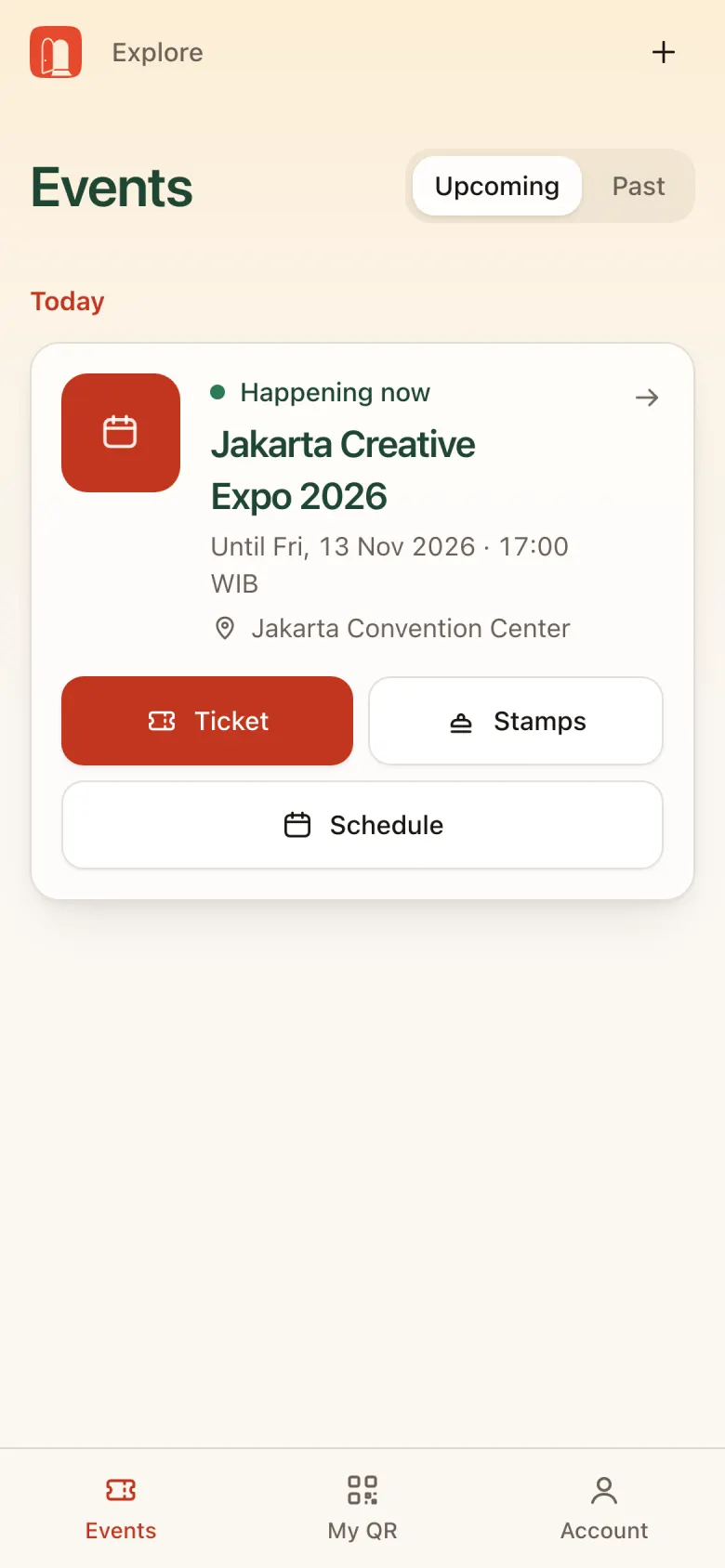
Home: your events
The Events tab lists the events you’re attending. While an event is running, the Today card shows Happening now with shortcuts to Ticket, Stamps, and Schedule.
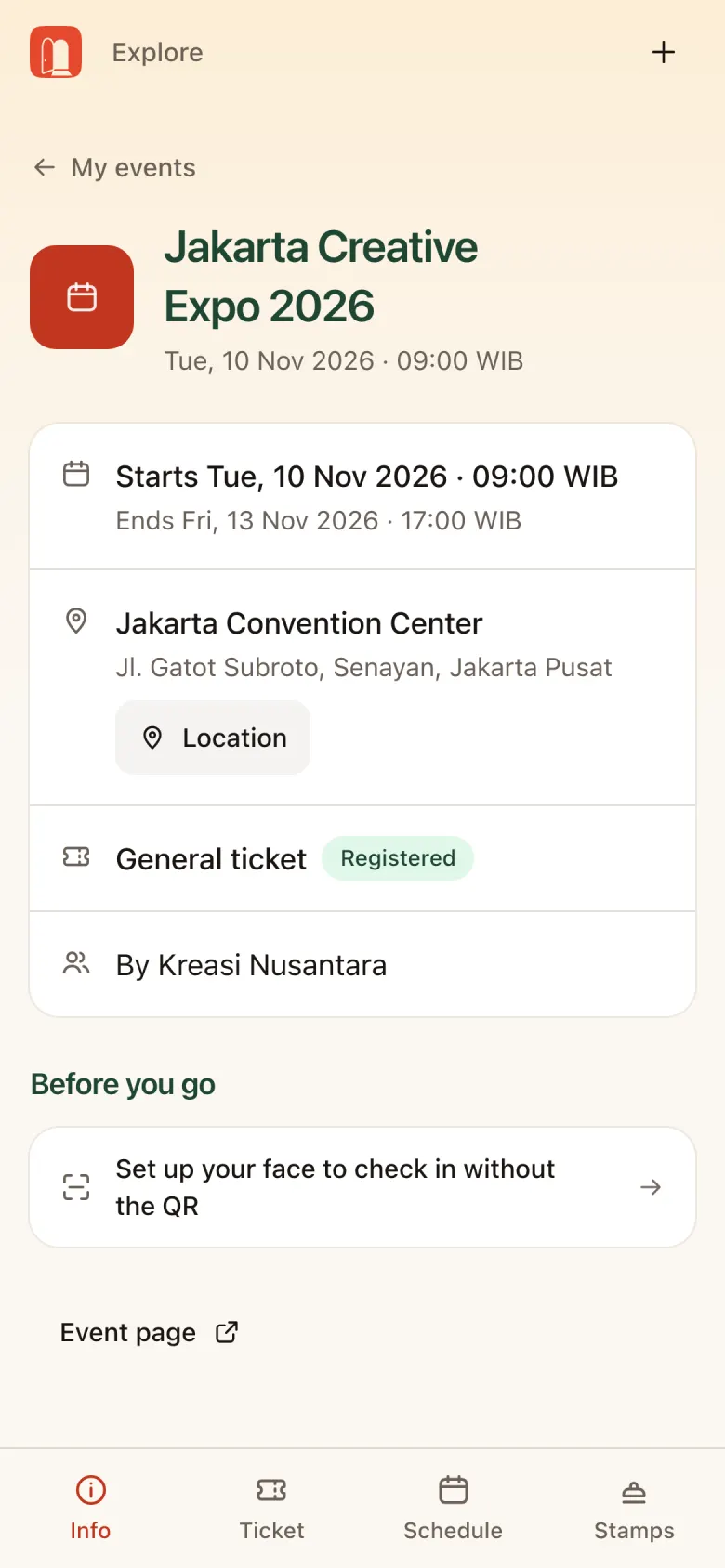
Tap an event to open it in the app. Its bottom menu: Info · Ticket · Schedule · Stamps.
Info shows the time, location, ticket status, and Before you go: what to prepare before you arrive, for example setting up face check-in.
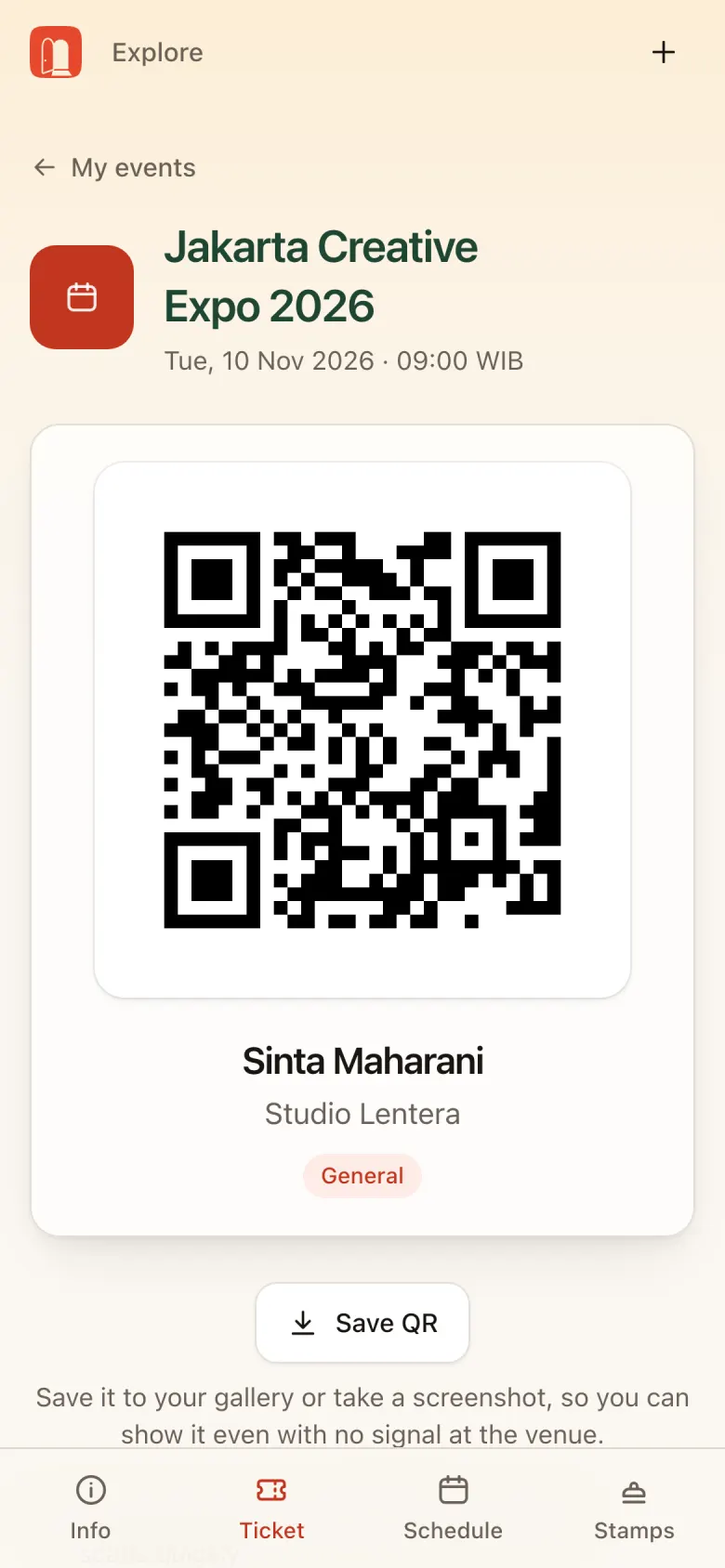
Ticket and QR
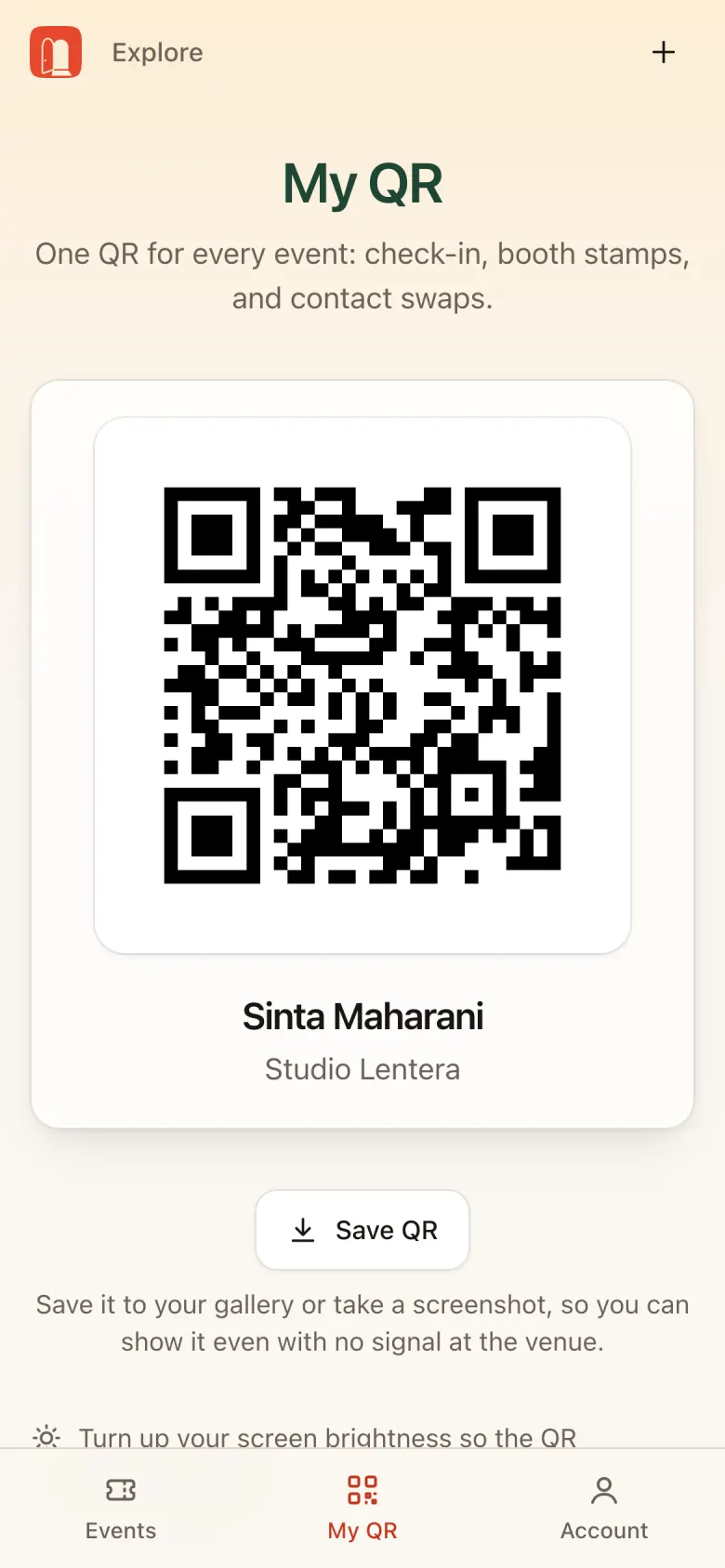
- Ticket (inside the event): QR, name, organization, and ticket type.
- My QR (main bottom menu): the same QR, valid for every event. One QR for gate check-in, booth stamps, and contact swaps.
Tips at the gate:
- Tap Save QR or take a screenshot so you can show it without signal.
- Turn up screen brightness so the QR scans quickly.
- Don’t share your QR. It’s your identity at the event.
Schedule
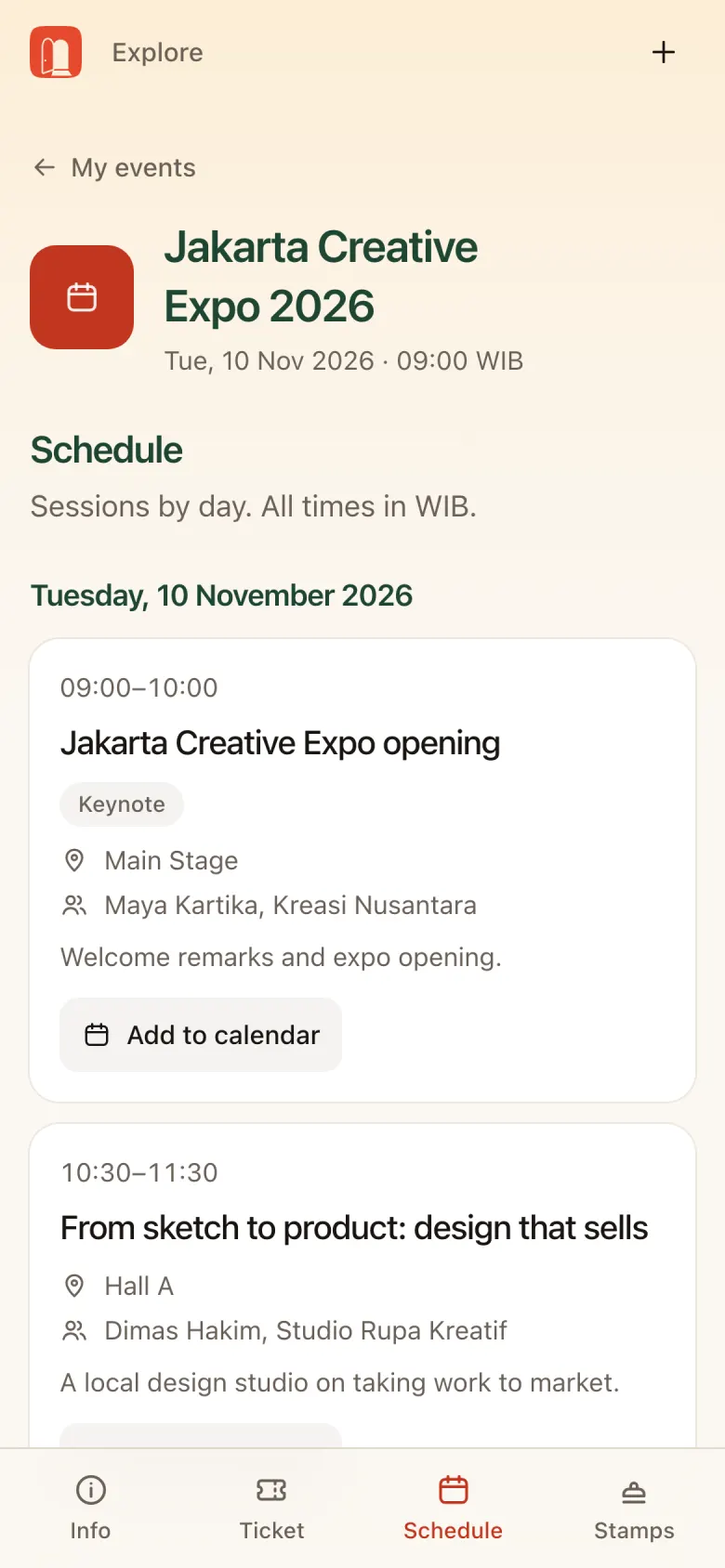
The Schedule tab lists sessions by day. All times follow the event’s time zone.
- Start and end time
- Title and session type (Keynote, Workshop, and so on)
- Room and speakers
Tap Add to calendar to save a session to your phone’s calendar.
Stamp card and raffle
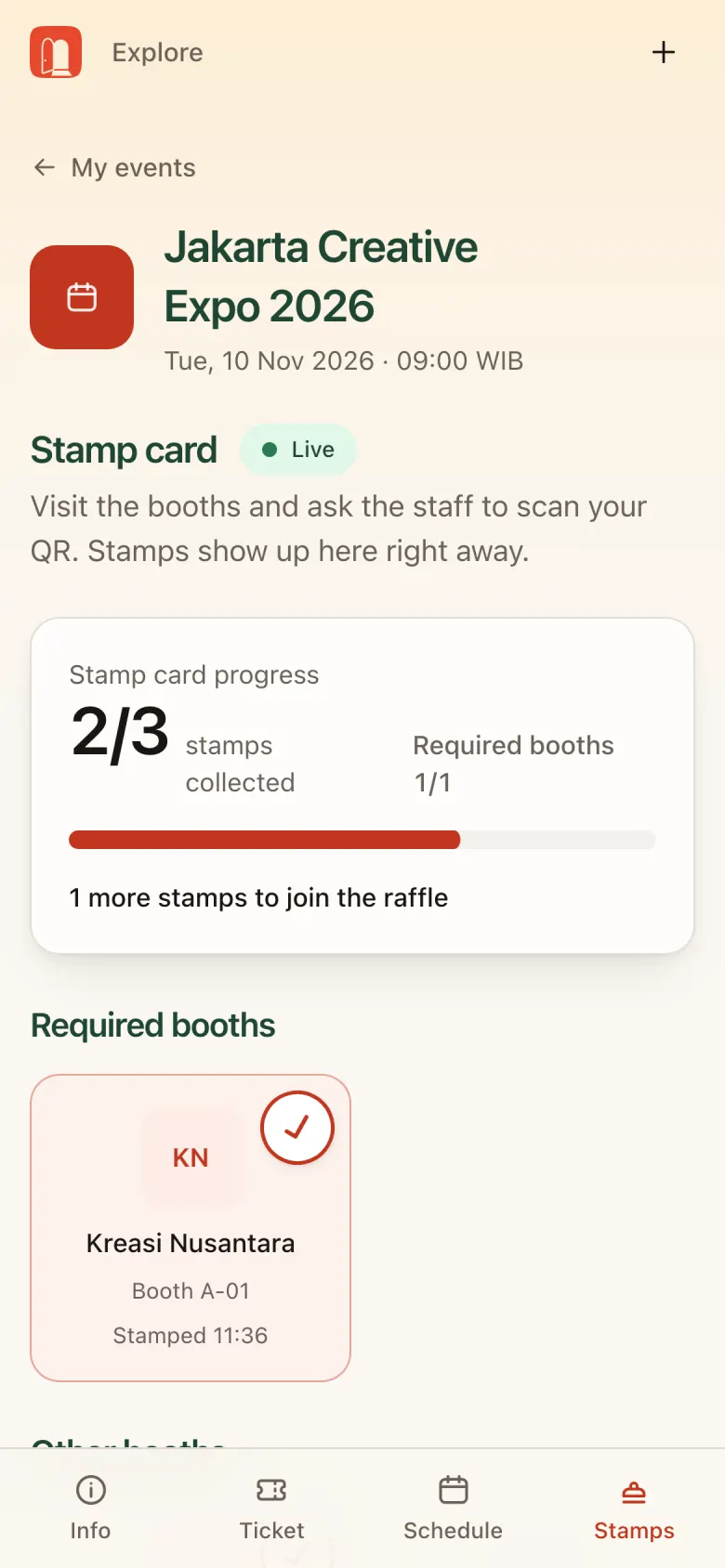
Visit exhibitor booths and ask the booth staff to scan your QR. The stamp appears right away in the Stamps tab (marked Live).
- Stamp card progress: stamps collected and required booths visited.
- Required booths: booths you must visit, for example the organizer’s booth.
- Other booths: more booths for extra stamps.
Raffle: card complete and checked in that day? You’re automatically entered into the door prize raffle on stage.
Face check-in (optional)
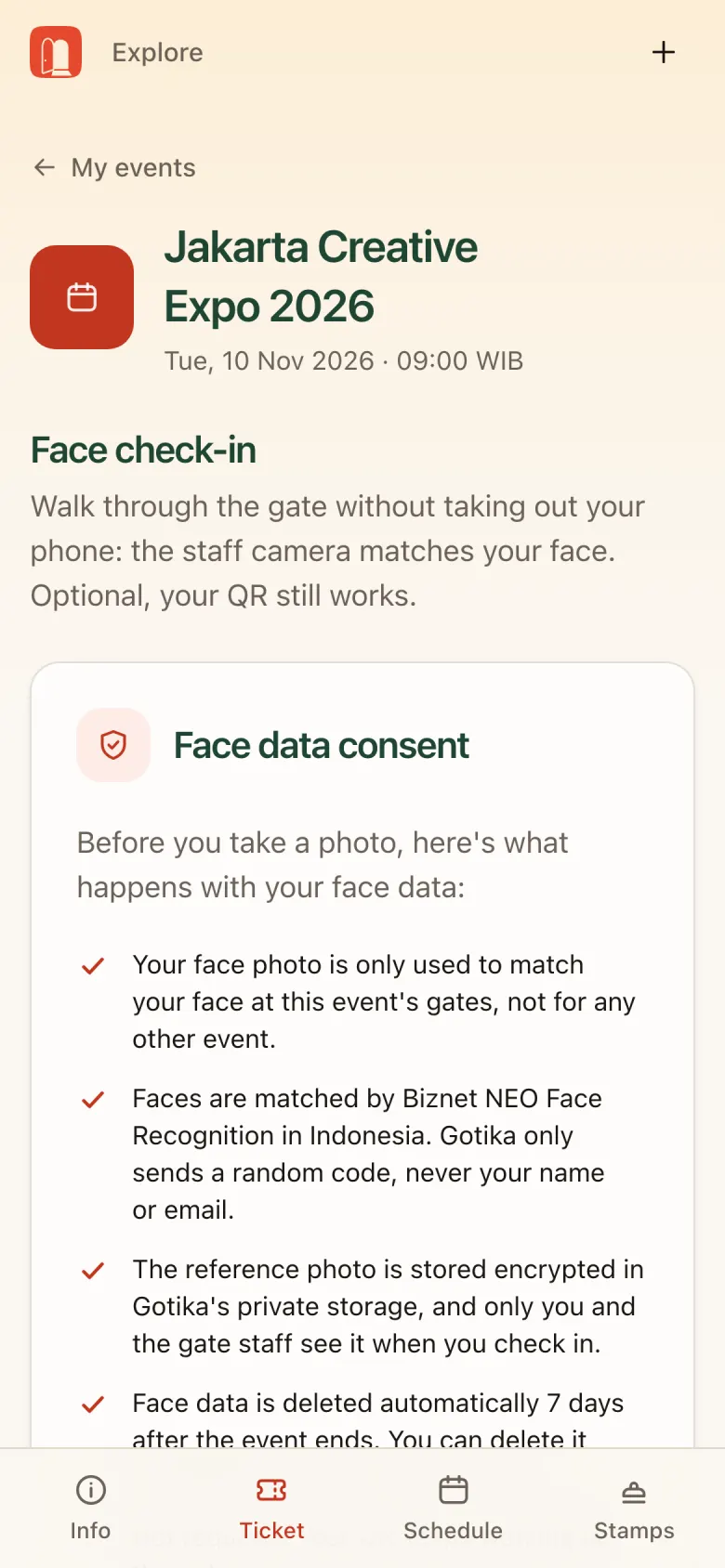
If the event uses face check-in, set up your face before you arrive and walk through the gate without taking out your phone. Go to Info → Set up your face to check in without the QR.
Read the face data consent
Read the Face data consent: what the photo is used for, who processes it (Biznet NEO Face Recognition, in Indonesia), and when it’s deleted: automatically 7 days after the event ends, or any time you delete it yourself.
Take a photo
Agree, then take a photo following the camera prompts.
Your QR still works
Face check-in is just an extra option.
Account, profile, and privacy
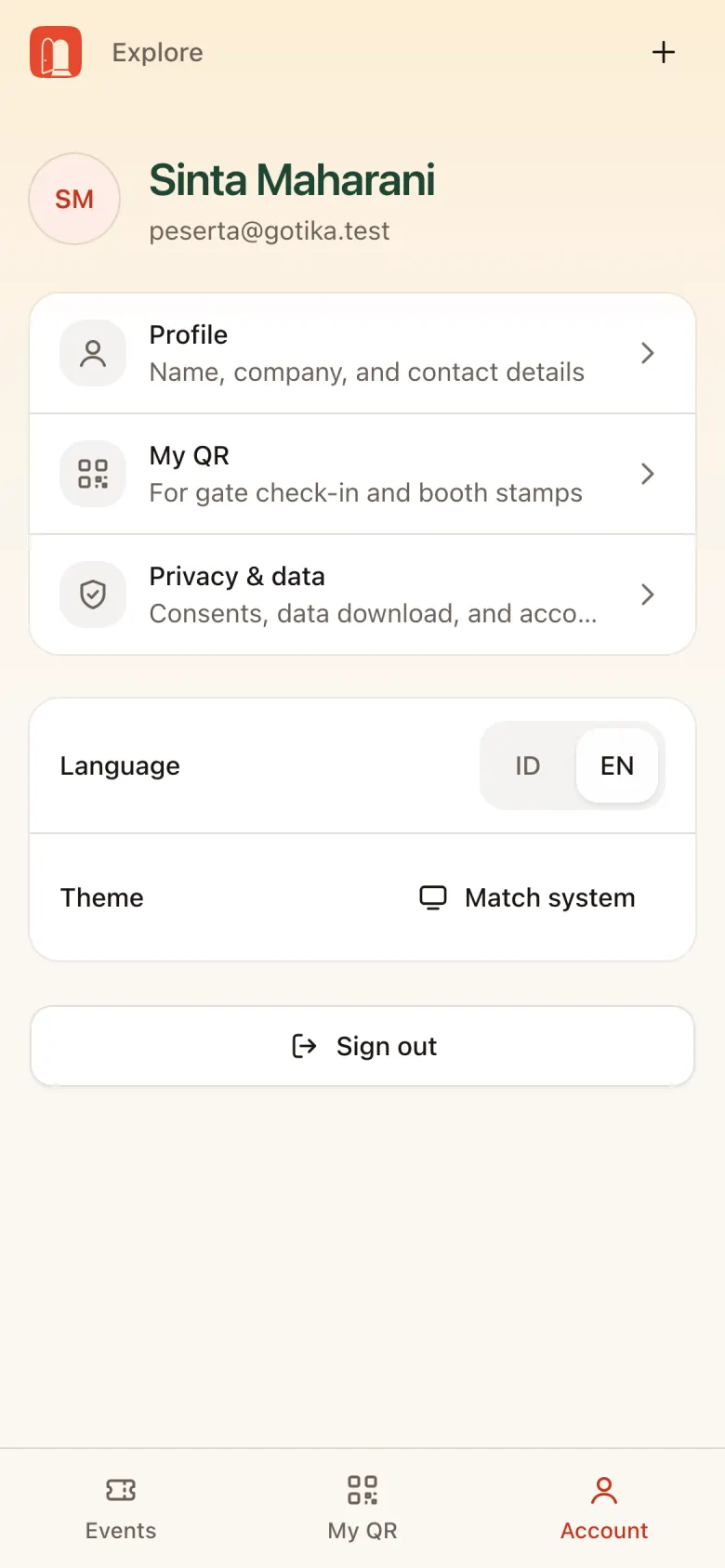
The Account tab has:
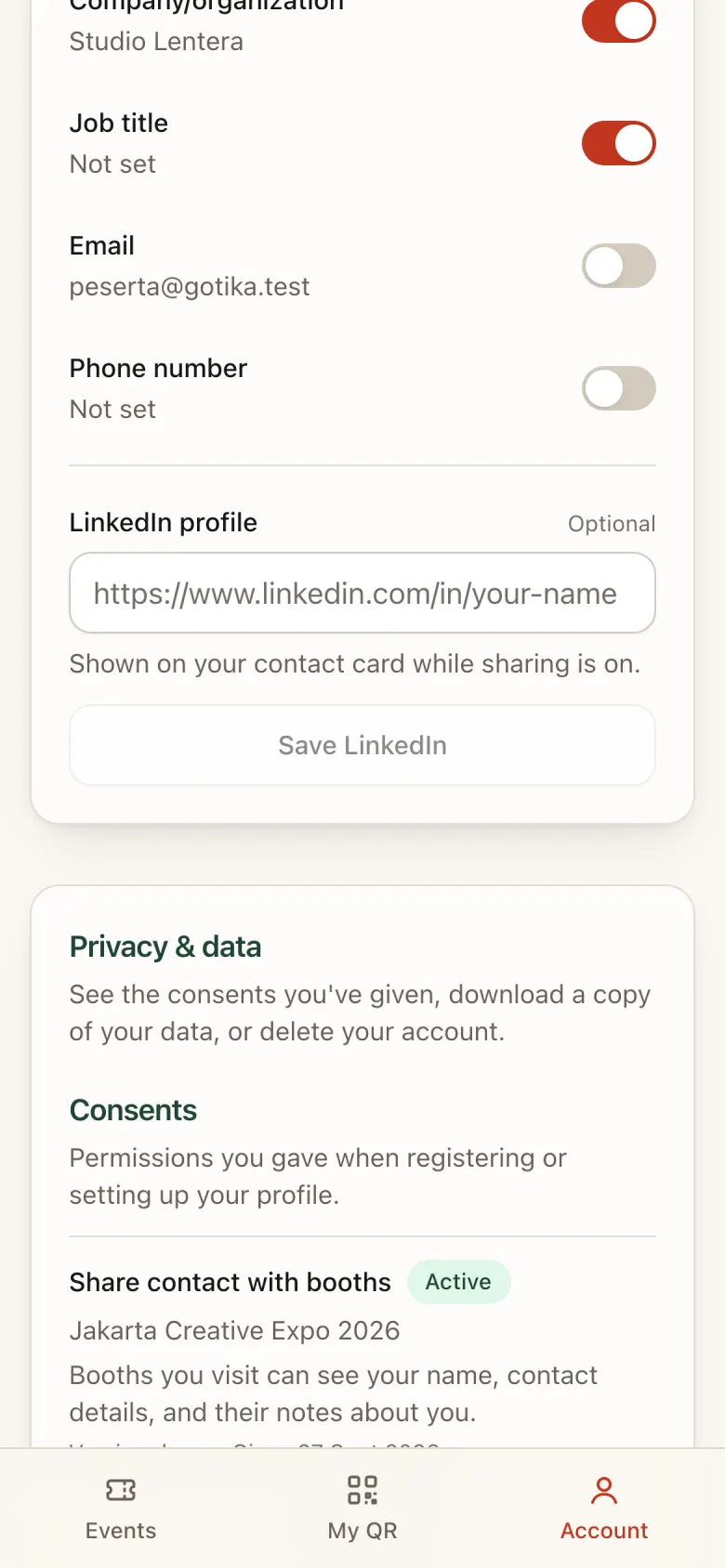
- Profile: name, company, phone number, job title. Used for tickets, check-in, and your contact card. Email can’t be changed here.
- My QR
- Privacy & data: manage consents (for example, stop sharing your contact with booths), download a copy of your data, or delete your account.
- Language (ID/EN), Theme, and Sign out.
Frequently asked questions
Quick answers to what attendees ask most on the day.
| Question | Answer |
|---|---|
| My sign-in code didn’t arrive | Check Spam/Promotions. Wait for the countdown, then resend. Make sure the email address is right. |
| Phone is dead or I forgot it | Go to the gate staff. They can look up your name and check you in manually. |
| I’m at the venue but haven’t registered | Go to the registration desk or gate staff for a walk-in, or use the self-registration kiosk if there is one. |
| Can I leave and come back? | Yes. Later scans on the same day count as “re-entry”. |
| My stamp didn’t show up | Make sure the booth staff scanned your QR until “Stamp recorded” appeared. The Stamps tab updates on its own. |
| I don’t want booths to see my contact | Don’t tick “Share my contact details” when registering, or turn it off in Account → Privacy & data. Stamps are still recorded; booths only see your first name. |
Before you go:
At home:
- You received the You’re in! email
- The app is on your phone’s home screen
- Your QR is saved or screenshotted
- Face set up (if the event uses face check-in)
At the venue:
- Phone charged, screen brightness up
- Show your QR at the gate to check in
- Visit required booths first
- Check the Stamps tab until your card is complete