Booth roles
| Role | Can do | Invited by |
|---|---|---|
| Booth admin | Everything staff can do, plus edit the booth profile and invite/remove staff | Organizer |
| Booth staff | Scan visitor QR codes, add ratings & notes, view leads | Booth admin |
Team size is limited by the booth’s quota (for example, 10 seats). Access via event.gotika.app, signing in with the invited email + a 6-digit code.
Open the booth portal
- Open the invitation. Open the invitation email from Gotika, or go straight to
event.gotika.app. - Sign in. Use the invited email and the 6-digit code from your email.
- Open the Booth tab. It’s in the bottom menu. The Events tab may be empty if you aren’t registered as an attendee; that’s normal.
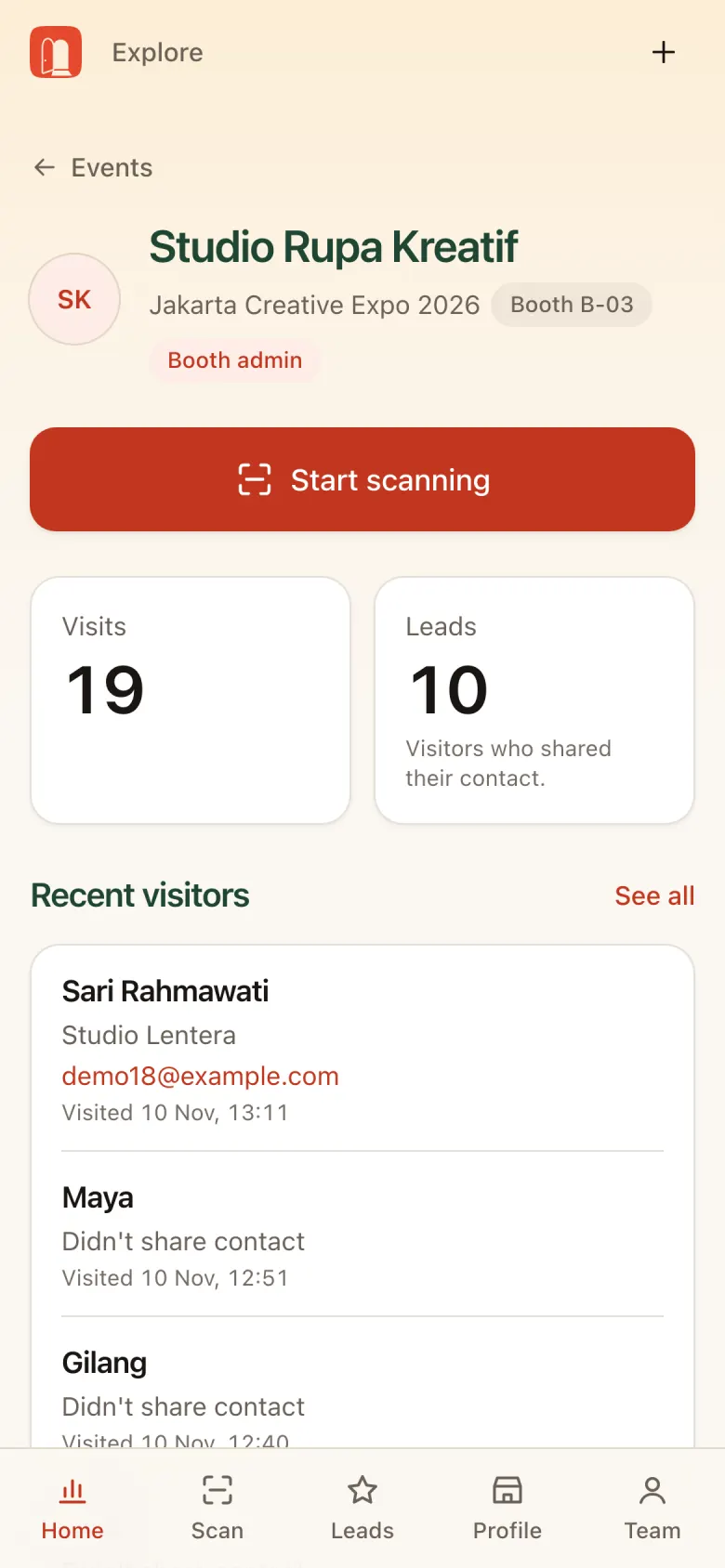
Booth home
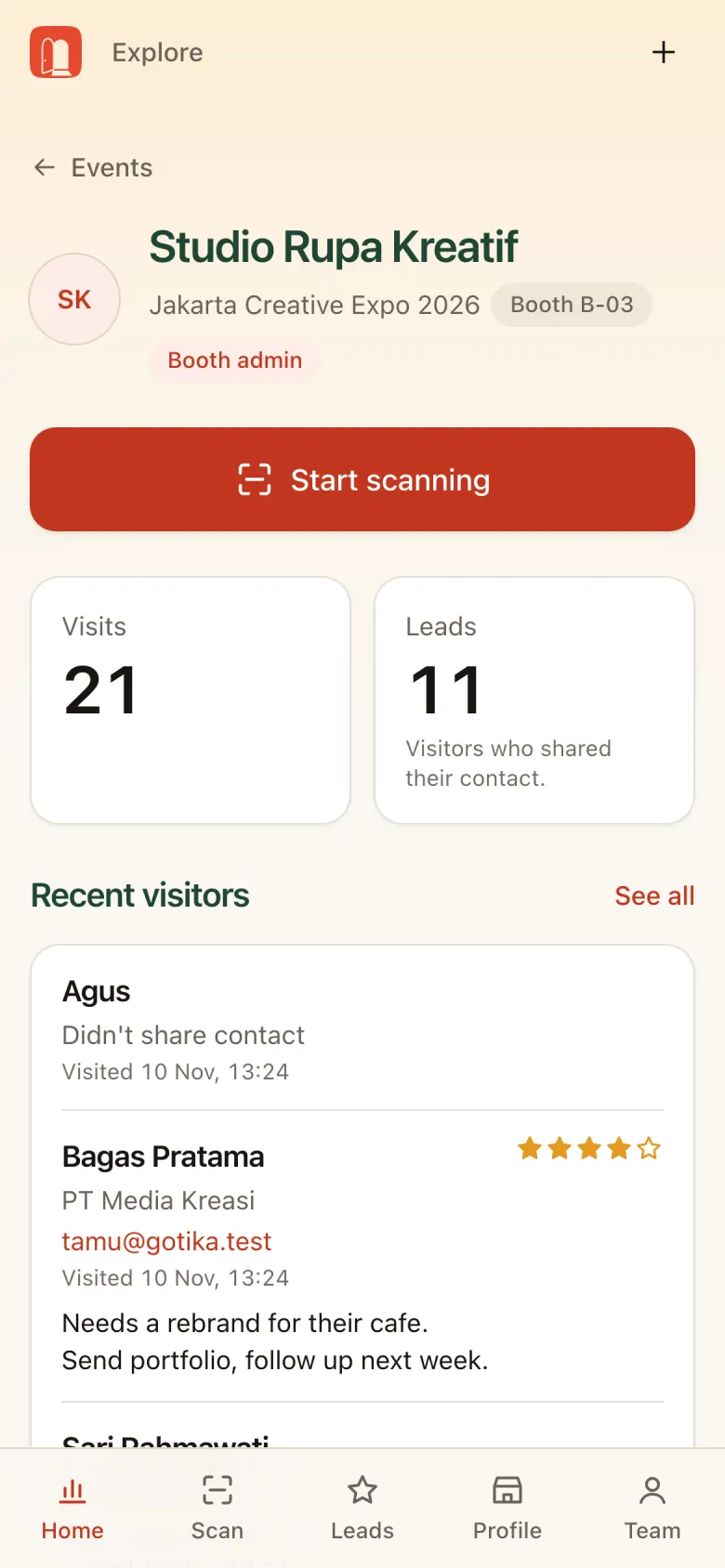
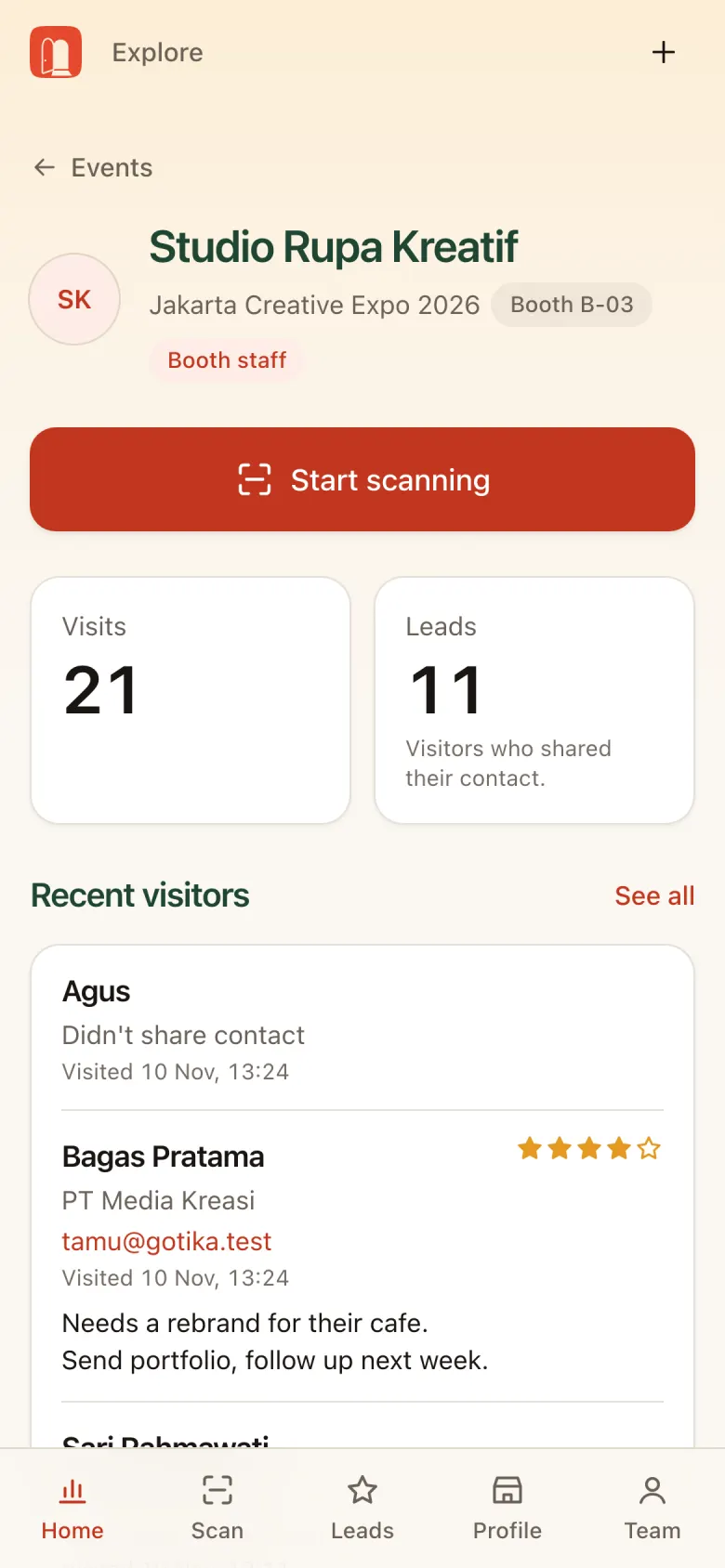
The booth home shows the booth name, event, booth number, and your role (Booth admin / Booth staff).
- Start scanning: straight to the camera.
- Visits: number of visitors scanned.
- Leads: visitors who shared their contact.
- Recent visitors: the latest scans; tap See all for the full list.
Bottom menu: Home · Scan · Leads · Profile · Team.
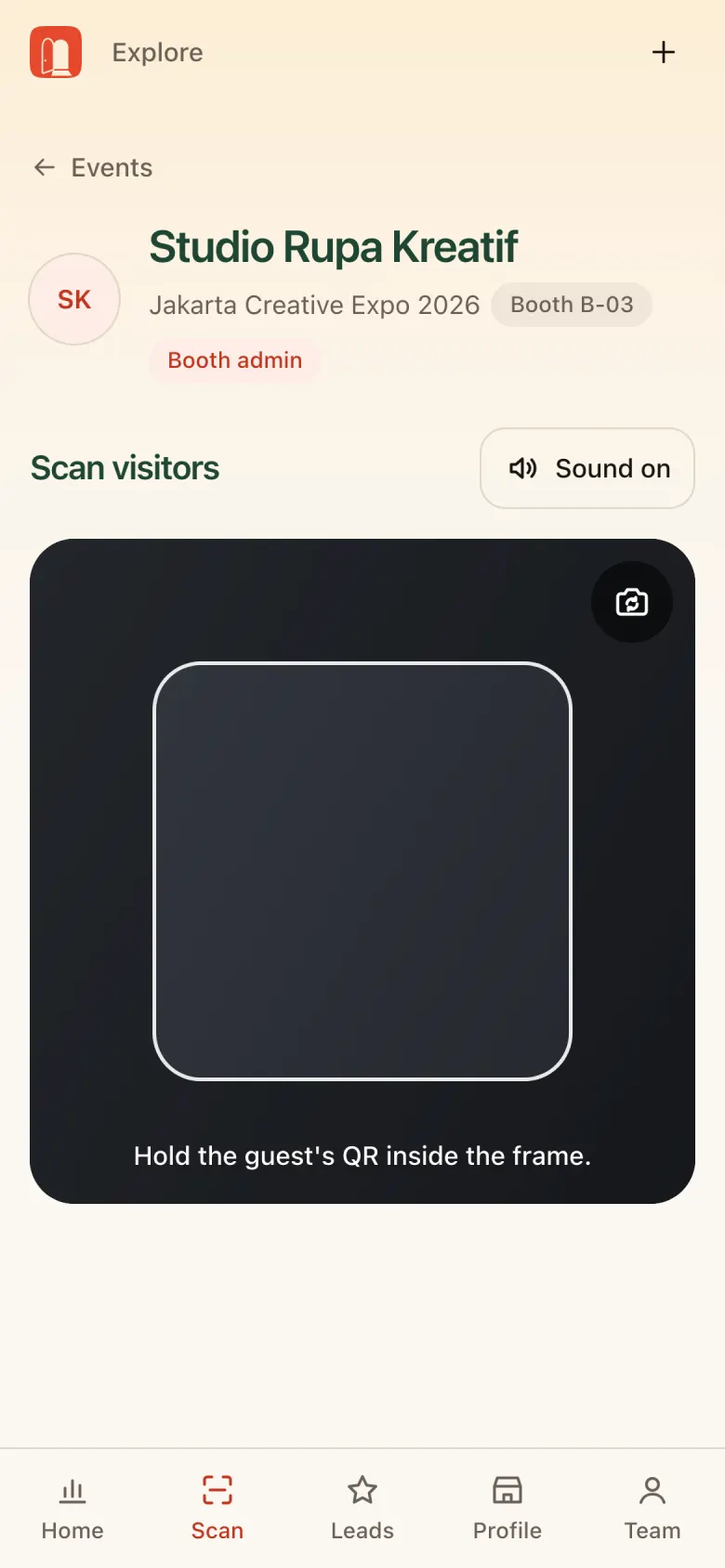
Scan visitors
- Open the scanner. Tap Start scanning or the Scan tab, then allow the camera.
- Scan the visitor’s QR. Ask the visitor to open My QR in the Gotika app (or the QR from their email) and hold it inside the frame.
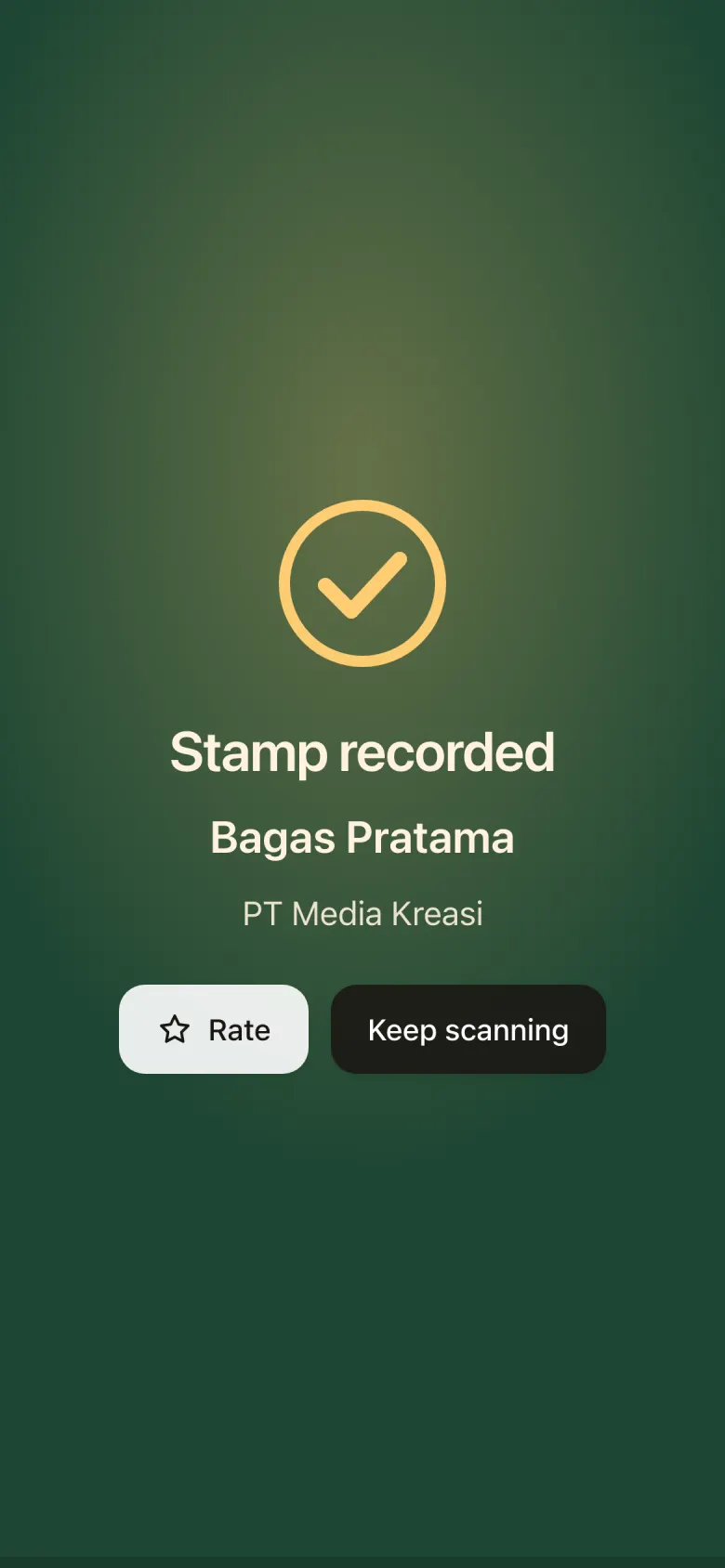
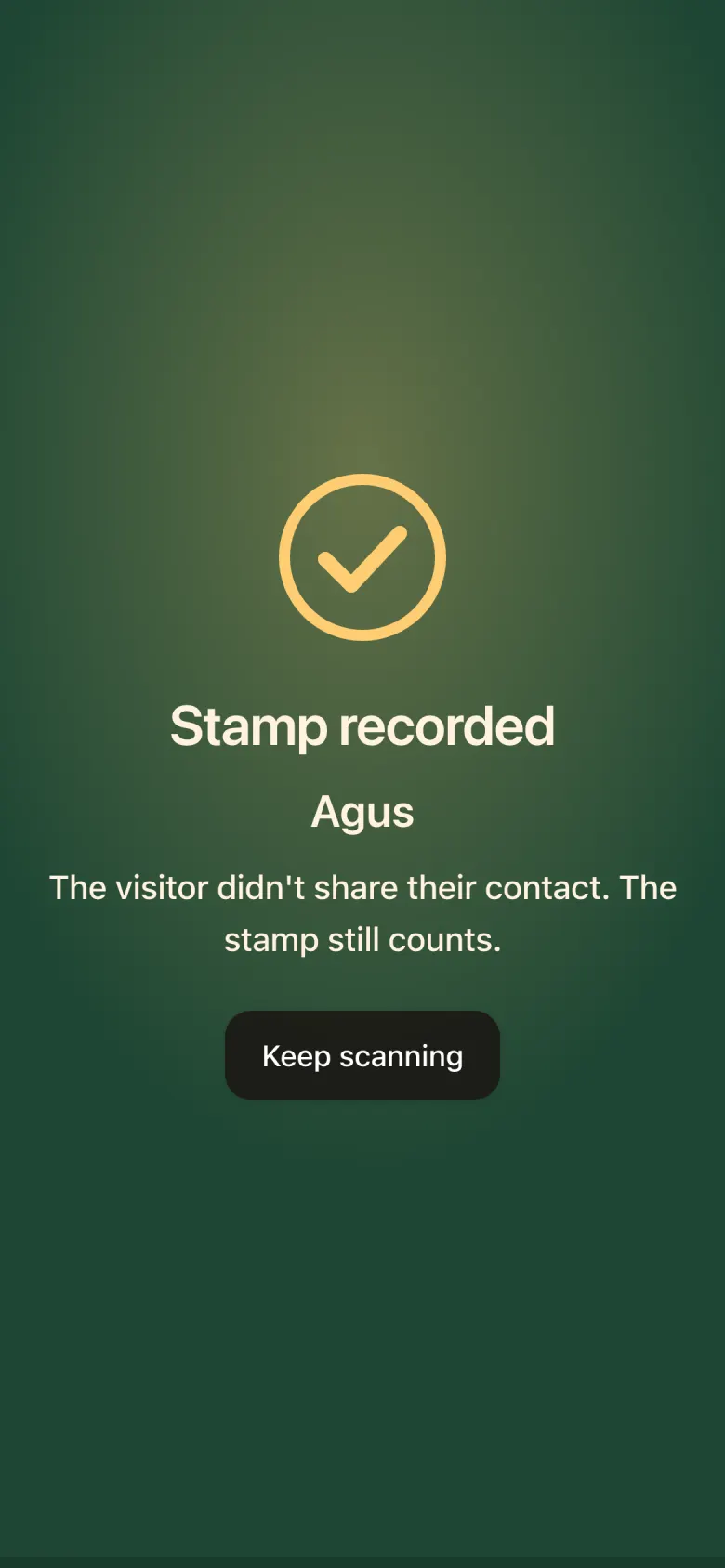
- Green: Stamp recorded. The stamp goes onto the visitor’s stamp card. Their name and organization show if they share their contact.
Add a rating and notes
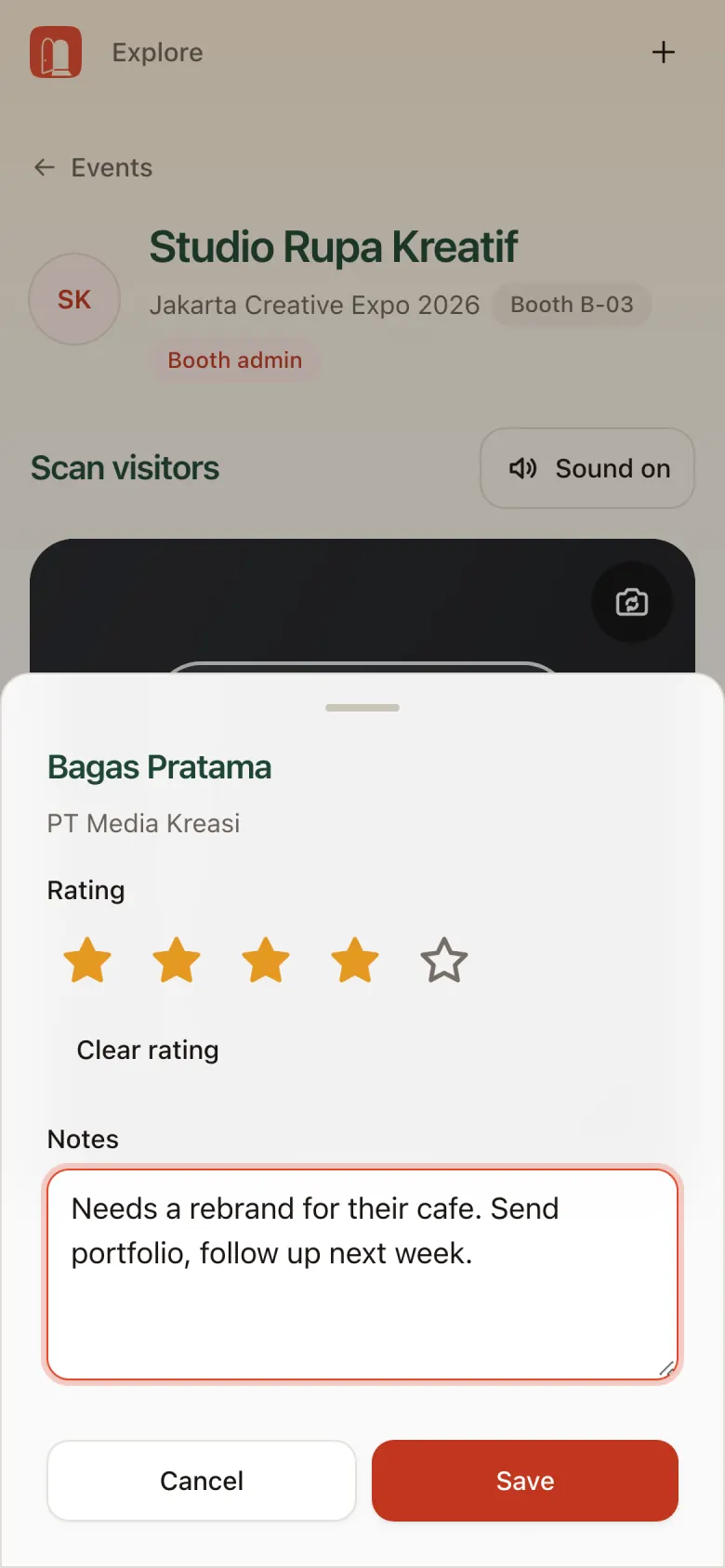
From the green screen, tap Rate. Pick 1–5 stars and write a note, for example product interest or follow-up plans, then Save. A Lead saved confirmation appears.
Tip: Write notes right after the chat. A short note like “wants a demo, follow up Monday” helps a lot later.
Other scan results
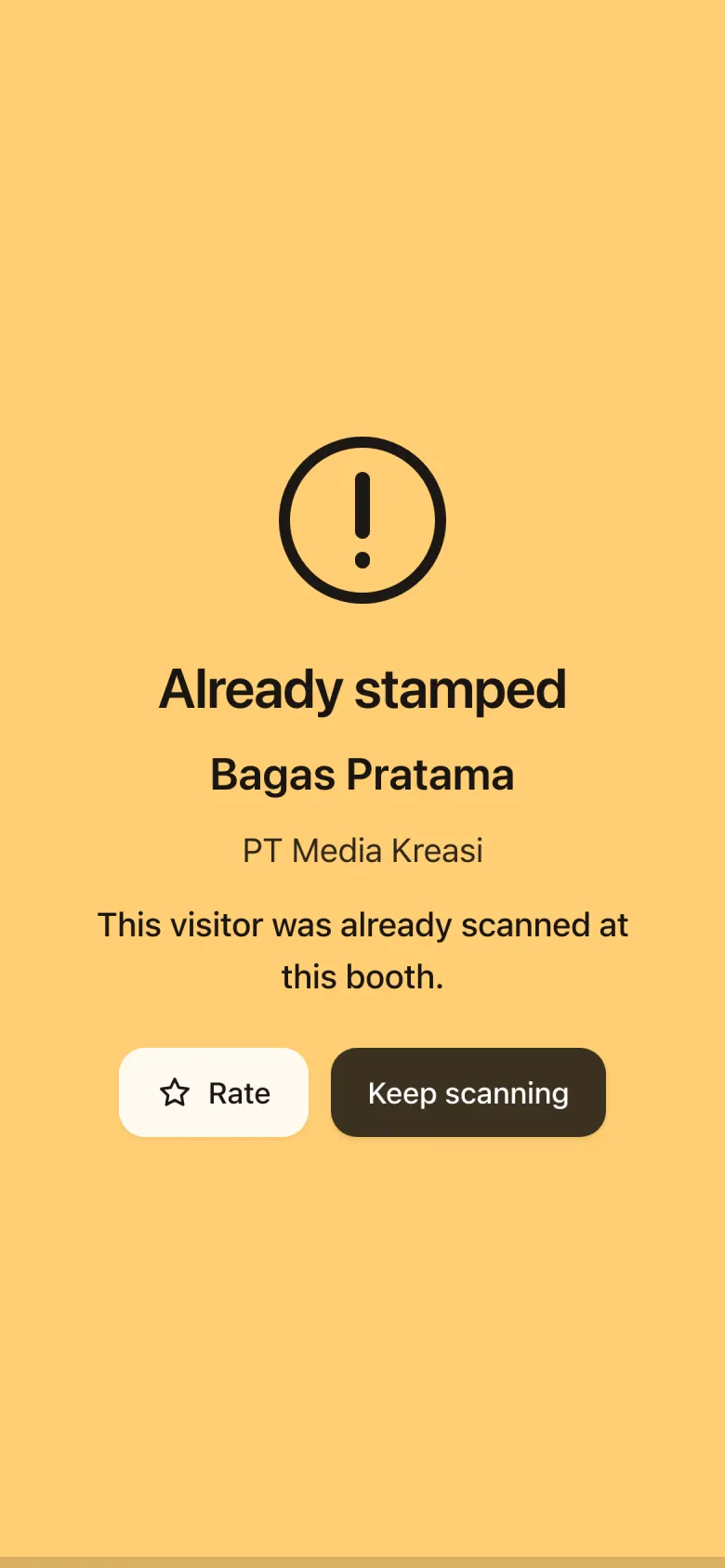
Yellow: Already stamped. This visitor was already scanned at your booth. No double stamp, but you can still Rate.
Contact not shared. The stamp is still recorded, but the booth only sees their first name and can’t rate them. Their contact details don’t go into leads.
Offline? Scans are still accepted. You’ll see a message that the stamp will be sent automatically once you’re back online. Don’t sign out before reconnecting.
Leads and CSV download
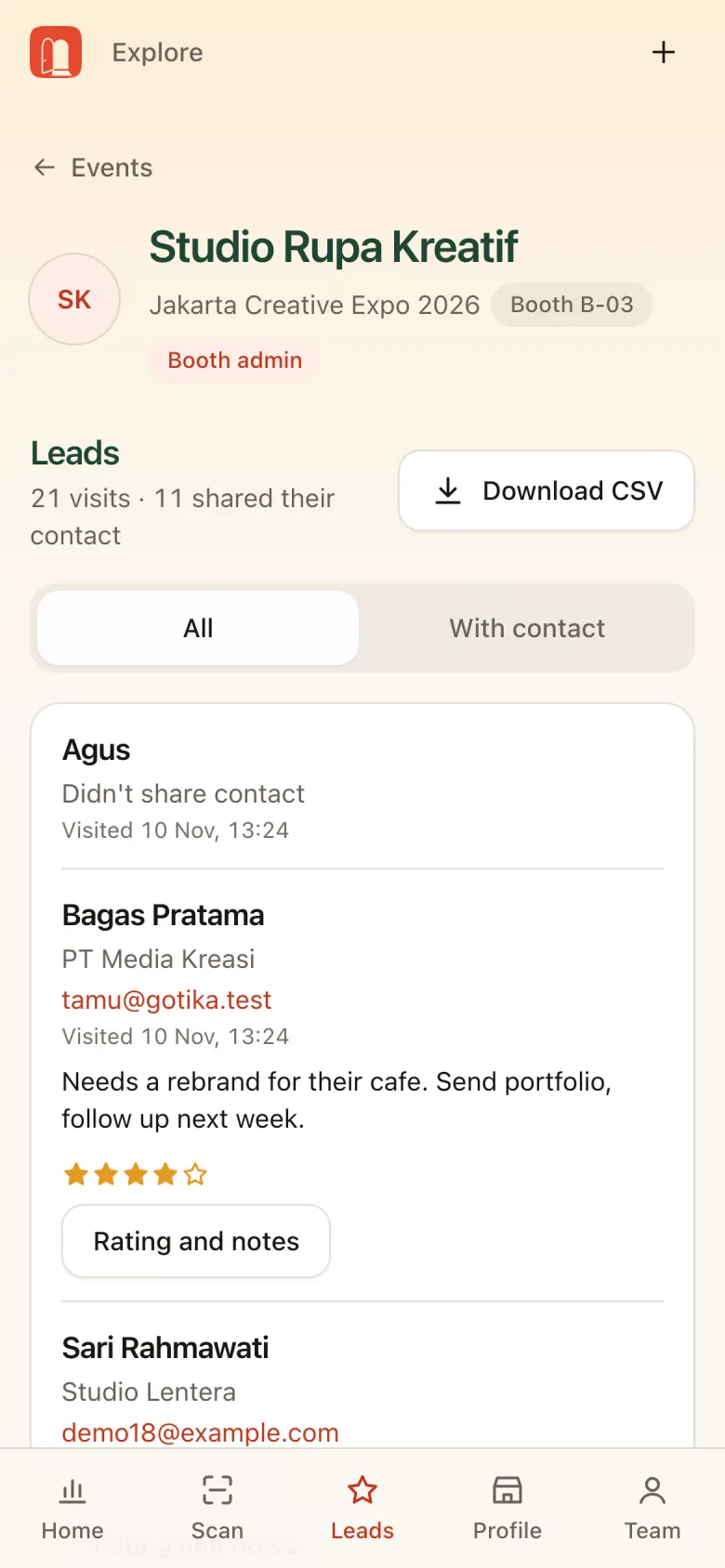
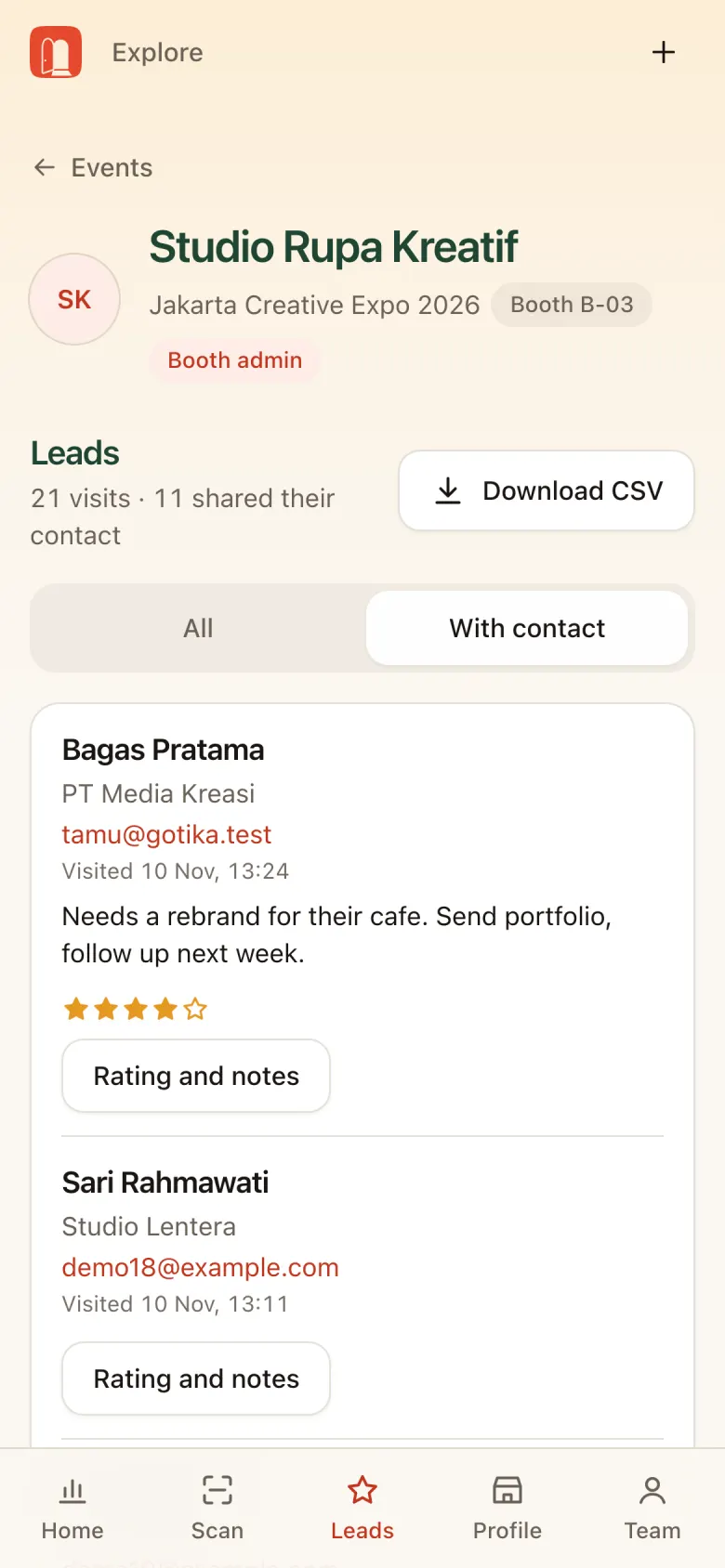
The Leads tab has every visit:
- Summary at the top: number of visits and how many shared their contact.
- Filter All / With contact.
- Each lead: name, organization, email, visit time, rating, and notes. Tap Rating and notes to edit.
- Download CSV: export leads for follow-up. Only includes visitors who agreed to share their contact.
Booth profile (admin)
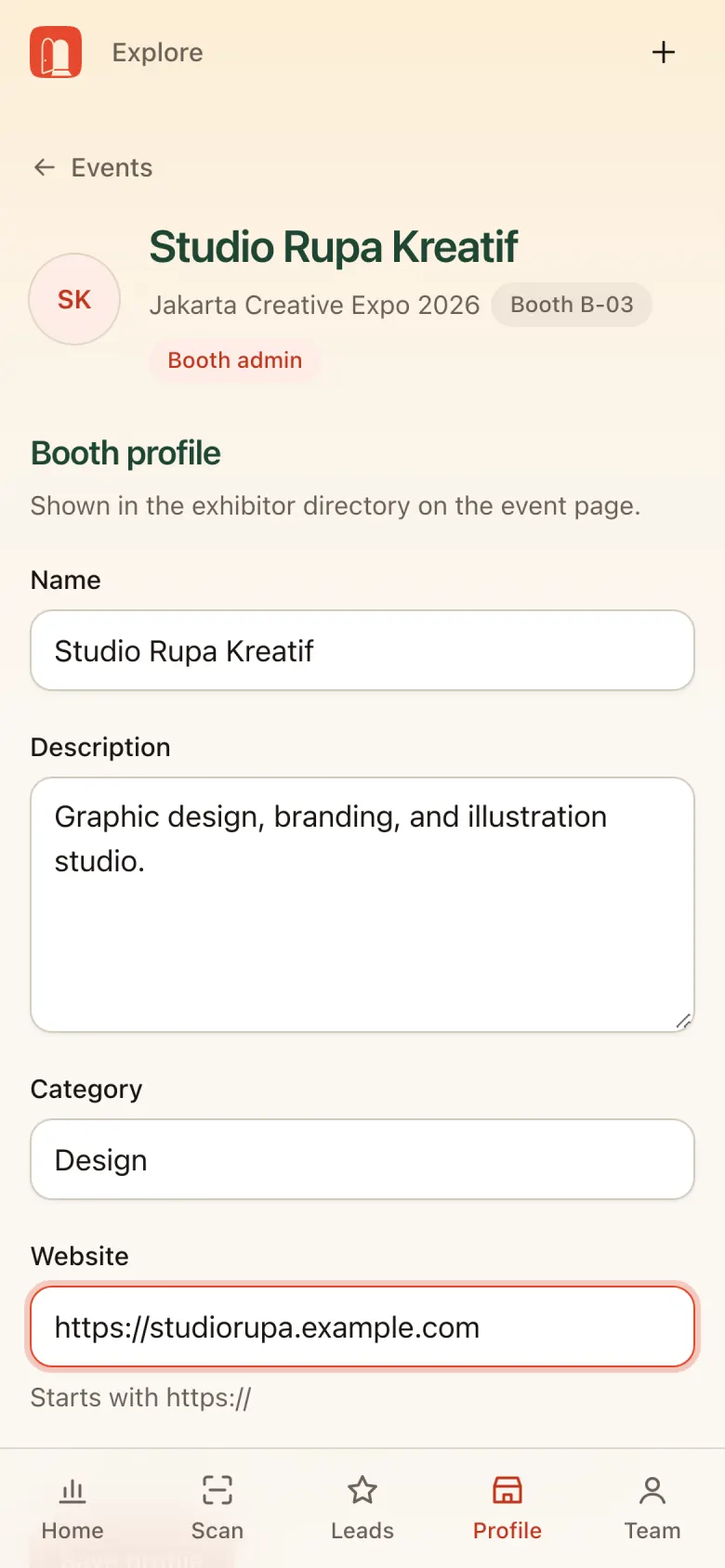
The profile appears in the exhibitor directory on the event page. Fill in, then save:
- Name
- Description
- Category
- Website (starting with
https://)
Info: The Visits and Leads numbers on the home screen go up with every successful scan.
Booth team (admin)
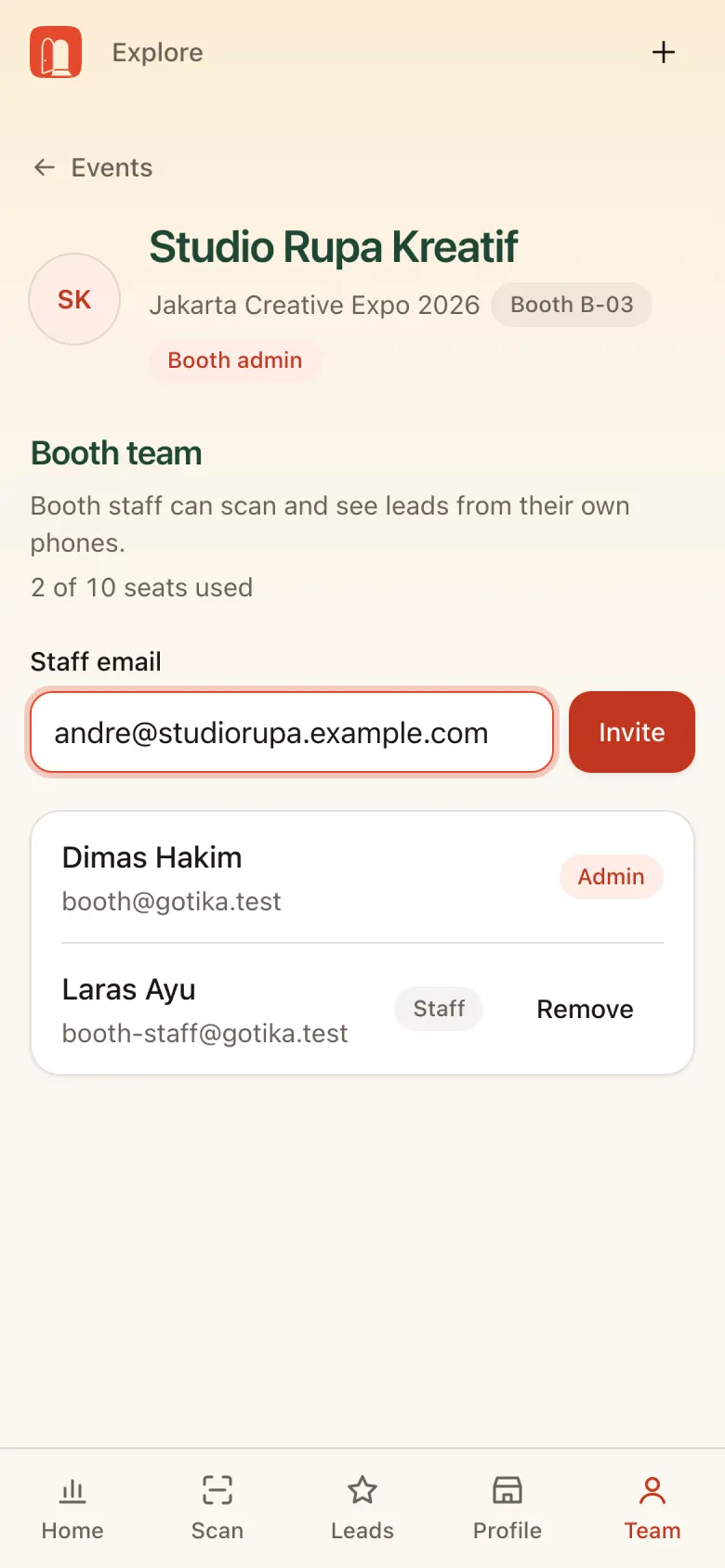
- Open the Team tab. It shows how many seats are used.
- Invite staff. Enter a Staff email and tap Invite. They get an invitation email and sign in with that email.
- Revoke access. Tap Remove next to their name.
Booth staff see the same portal labelled Booth staff; their main jobs are scanning and leads.
Tips and FAQ
- Prepare your phone: Add the app to your home screen so it opens fast and copes with weak signal.
- Note it now: Write notes right after the chat, while it’s fresh.
- Required booths: Required booths on the stamp card get busier. Have two phones ready to scan.
- QR won’t scan: Ask the visitor to turn up screen brightness.
| Question | Answer |
|---|---|
| No Booth tab after signing in | Make sure you signed in with the invited email. Ask the booth admin or organizer to check the invitation. |
| Why do some visitors have no full name? | They didn’t agree to share their contact. Their stamp is still recorded. |
| Scanned twice, double stamp? | No. The second scan shows yellow “Already stamped”. |
| Team quota is full | Remove staff who aren’t on duty, or ask the organizer to raise the booth quota. |
| When can leads be downloaded? | Any time during and after the event, via Download CSV on the Leads tab. |