Before the event day
Account & device
- The organizer has invited your email as Check-in staff.
- Open
event.gotika.appon the gate device and sign in with that email and a 6-digit code.
Prepare the app
- Add the app to the home screen (Add to Home Screen) and open it from the icon. This keeps the browser from clearing the guest list.
- Allow camera access when asked.
Enter staff mode
After signing in, the bottom menu has a Check-in tab. The Events tab is usually empty for staff because you aren’t an attendee. That’s normal.
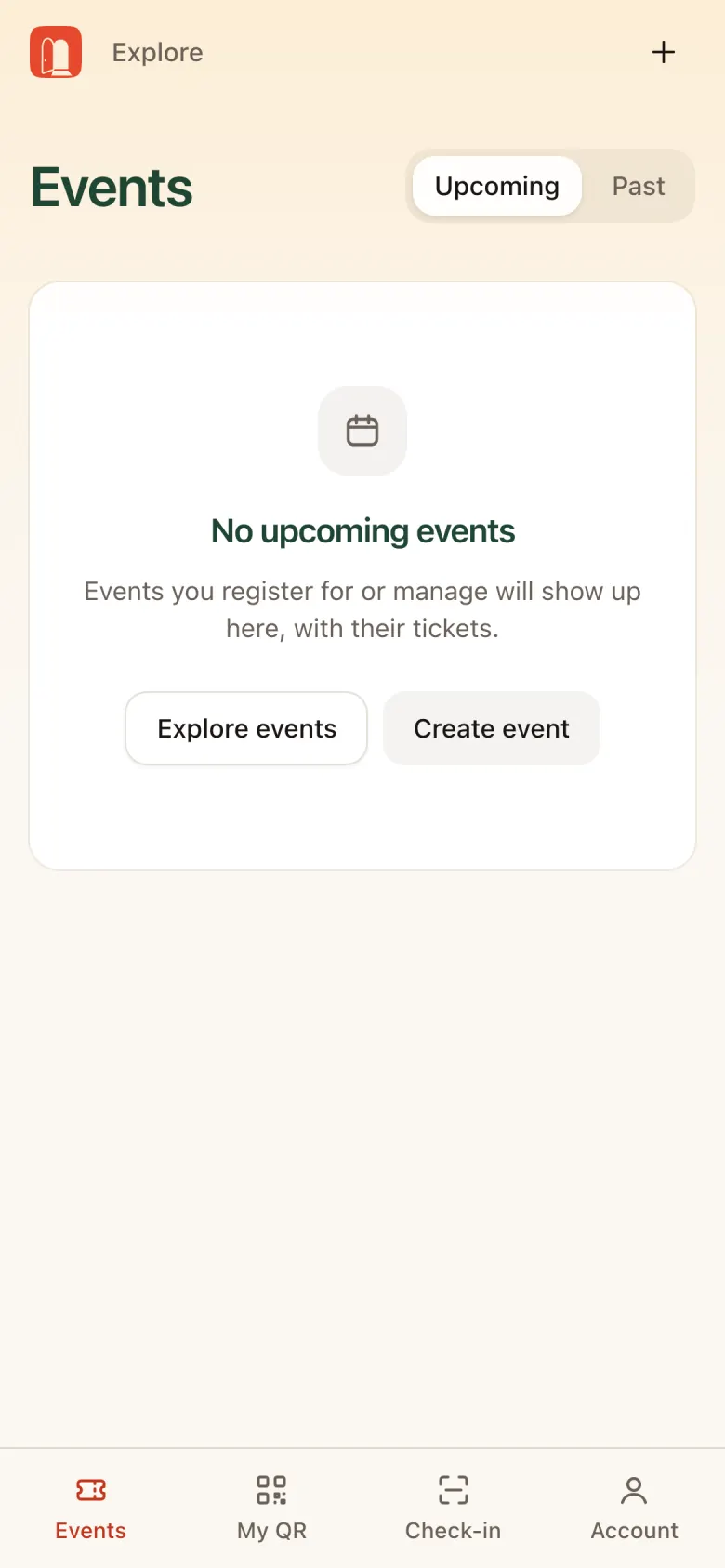
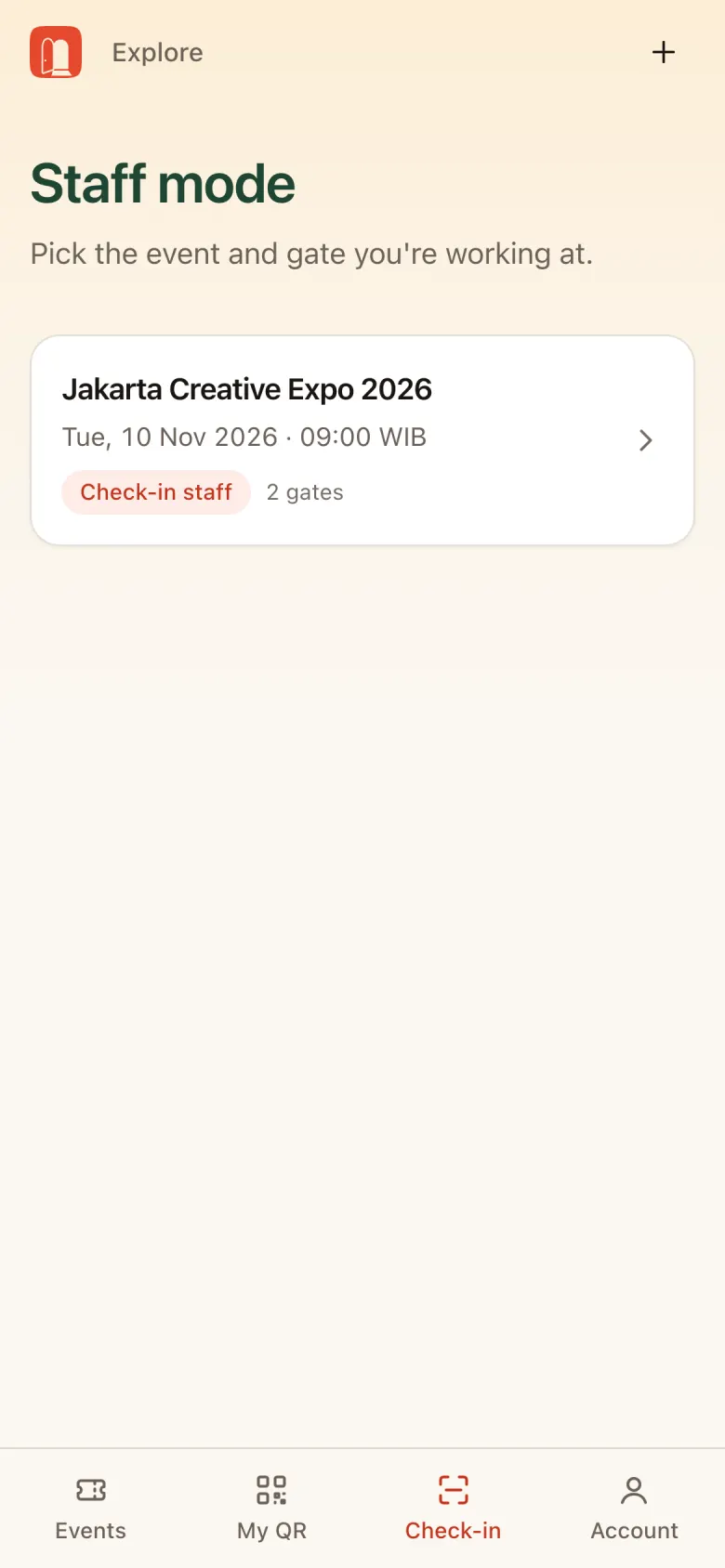
Tap Check-in to open Staff mode, then pick the event you’re working at. Its card shows the Check-in staff label and the number of gates.
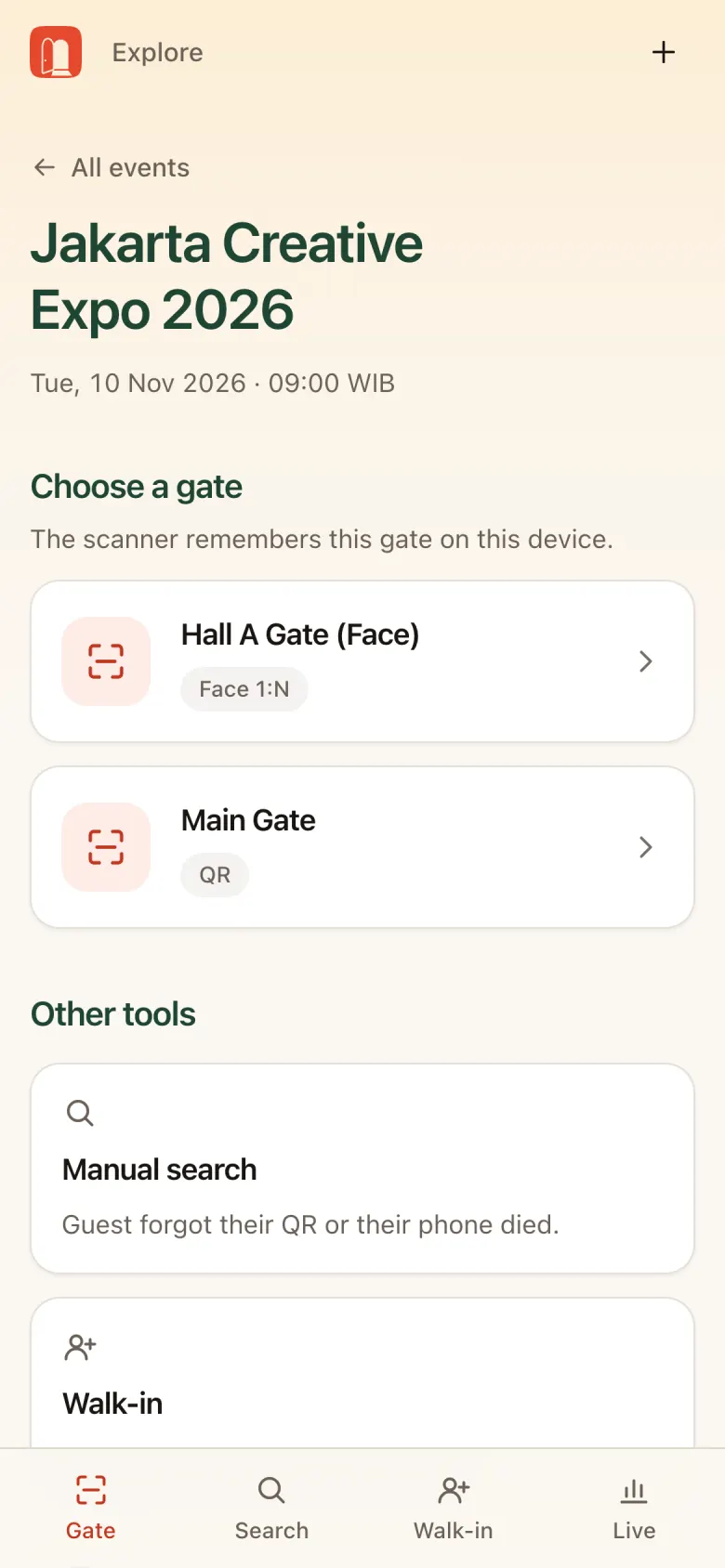
Choose a gate
Pick the gate you’re stationed at. The device remembers this gate, so tomorrow you just open the app and scan.
- QR label: the gate accepts QR scans.
- Face 1:N label: the gate uses face recognition (see Face gate).
- Other tools below: Manual search, Walk-in, Self-registration kiosk, and Live dashboard.
Scanner and device check
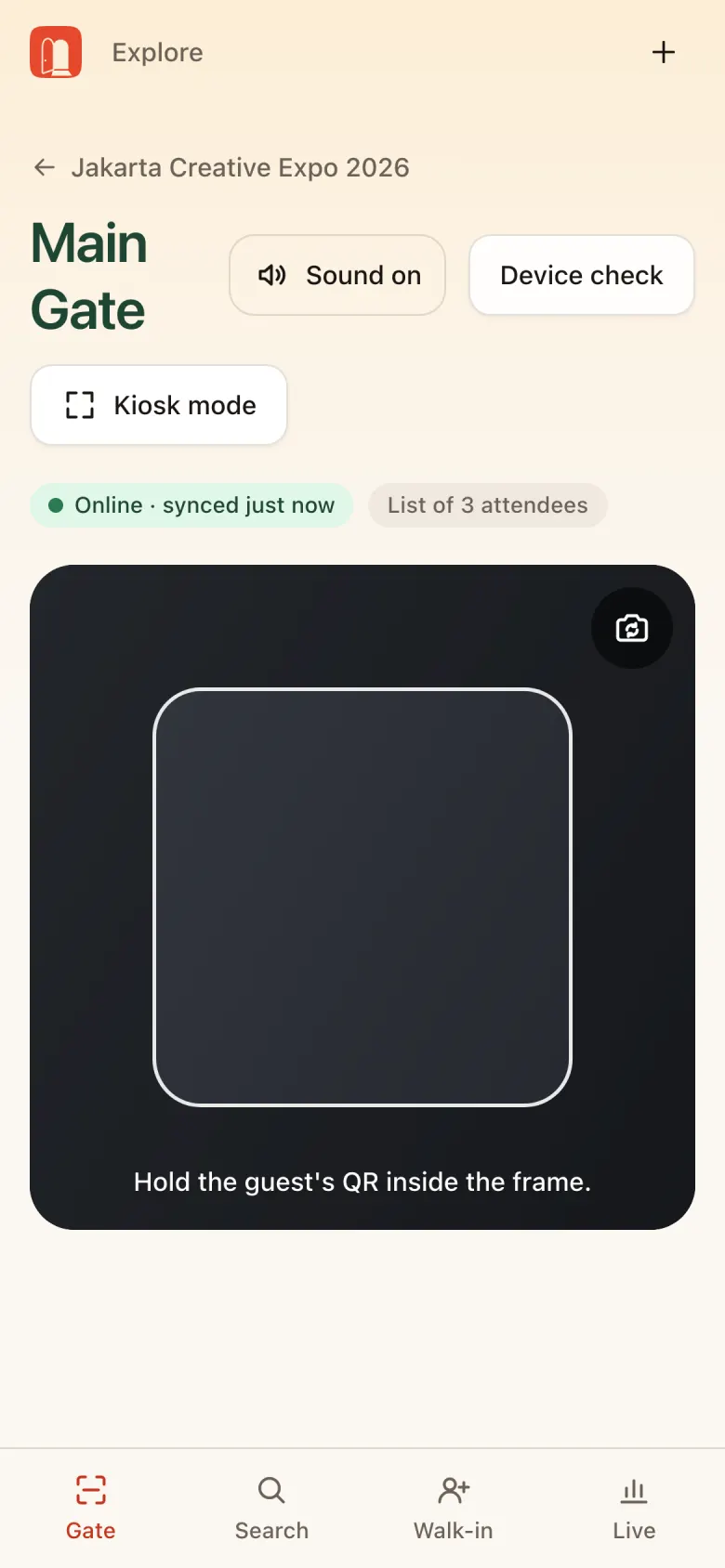
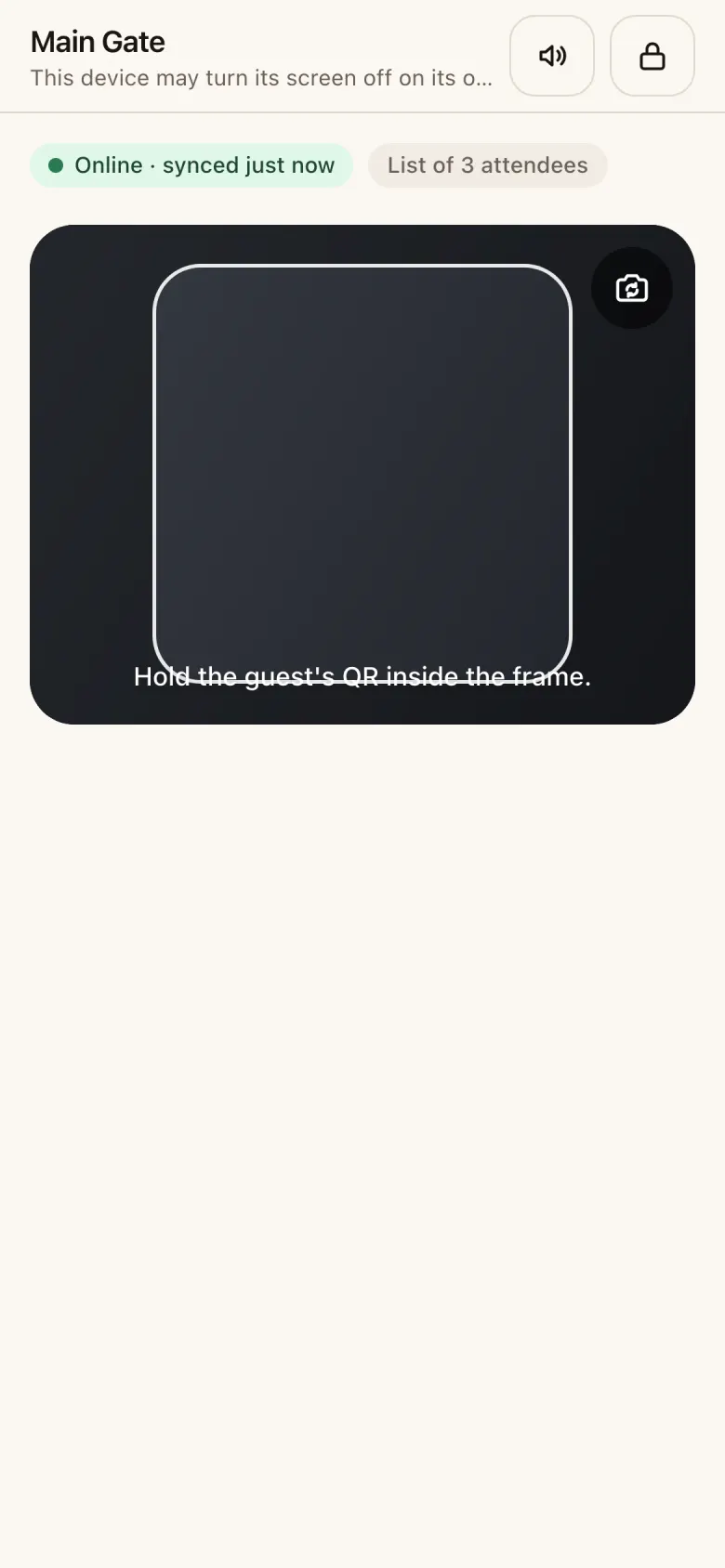
The gate screen shows the camera with a frame. Hold the attendee’s QR inside the frame.
- Online · synced just now: the device is connected to the server.
- List of N attendees: the guest list is on the device, so scanning keeps working if the internet drops.
- Sound on: different sounds for green, yellow, and red results.
- Kiosk mode: locks the screen to the scanner (see Kiosk mode).
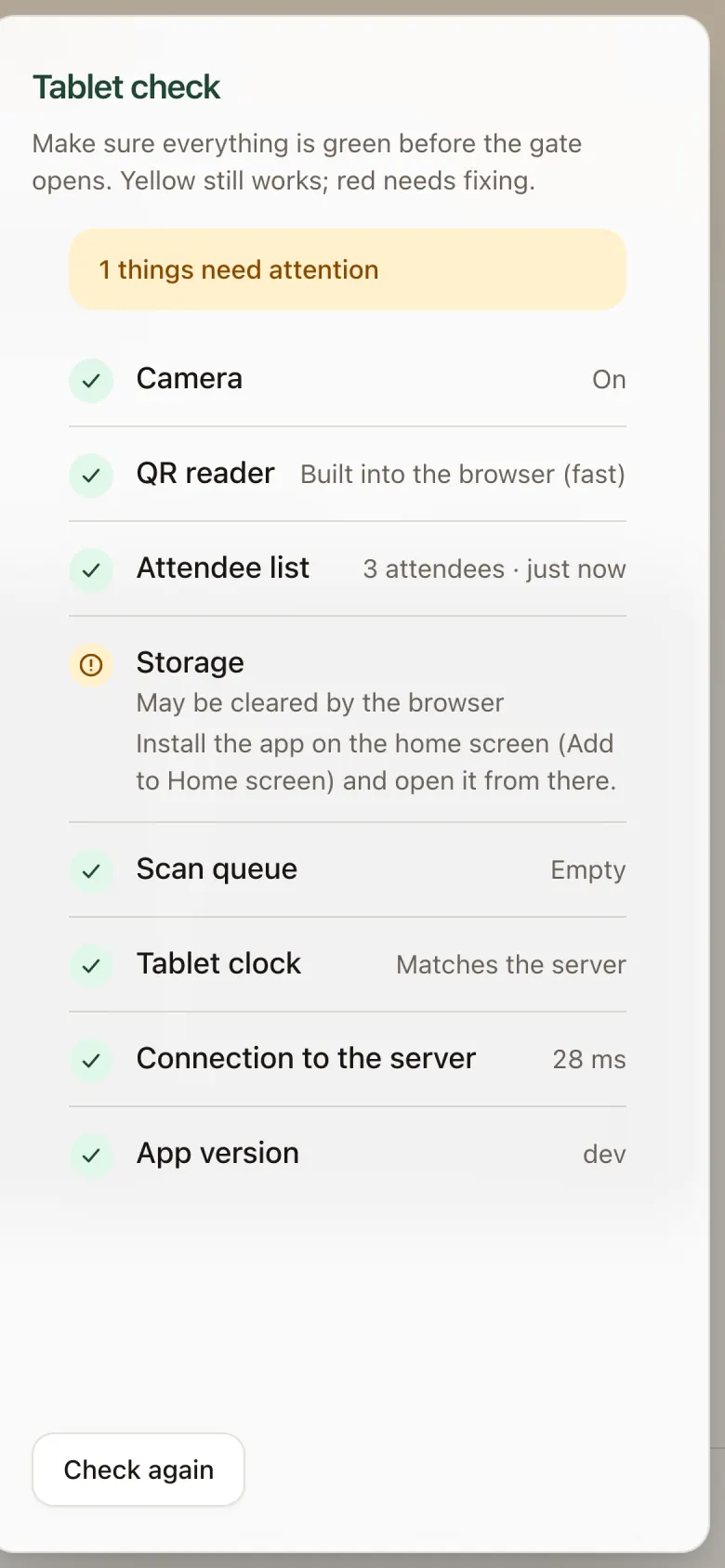
Do this before opening: Before the gate opens, tap Device check. Green is good, yellow still works, red needs fixing.
| Item | Meaning | If there’s a problem |
|---|---|---|
| Camera | Camera is on | Allow the camera in browser settings |
| QR reader | The QR reader is ready | Reload the app |
| Attendee list | The list is downloaded, and when it was last updated | Connect to the internet briefly until it downloads |
| Storage | Data is safe from browser cleanup | Add the app to the home screen and open it from the icon |
| Scan queue | Scans not yet sent to the server | Wait; if it doesn’t go down, check the internet or switch to the backup modem |
| Tablet clock | Device clock matches the server | Turn on automatic date & time |
| Connection to the server | Connection speed | Switch to the backup modem |
| App version | Installed version | Reload to get the latest version |
Reading scan results
Once a QR is read, the screen changes color. The result screen returns to the scanner on its own; tap Keep scanning to go back sooner.
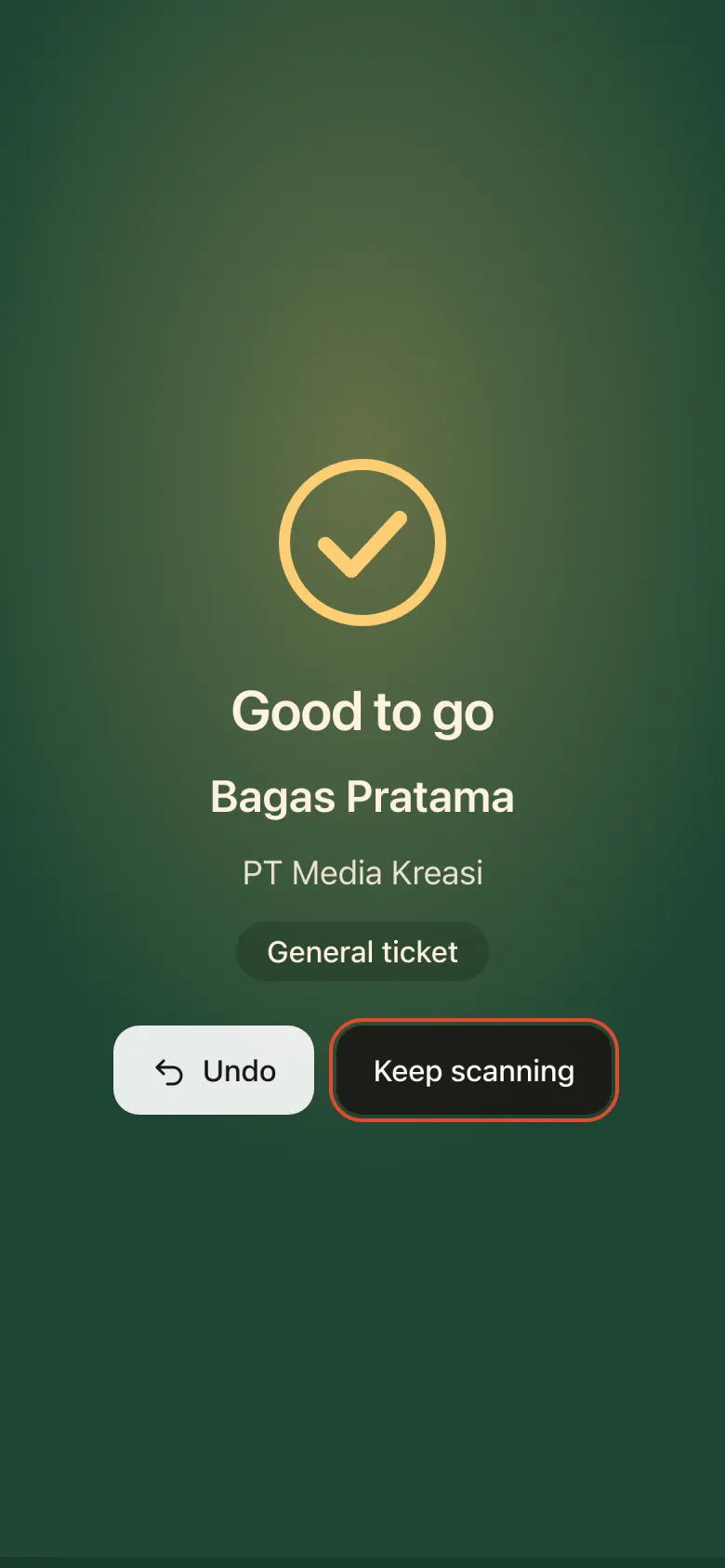
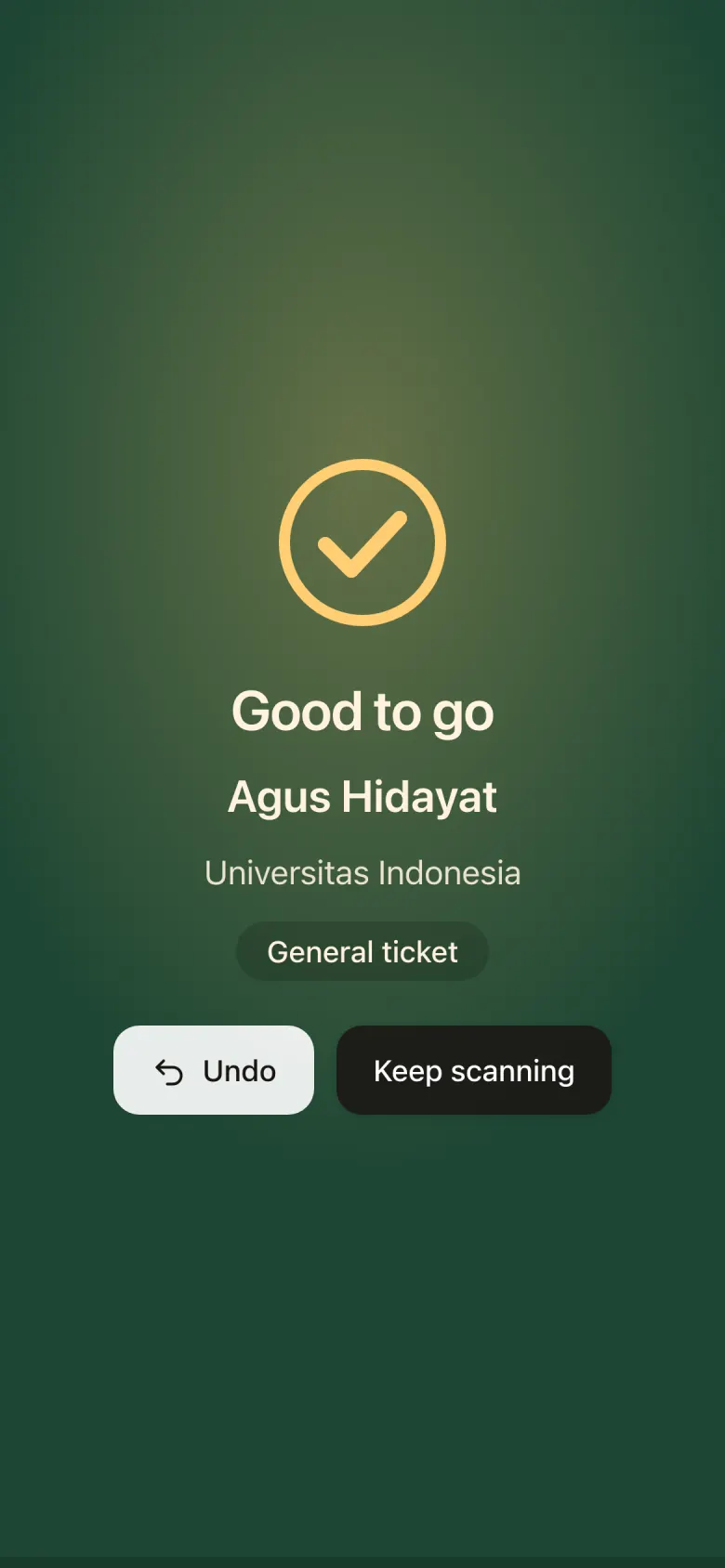
Green: Good to go
Name, organization, and ticket type appear. Let them in.
Wrong person or scanned by accident? Tap Undo.
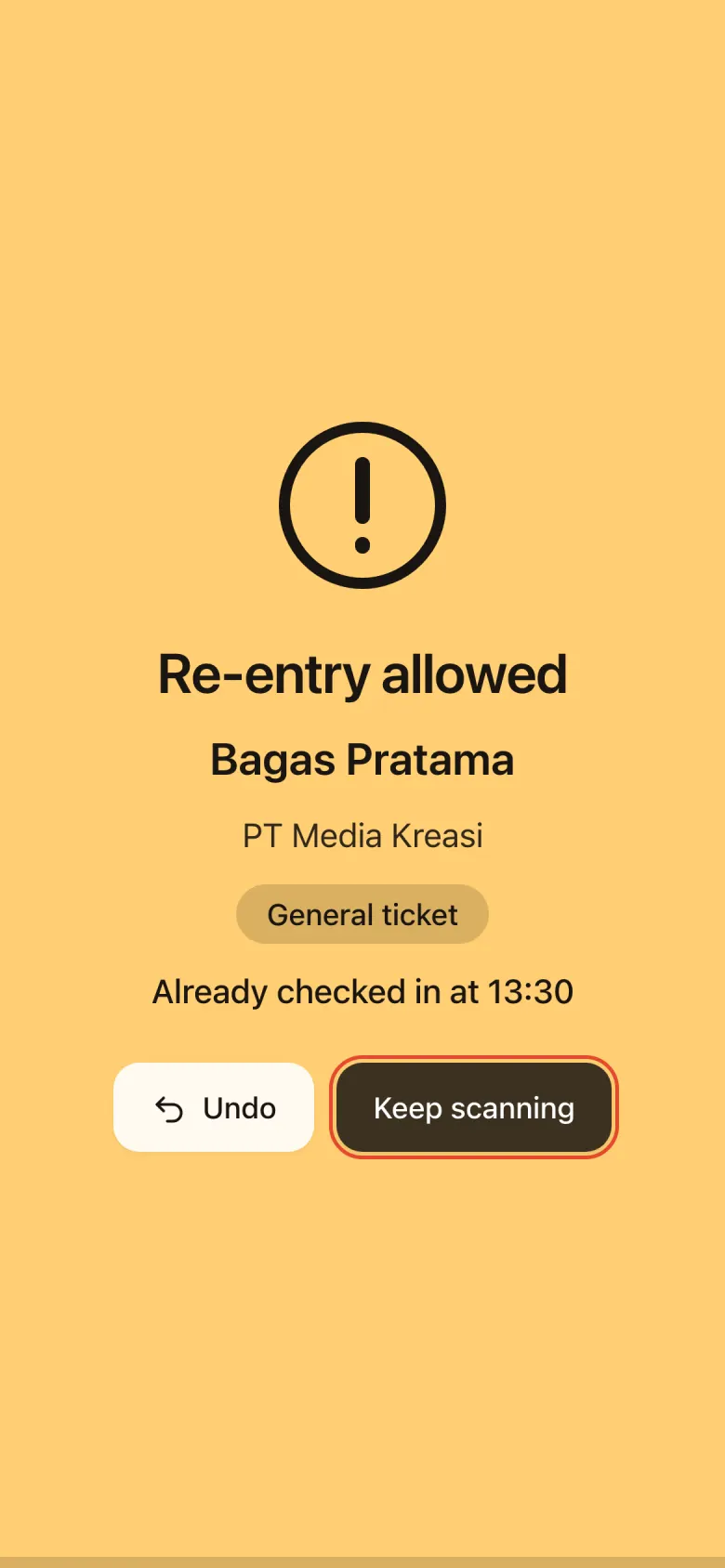
Yellow: Re-entry allowed
The attendee already checked in today (the first check-in time is shown). Usually someone who stepped out and came back. Recorded as “re-entry”.
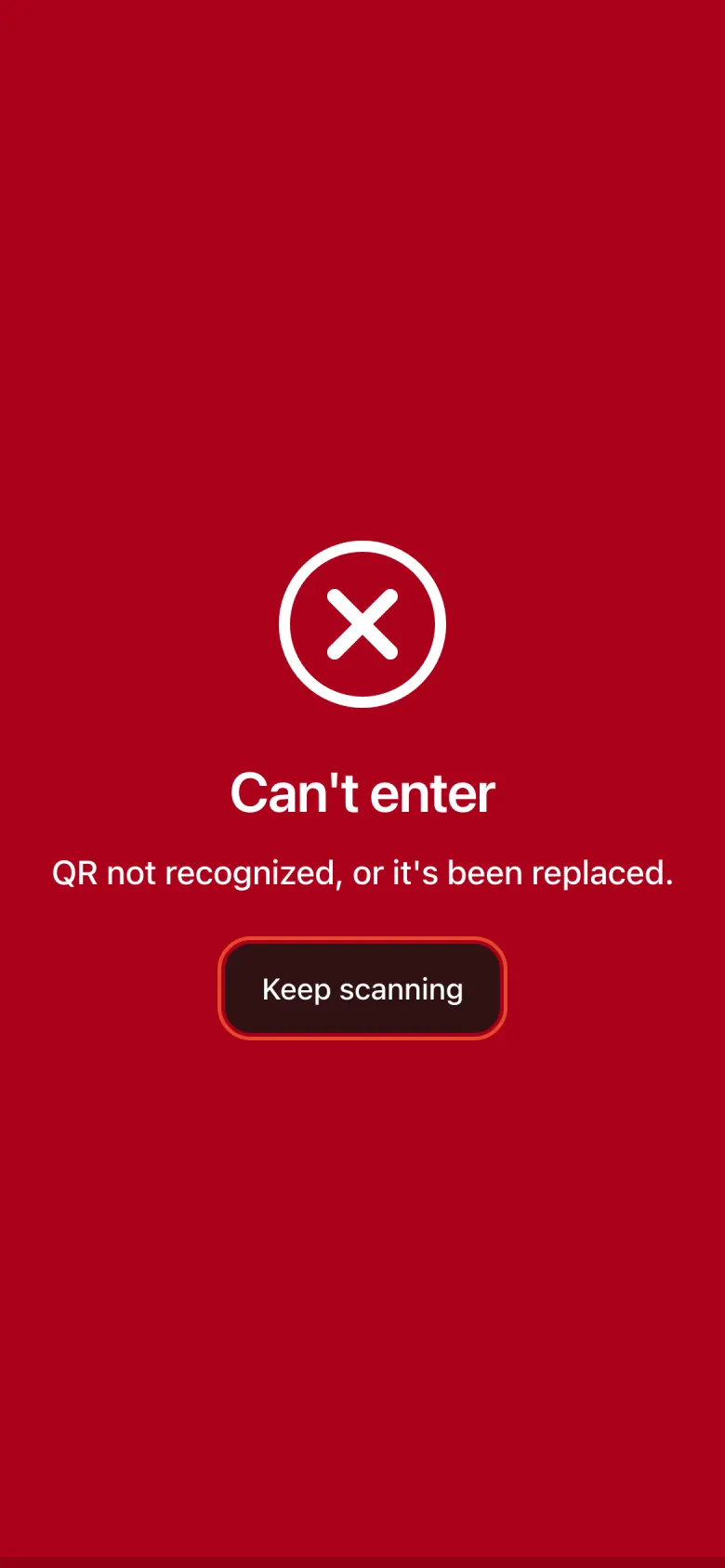
Red: Can’t enter
The reason is always shown on screen. See the table below for the most common ones.
Common red results
| Reason | What to do |
|---|---|
| QR not recognized, or it’s been replaced | A fake QR, or the attendee generated a new one. Ask them to open their latest QR in the app, or use Manual search. |
| Not approved | The registration is still waiting for organizer approval. Send them to the registration desk. |
| Registered for another event | Point them to the right hall. |
| Not on this tablet’s attendee list | Send them to the registration desk. |
Kiosk mode
For a tablet mounted at the gate that attendees scan themselves, tap Kiosk mode. App navigation is hidden so the screen only shows the scanner.
Leave kiosk mode
Press and hold the lock button (Hold to exit kiosk), then confirm Exit.
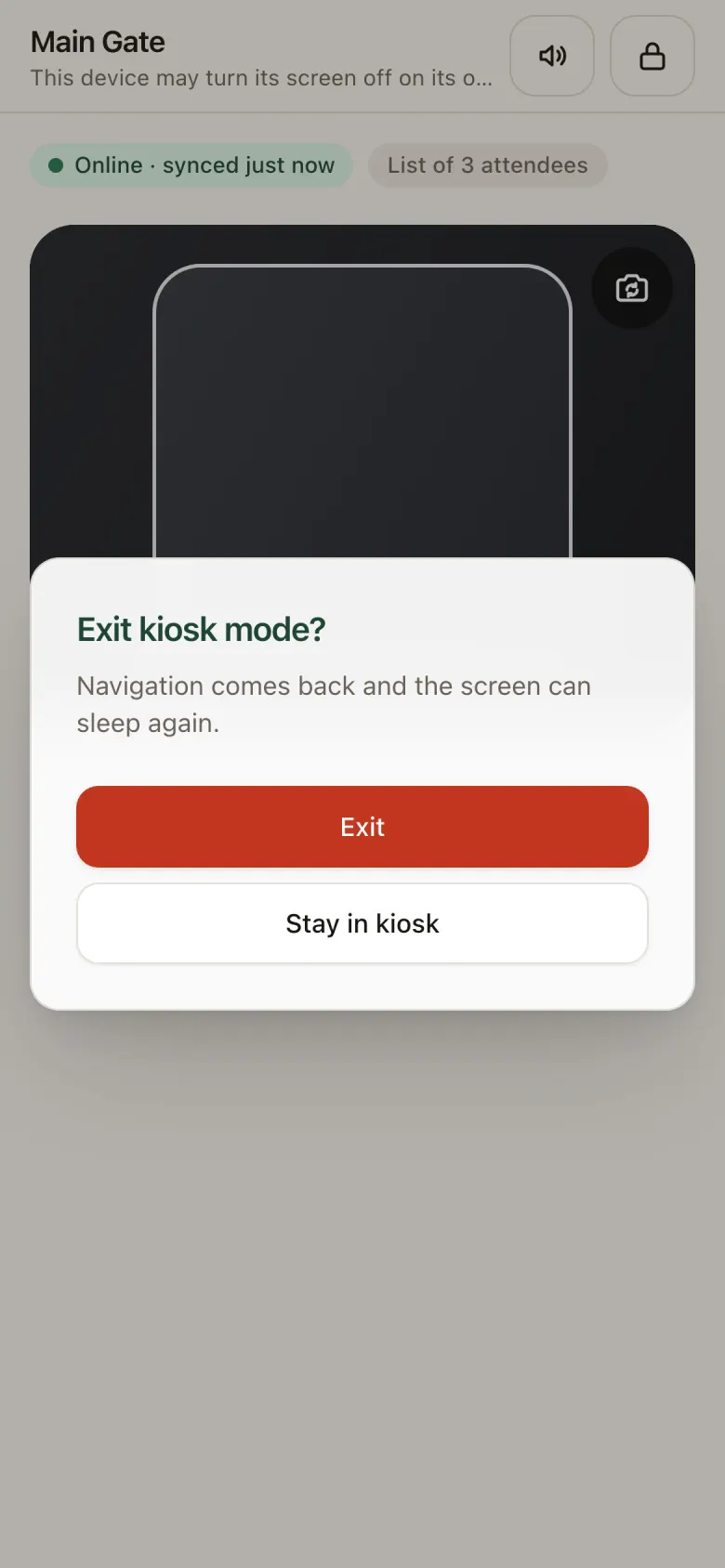
Kiosk PIN: If the organizer set a Kiosk PIN, you’ll need to enter it to leave.
Self-registration kiosk
A tablet at the registration desk can let attendees register themselves. They fill in their details, get a QR by email, and are checked in right away.
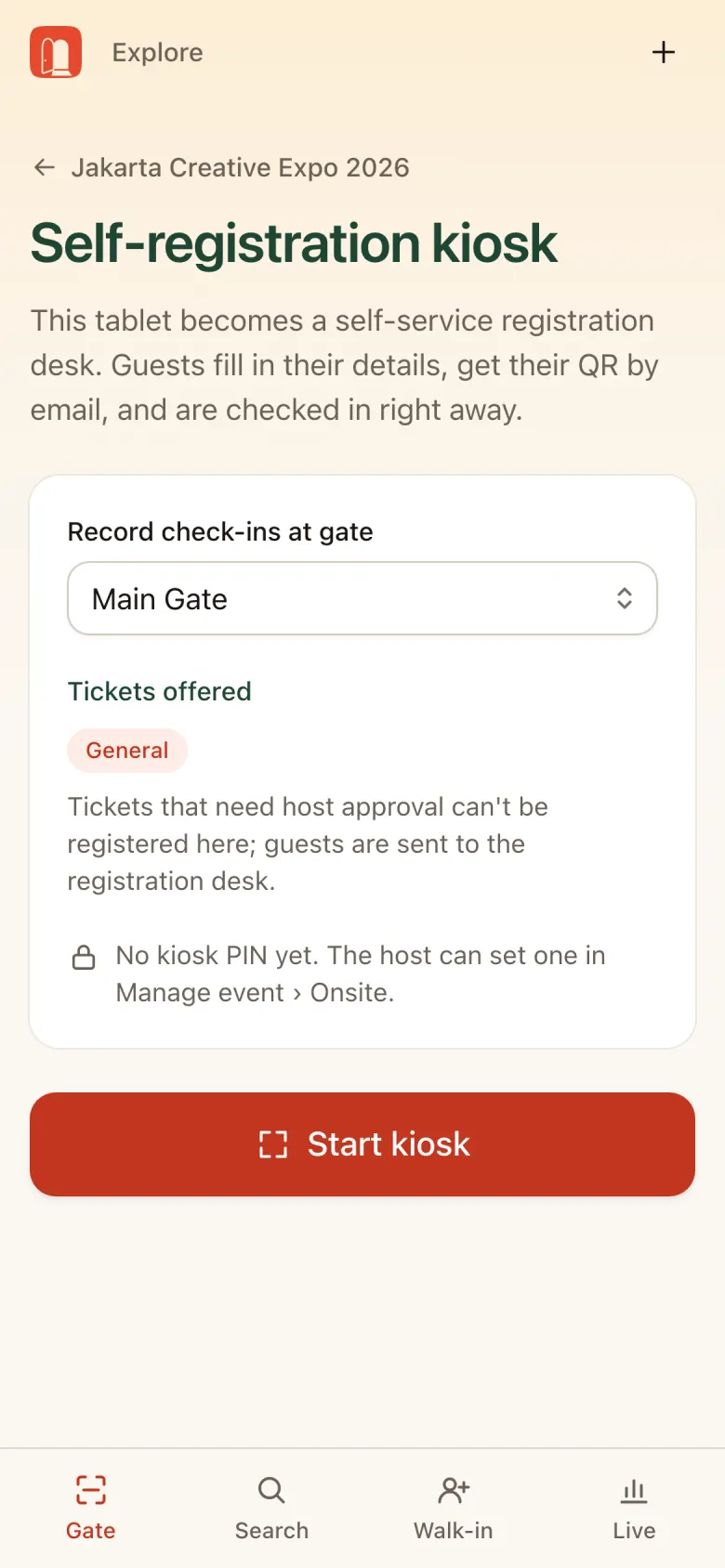
- Open the kiosk: from Choose a gate → Other tools → Self-registration kiosk.
- Pick the gate where check-ins are recorded. The tickets offered are listed below. Tickets that need host approval are refused and the attendee is sent to the registration desk.
- Tap Start kiosk. Leaving it requires the kiosk PIN, if the organizer set one.
Manual search
For attendees whose phone is dead, who forgot their QR, or whose QR won’t scan.
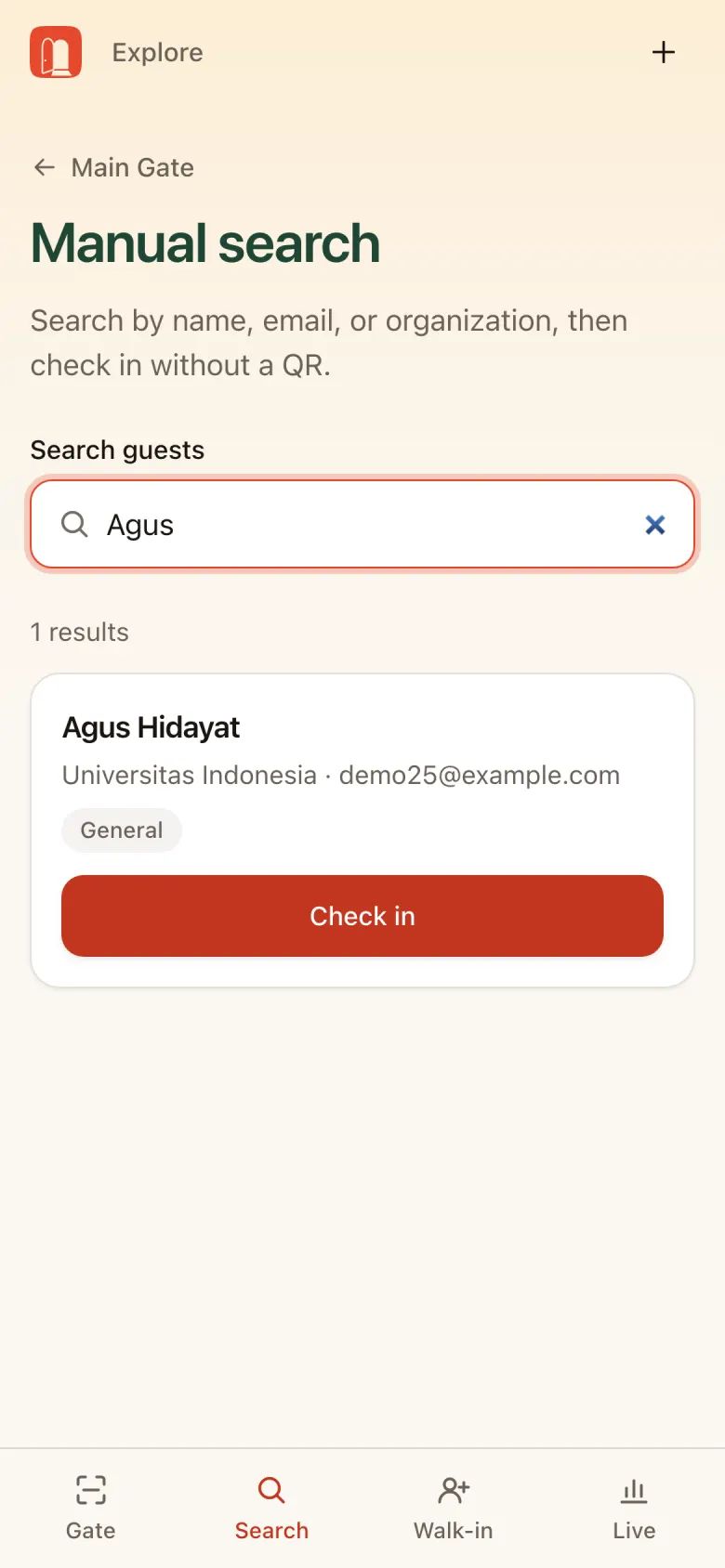
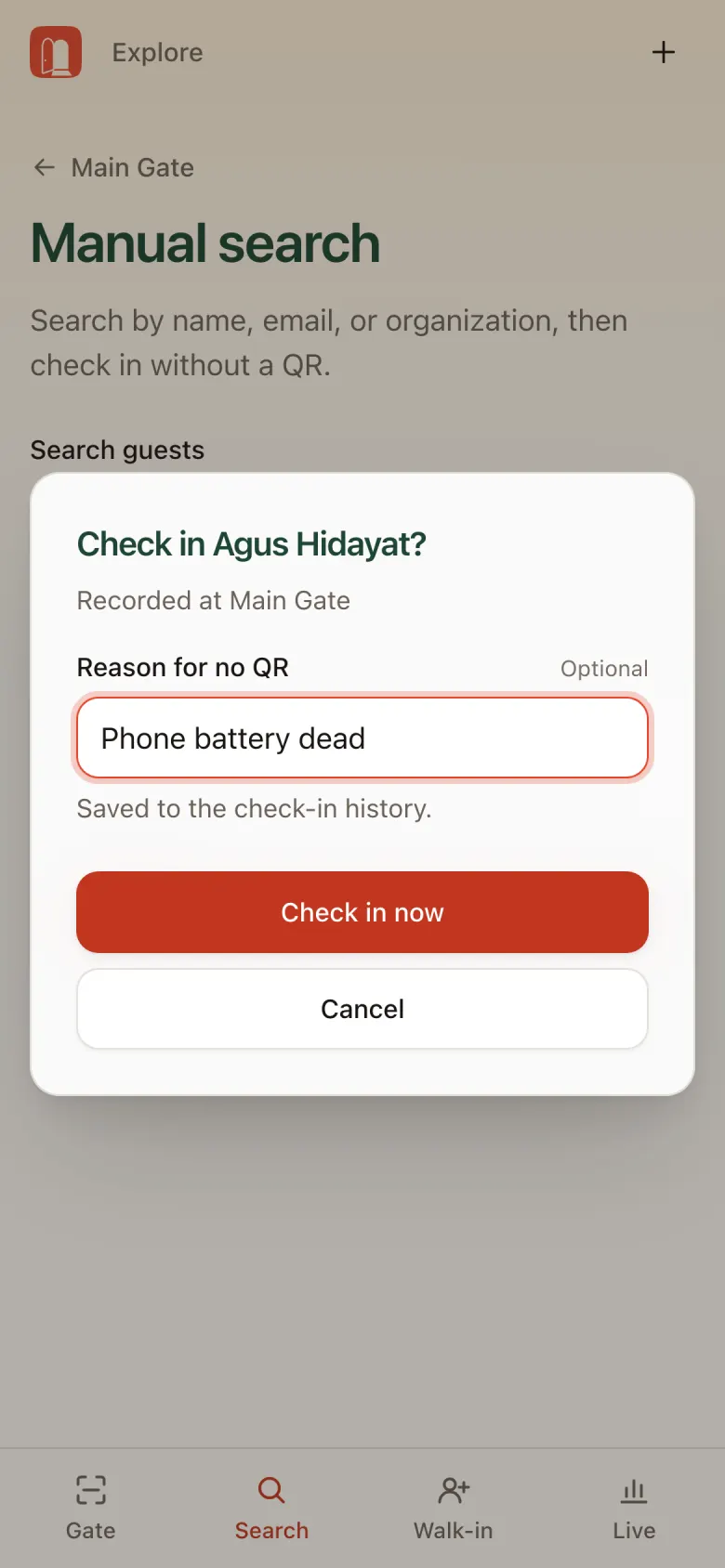
- Open the Search tab.
- Find the attendee: type at least 2 letters of their name, email, or organization.
- Confirm who they are: ask their organization or check an ID, then tap Check in.
- Confirm: fill in Reason for no QR (optional, for example “Phone battery dead”), then tap Check in now. It’s saved in the check-in history.
A green result appears, just like a normal scan.
Attendee status: Statuses you may see in search results:
- Checked in today
- Not approved
- Pending
- Waitlisted
Walk-in
For people who show up without registering.
- Open the Walk-in tab.
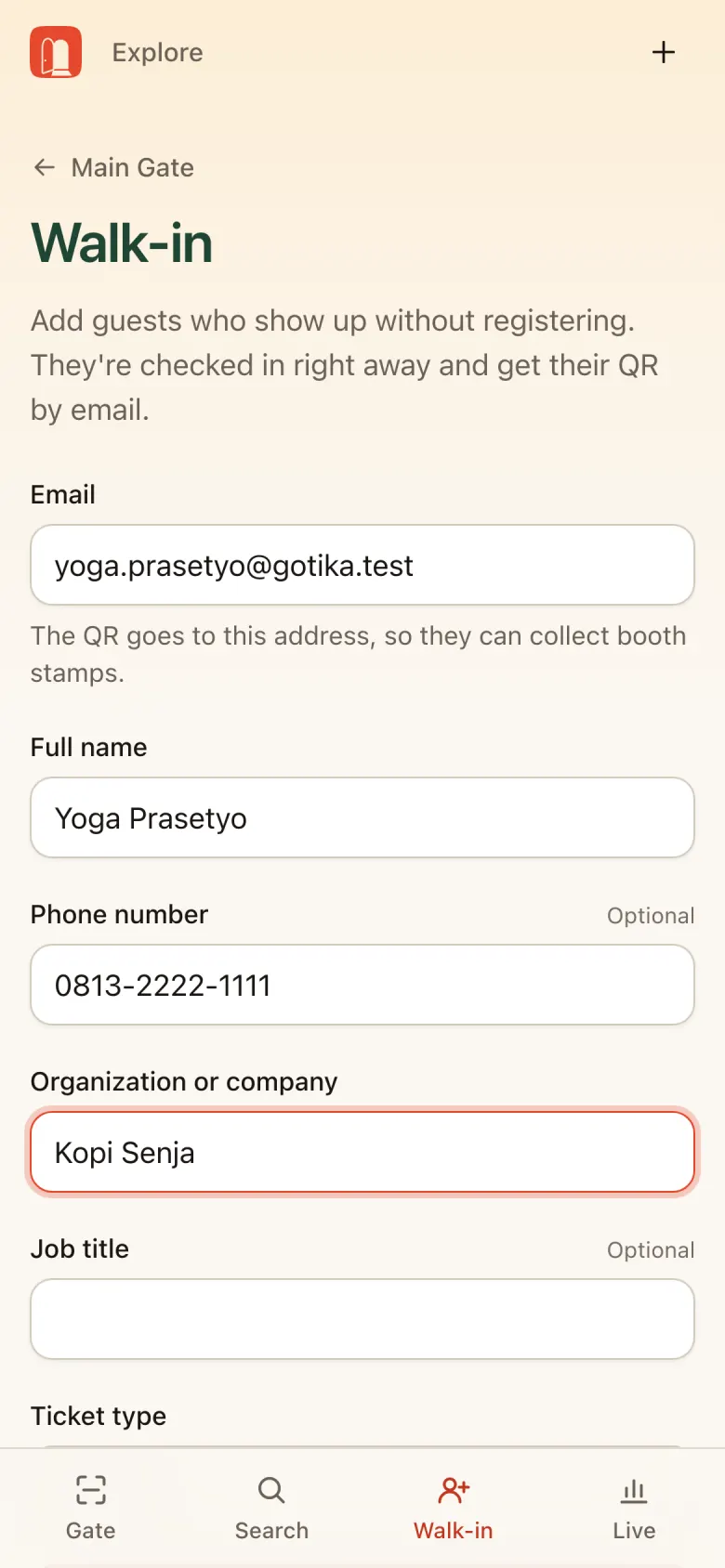
- Fill in their details: Email (the QR goes here so they can collect booth stamps), Full name, Organization or company, and pick a Ticket type. Phone number and Job title are optional.
- Tap Register and check in. The attendee is checked in right away and gets an email with their QR.
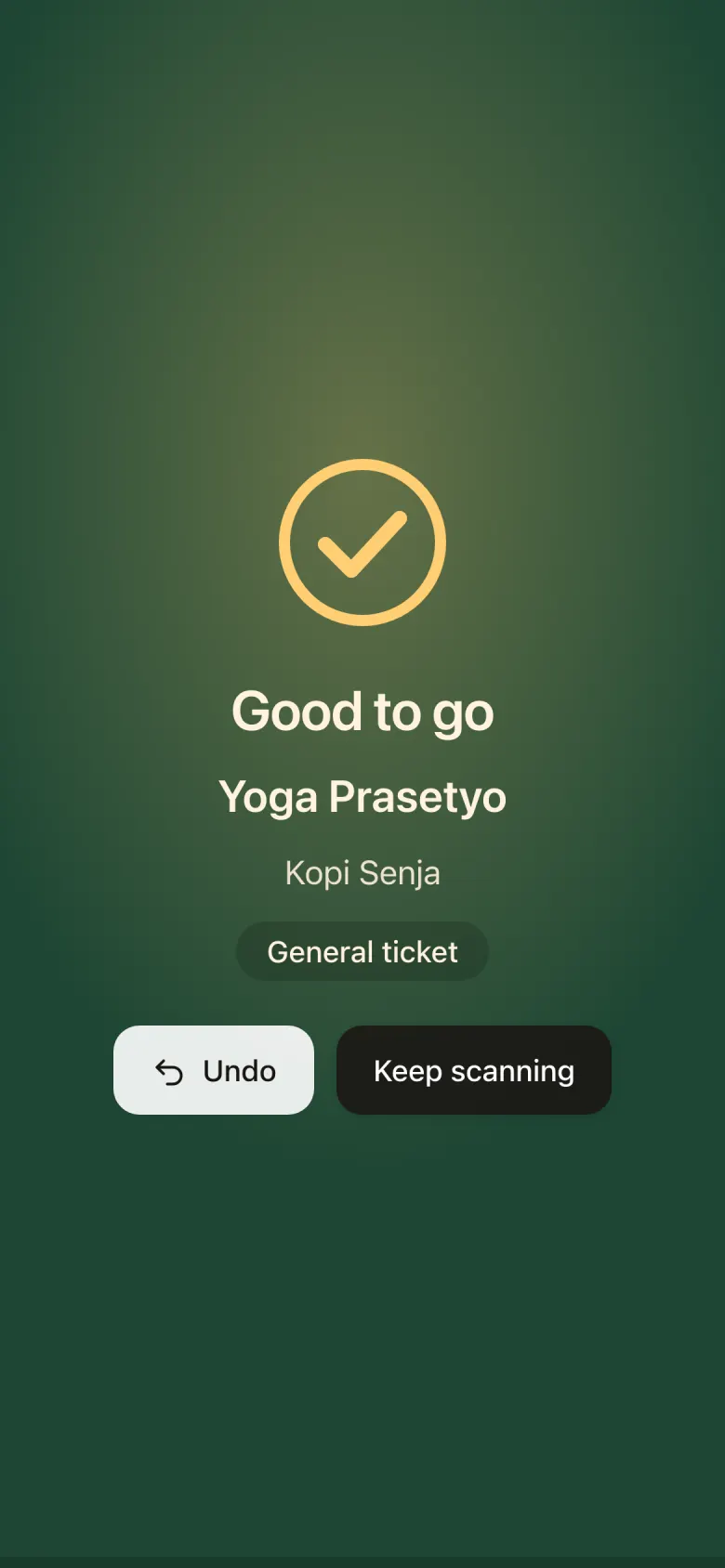
Good to know: Walk-in needs internet. While offline the gate can still scan QR codes; register walk-ins once the device is back online.
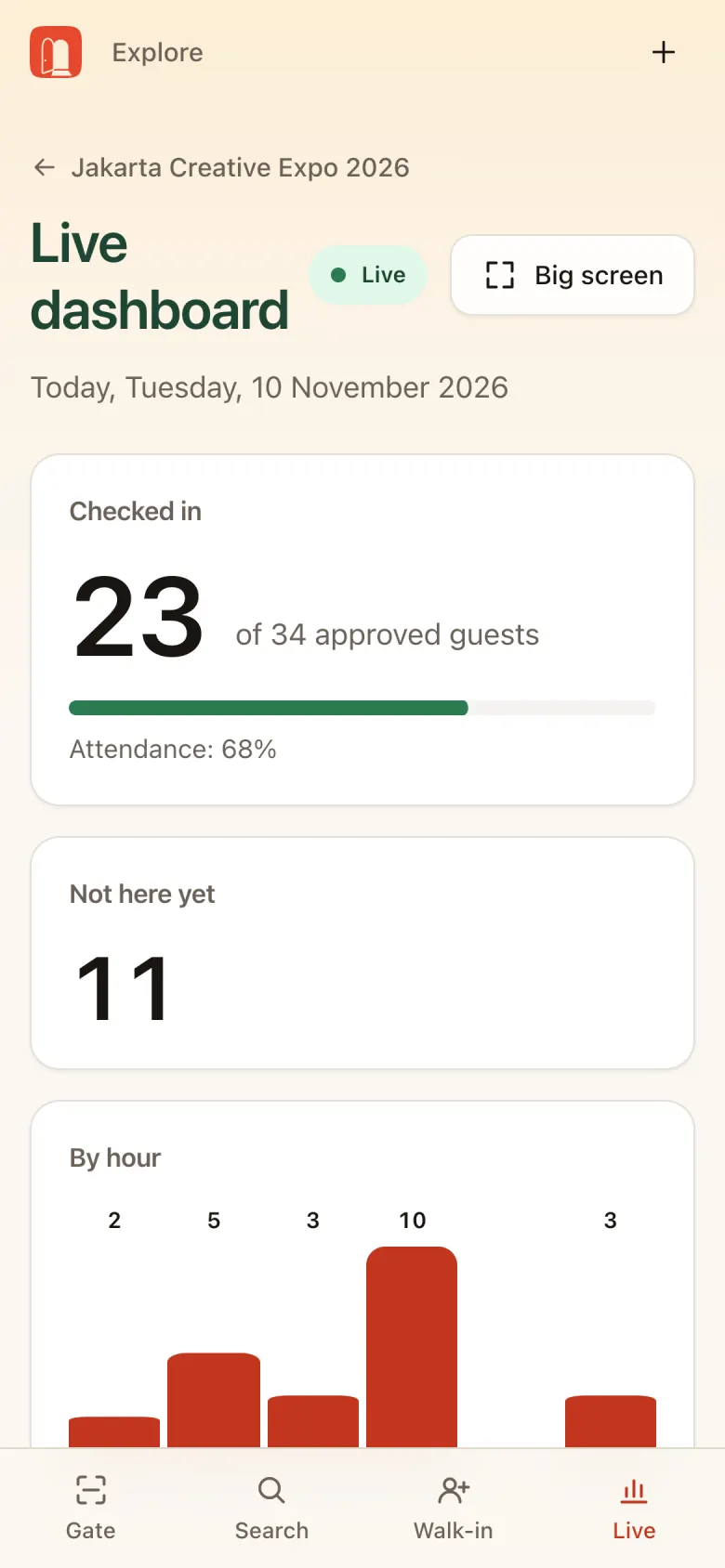
Live dashboard
The Live tab shows today’s attendance as it happens, no reload needed.
- Checked in out of all approved guests, plus attendance rate
- Not here yet and a check-in chart by hour
- Recent check-ins: name, time, gate, and method (QR, Manual, Walk-in, Face)
- By gate and By method
- Devices: status of each gate tablet. Not heard from or Old list means that tablet needs a look.
Tap Big screen to show it on a TV or monitor.
Face gate
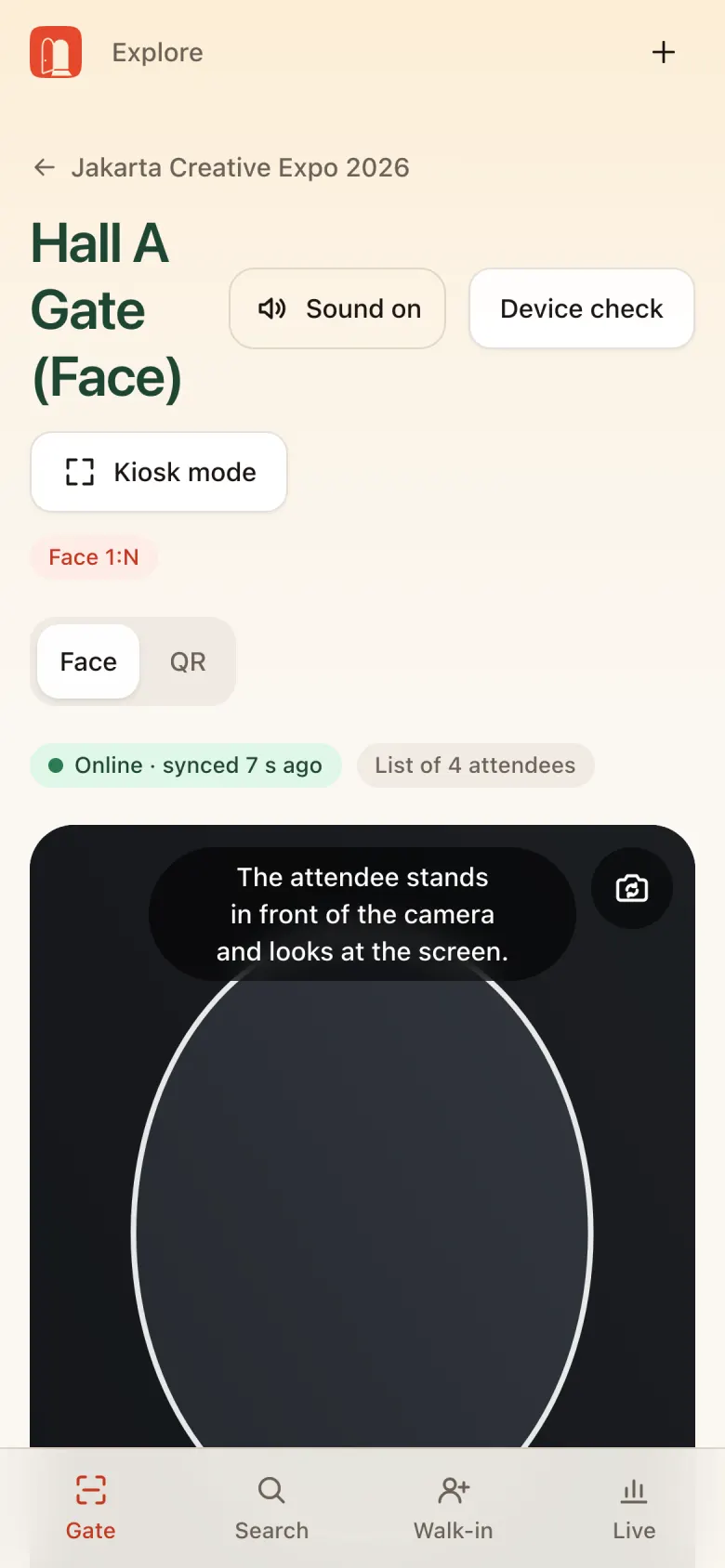
At a gate labelled Face 1:N, attendees just stand in front of the camera and look at the screen. The system matches their face with attendees who registered their face.
- The Face / QR toggle switches to QR scanning any time.
- Attendees who haven’t registered their face still get in with their QR.
- Face not recognized after a few tries? Choose Let in with QR or cancel.
Good to know: Face check-in needs internet. While offline, use QR.
Troubleshooting
| Problem | What to do |
|---|---|
| Status Offline | QR scanning keeps working from the list on the device and scans are queued. The queue sends automatically once online. Don’t sign out or clear browser data. |
| “The attendee list isn’t on this tablet yet” | Connect to the internet briefly until the List of N attendees label appears. |
| “A check-in was refused by the server” | Open the gate screen and check the list below the scanner. Usually attendees who turned out not to be approved. |
| “Your session ended” | Tap Sign in again. Pending scans are sent after signing in. |
| QR won’t scan | Ask the attendee to turn up brightness, move the phone closer or farther, or use Manual search. |
| Black camera / “Couldn’t start the camera.” | Tap Try again, allow the camera in browser settings, or close other apps using the camera. |
| Scan queue isn’t going down | Check the internet, switch to the backup modem, then tell your coordinator. |
See you on the day:
- Sign in and run the device check before the gate opens.
- Green: in. Yellow: re-entry. Red: read the reason.
- No QR? Use Manual search.
- Not registered? Use Walk-in.